คู่มือการใช้งานUser manual
Arxon Edge Journal v1.1.0
บันทึกเทรดสำหรับ MetaTrader 5: นำเข้า MT5 Report หรือเชื่อมบัญชีอัตโนมัติ แล้วอ่านการเทรดของตัวเองให้ออก ได้เท่าไร มาจากไหน และนิสัยแบบไหนที่ทำให้เสียเงิน คู่มือนี้อธิบายทุกหน้าของ Journal ตามลำดับเมนู ภาพทุกภาพมาจากข้อมูลตัวอย่างของ Journal เอง เปิดไปที่ journal.arxonedge.com แล้วทำตามไปพร้อมกันได้A trading journal for MetaTrader 5: import your MT5 report or link the account, then read your own trading: how much, where it came from, and which habits cost money. This manual goes through every page of the journal in menu order; every picture comes from the journal’s own sample. Open journal.arxonedge.com and follow along.
ส่วนที่ 1Part 1
เริ่มต้นใช้งานGetting started
1เข้าสู่ระบบและข้อมูลตัวอย่างSigning in and the sample
Journal ใช้บัญชีเดียวกับ arxonedge.com หน้าเข้าสู่ระบบเหมือนของเว็บหลัก: Google, Passkey (passkey ที่สร้างไว้บน arxonedge.com ใช้ได้ทันที กดแล้วเข้าได้เลยโดยไม่ต้องกรอกรหัสยืนยันต่อ ปุ่มนี้ไม่แสดงบนเบราว์เซอร์ที่ไม่รองรับ) หรืออีเมลและรหัสผ่าน ถ้าเปิดการยืนยันตัวตนสองขั้นตอนไว้ ให้ใส่รหัส 6 หลักจาก SMS หรือแอปยืนยันตัวตน ข้อมูลเก็บไว้ในบัญชีของคุณ จึงเปิดได้ทุกเครื่อง ครั้งแรกที่เปิด Journal จะขอให้อ่านและยอมรับข้อตกลงการใช้งานThe journal uses your arxonedge.com account, with the same sign-in page as the website: Google, a Passkey (one made on arxonedge.com works straight away and signs you in with no further code; the button does not show on browsers that do not support passkeys), or your email and password. With two-step sign-in on, enter the 6-digit code from SMS or your authenticator app. Your journal is kept in your account, so it opens on any device. The first time, it asks you to read and accept its terms.
ปุ่มกลมรูปบ้านทางซ้ายของปุ่มสมาชิก มุมขวาบน (และรายการแรกในเมนูบัญชี) พากลับหน้าแรกของ arxonedge.com ตามภาษาที่เลือกในแอป ส่วน จัดการ passkey ในเมนูบัญชีเปิดหน้าความปลอดภัยของเว็บหลักในแท็บใหม่ สร้างหรือลบ passkey ได้ที่นั่นThe round home button left of the member button, top right (and the first item in the account menu), takes you back to the arxonedge.com home page in the app’s language. Manage passkeys in the account menu opens the website’s security page in a new tab; passkeys are made and removed there.
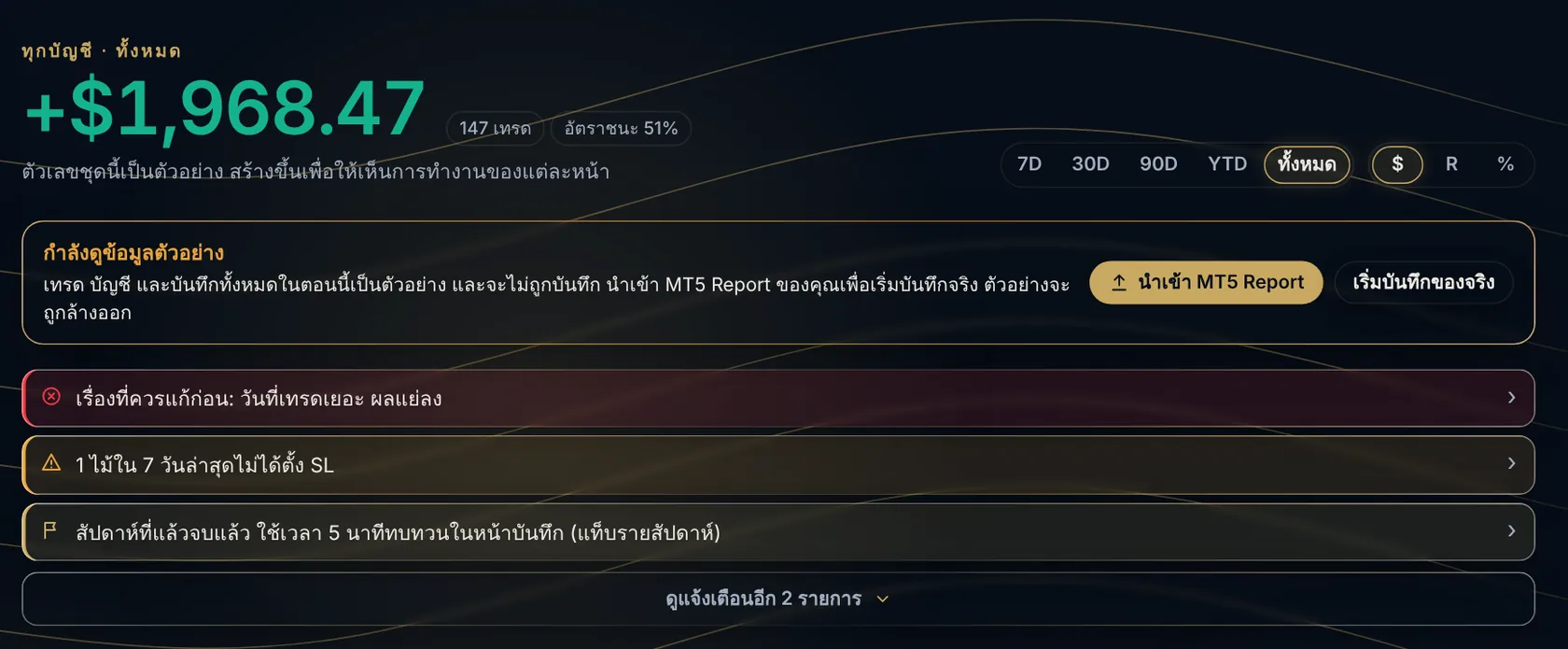
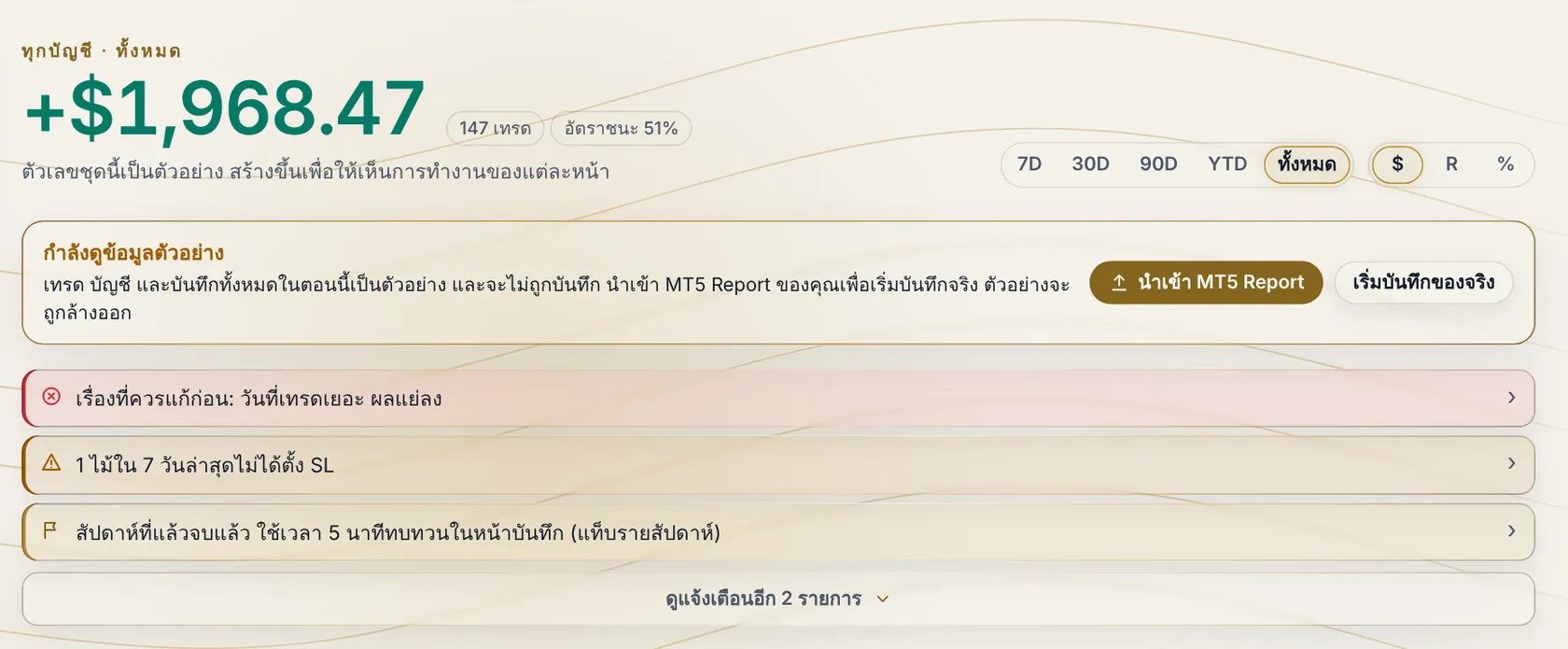
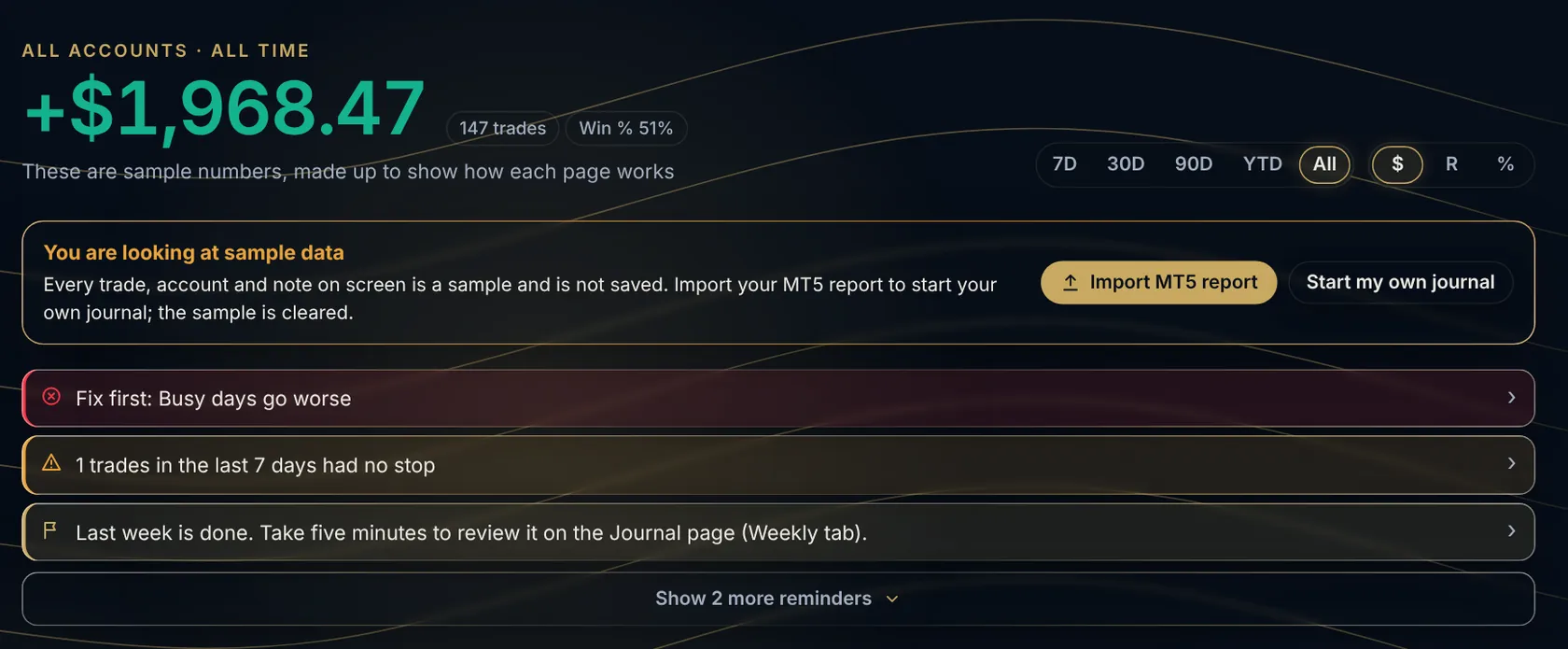
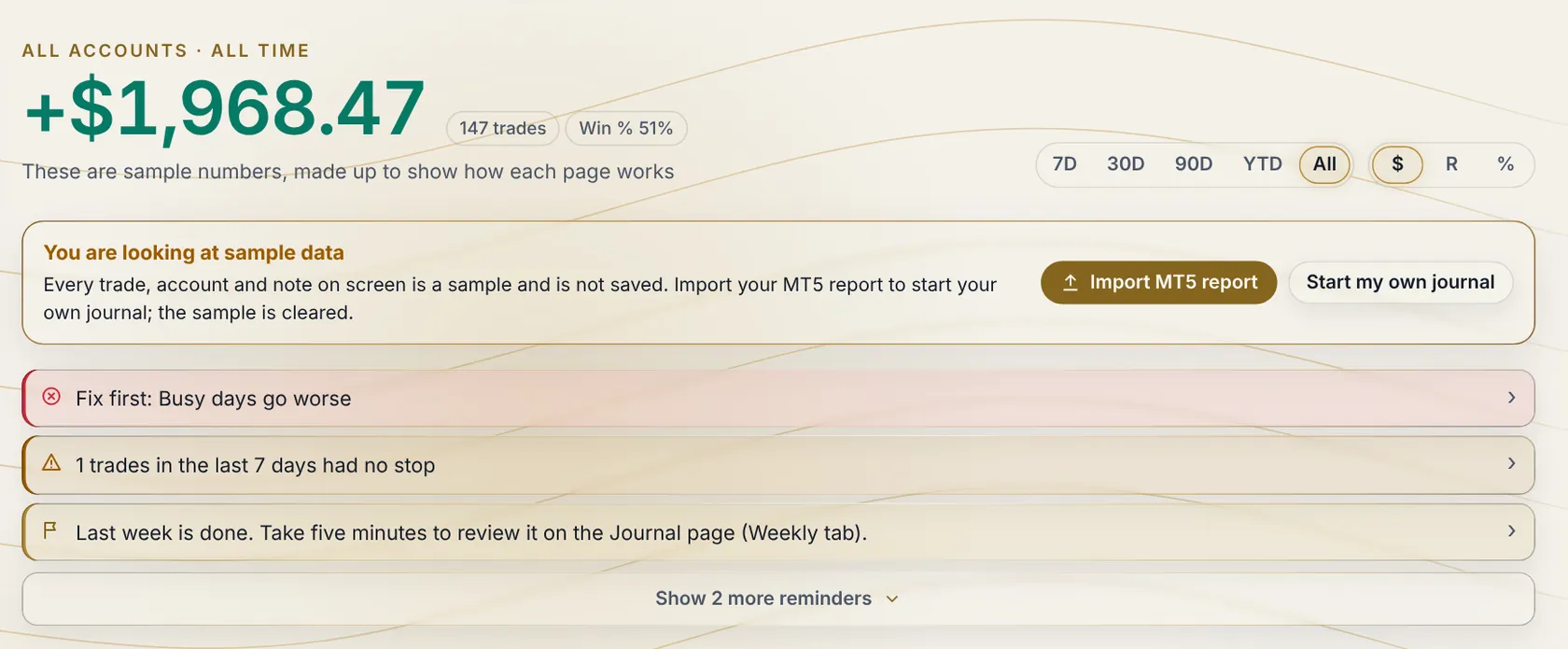
ก่อนมีข้อมูลของตัวเอง ทุกหน้าจะแสดงข้อมูลตัวอย่าง: สองบัญชี (บัญชีจริงกับ Prop) และเทรดที่สร้างขึ้นเพื่อให้เห็นการทำงานของแต่ละหน้า มีป้าย ตัวอย่าง · ไม่บันทึก กำกับ อะไรที่ลองแก้ในโหมดนี้จะไม่ถูกเก็บ พอนำเข้าไฟล์ของคุณหรือกด เริ่มบันทึกของจริง ตัวอย่างจะถูกล้างออก ภาพทุกภาพในคู่มือนี้มาจากข้อมูลตัวอย่างชุดนี้Until you add your own data every page shows a sample: two accounts (live and prop) with made-up trades, so you can see how each page works. It is marked Sample · not saved; nothing you change in it is kept. Import your own file or press Start my own journal and the sample is cleared. Every picture in this manual comes from that sample.
2สามทางให้เทรดเข้ามาThree ways in
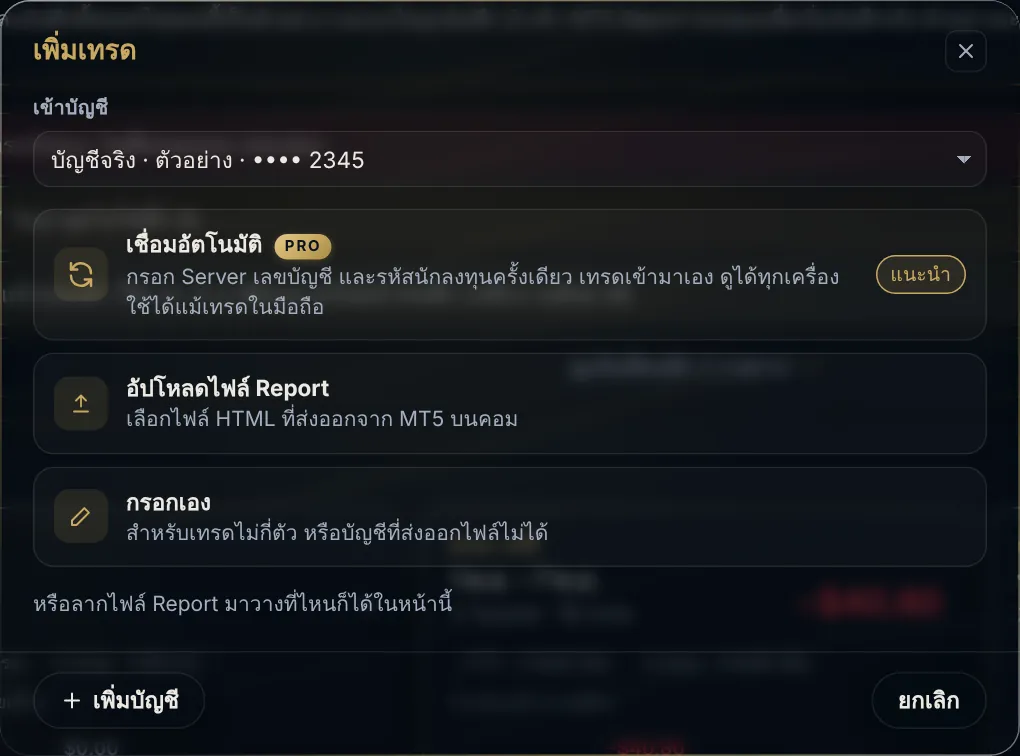
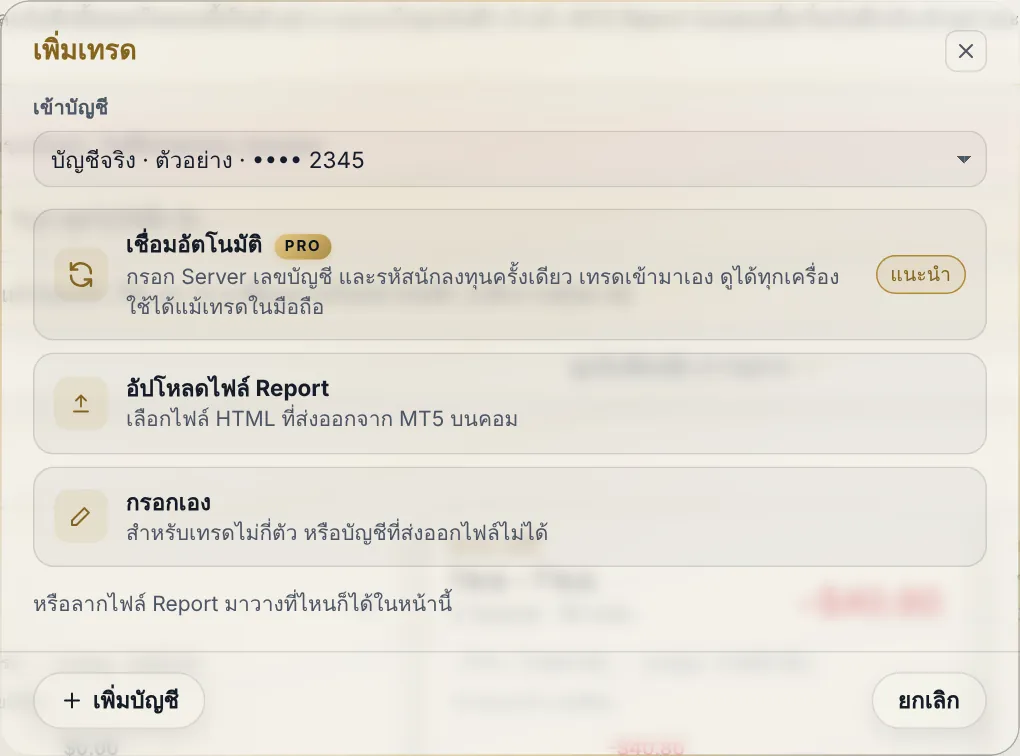
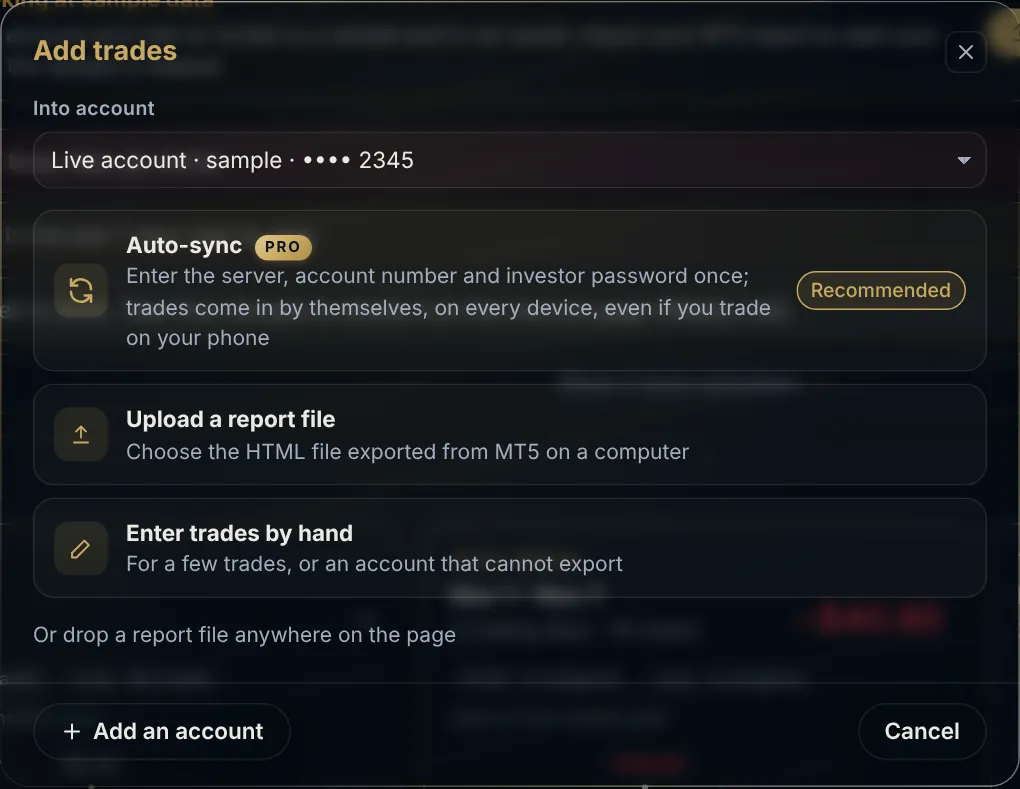
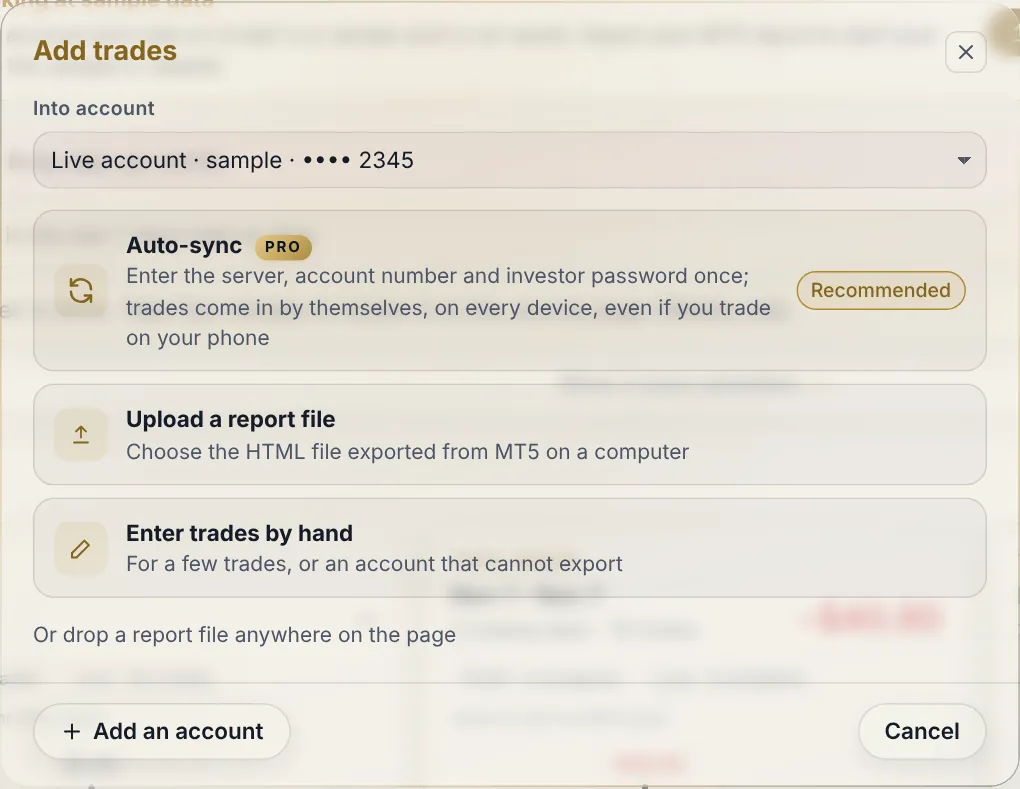
กด + เพิ่มเทรด ที่แถบซ้าย หรือ เพิ่มบัญชี ในหน้าบัญชีและนำเข้า แล้วเลือกวิธีที่เหมาะกับบัญชีนั้นPress + Add trades in the side rail, or Add an account on Accounts & import, and pick the way that suits the account.
- อัปโหลดไฟล์ Report: ส่งออก HTML จากแท็บ History ใน MT5 บนคอมพิวเตอร์ แล้วนำเข้า ใช้ได้กับทุกโบรกเกอร์และบัญชี Prop ทุกแพ็กเกจUpload a report file: export HTML from the History tab in MT5 on a computer and import it; works with every broker and prop account, on every plan
- เชื่อมอัตโนมัติ (Journal Pro): ใส่ Server เลขบัญชี และรหัสนักลงทุนครั้งเดียว เทรดจะเข้ามาเอง ทุกเครื่อง แม้เทรดผ่านมือถือ ดูหัวข้อ Journal ProAuto-sync (Journal Pro): enter the server, account number and investor password once; trades come in by themselves, on every device, even if you trade on your phone. See Journal Pro
- กรอกเอง: สำหรับไม่กี่เทรด หรือบัญชีที่ส่งออกไฟล์ไม่ได้Enter trades by hand: for a few trades, or an account that cannot export
3ส่งออก MT5 ReportExporting the MT5 report
- เปิดแท็บ HistoryOpen History
ใน MT5 บนคอมพิวเตอร์ เปิดแท็บ History ของ Toolbox (Ctrl+T)In MT5 on a computer, open the History tab of the Toolbox (Ctrl+T)
- เลือกช่วงและ PositionsPeriod and Positions
คลิกขวา เลือกช่วงเวลา (เช่น All History) และให้แสดง PositionsRight-click, choose the period (for example All History) and show Positions
- บันทึกเป็น HTMLSave as HTML
คลิกขวาอีกครั้ง เลือก Report → HTML แล้วบันทึกไฟล์Right-click again, choose Report → HTML and save the file
- นำเข้าใน JournalImport it
ลากไฟล์มาวางที่ไหนก็ได้ในหน้า หรือกดเลือกไฟล์ แล้วตรวจตัวเลขก่อนกดนำเข้าDrop the file anywhere on the page, or choose it, and check the numbers before importing
ต้องใช้ MT5 บนคอมพิวเตอร์ แอป MT5 บนมือถือส่งออกได้แค่ PDF ซึ่งยังนำเข้าไม่ได้ ตัวอ่านไฟล์อิงรูปแบบรายงานภาษาอังกฤษของ MT5This needs MT5 on a computer; the MT5 phone app only makes a PDF report, which cannot be imported yet. The reader follows MT5’s English report layout.
4ก่อนกดนำเข้าBefore you press Import
ไฟล์ถูกอ่านในเบราว์เซอร์ของคุณ หน้าตรวจจะแสดงชื่อบัญชีจากหัวรายงาน จำนวนเทรดในไฟล์ เทรดใหม่ อัปเดต และที่มีอยู่แล้ว ช่วงวันที่ปิด และผลตรวจยอดรวมสองชั้นThe file is read in your browser. The check shows the account from the report header, how many trades are in the file, new, updated and already in, the dates they closed, and two total checks.
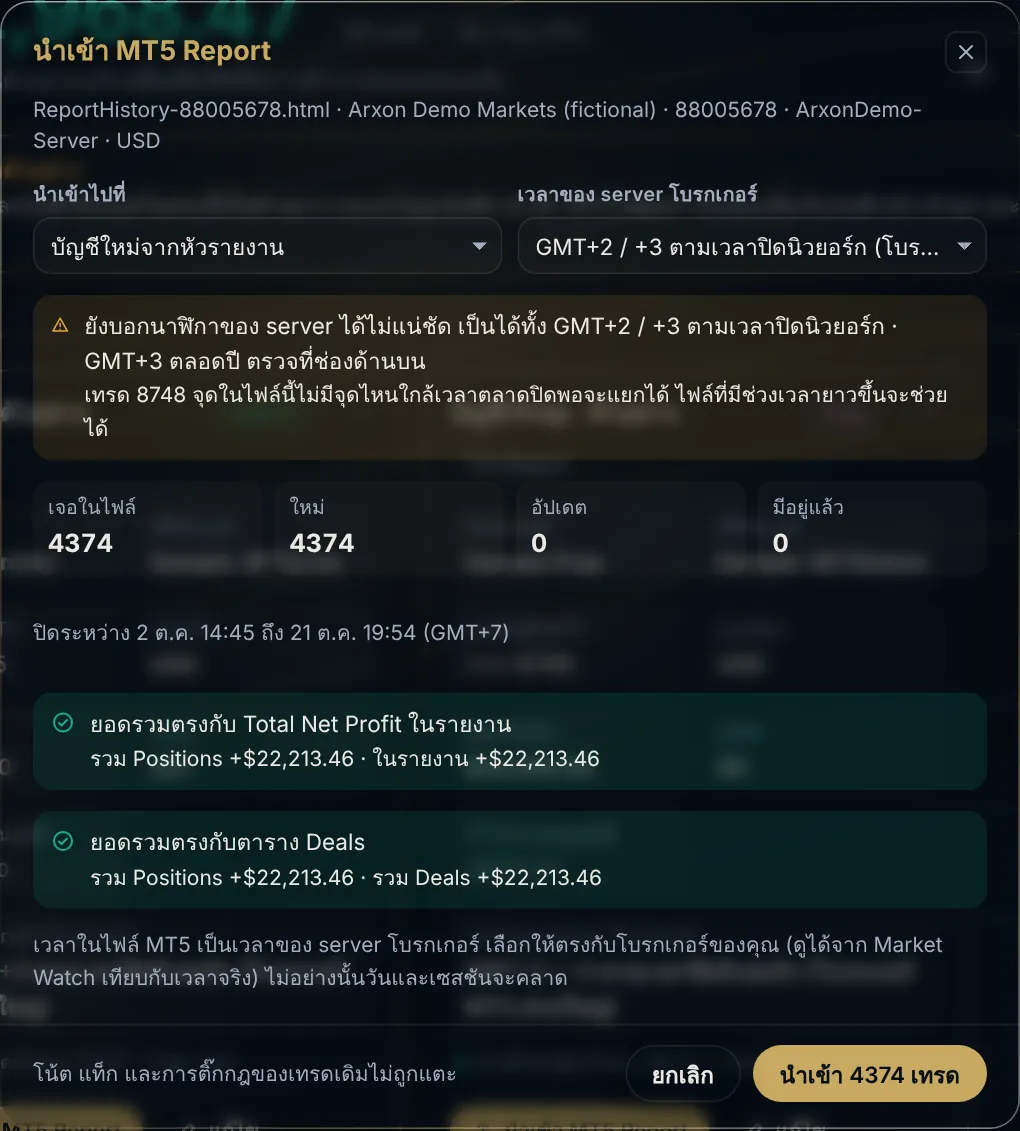
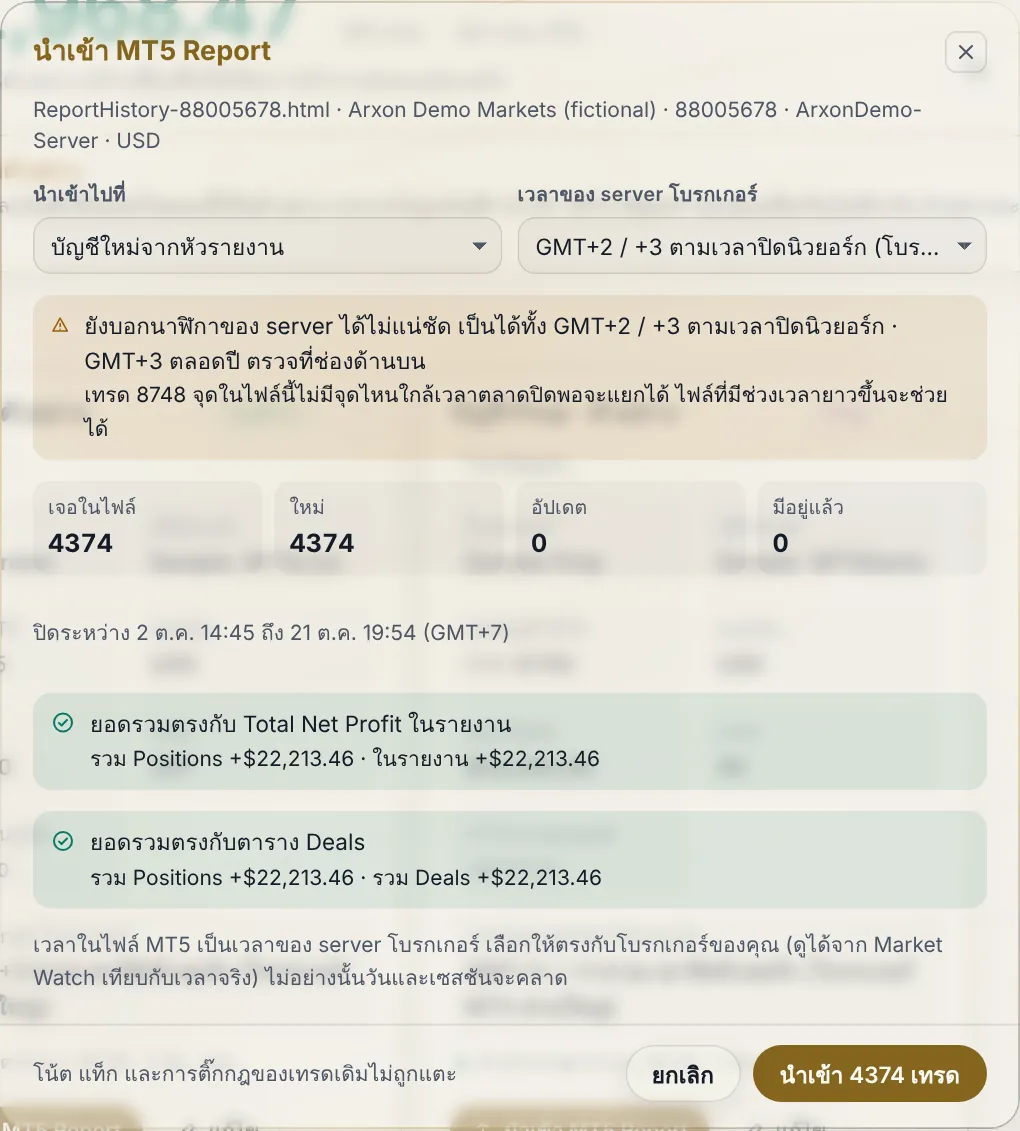
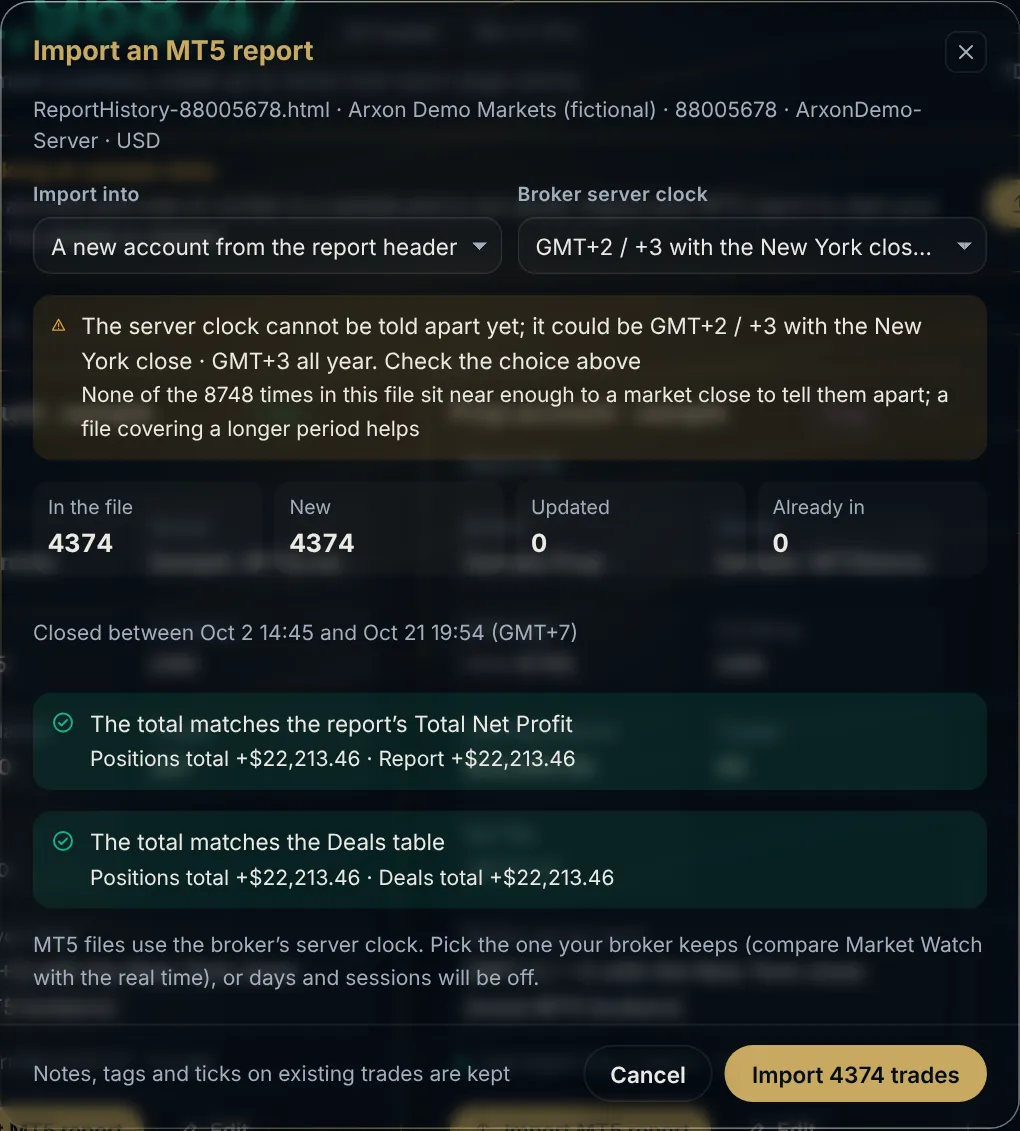
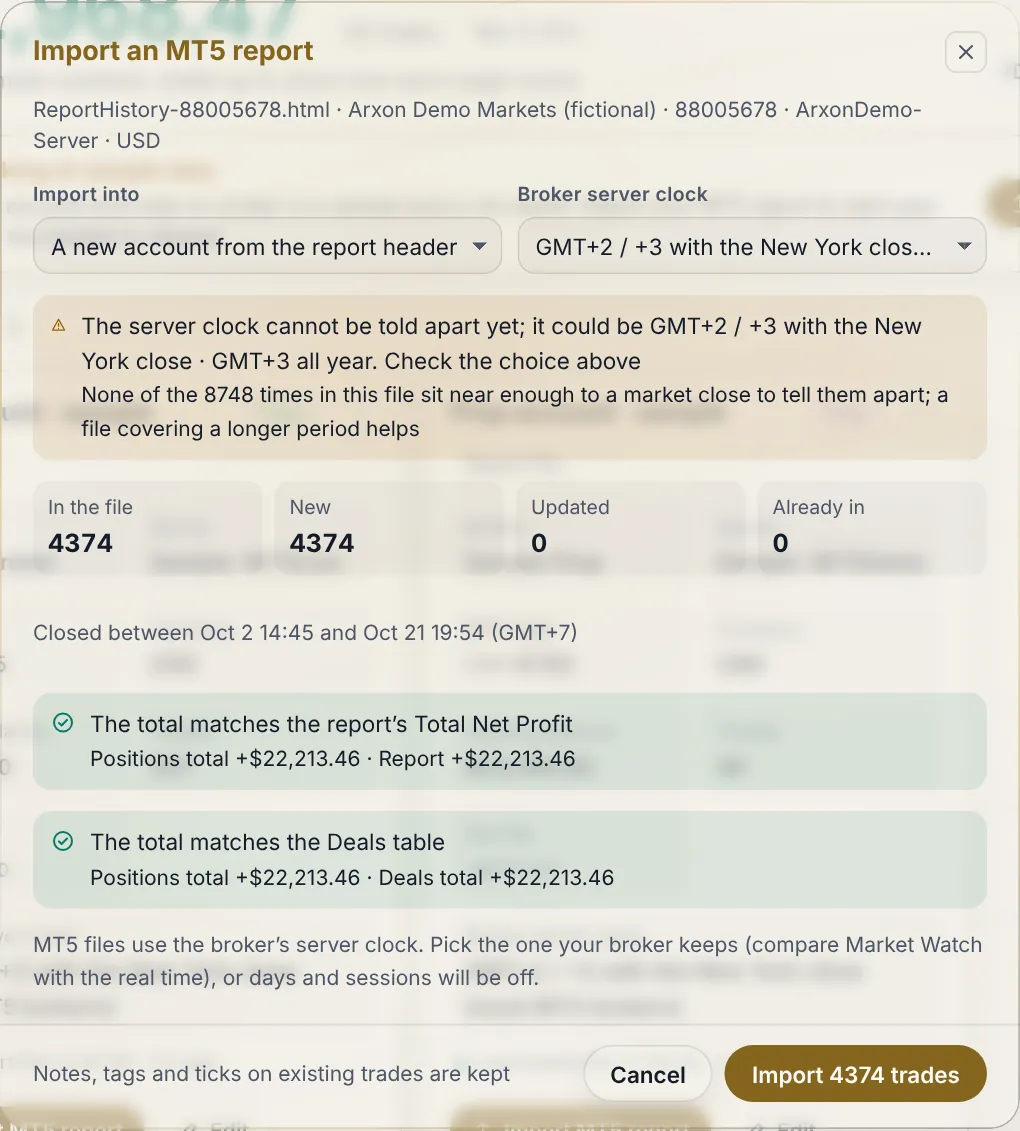
- ยอดรวมตรงกับ Total Net Profit ของรายงาน และตรงกับตาราง Deals ถ้าไม่ตรงจะเตือนให้ตรวจก่อน (มักเป็นค่าธรรมเนียม หรือดีลนอกช่วง)The total matches the report’s Total Net Profit and the Deals table; if not, it warns you to check first (usually fees, or deals outside the period)
- เวลา server ของโบรกเกอร์: ไฟล์ MT5 ใช้เวลาของ server Journal พยายามอ่านจากเวลาเข้าออกของเทรด ถ้าบอกไม่ได้ ให้เลือกเอง (ดูจาก Market Watch เทียบเวลาจริง) ไม่อย่างนั้นวันและเซสชันจะเพี้ยน โบรกเกอร์ MT5 ส่วนใหญ่ใช้ GMT+2/+3 ตามเวลาปิดนิวยอร์กBroker server clock: MT5 files use the server’s clock. The journal tries to read it from the trades’ times; if it cannot tell, pick it yourself (compare Market Watch with the real time), or days and sessions will be off. Most MT5 brokers keep GMT+2/+3 with the New York close
- ไม่ซ้ำ: นำเข้าไฟล์เดิมหรือไฟล์ที่ทับช่วงกัน เทรดที่มีอยู่แล้วจะถูกอัปเดต โดยโน้ต แท็ก และการติ๊กยังอยู่ครบNo duplicates: re-import the same or an overlapping file and existing trades are updated; their notes, tags and ticks stay
- นำเข้าไปที่ไหน: ถ้าเลขบัญชีในไฟล์ไม่ตรงกับบัญชีที่เลือก จะเตือน และเลือกให้สร้างเป็นบัญชีใหม่จากหัวรายงานได้Import into: if the account number in the file differs from the chosen account it warns you, and you can keep it as a new account from the report header
- สถานะที่ยังเปิดถูกข้าม จะเข้ามาเมื่อปิดแล้วOpen positions are skipped; they come in once closed
5กรอกเทรดเองEntering trades by hand
เพิ่มบัญชีก่อน (ใส่ยอดเริ่มต้นถ้าอยากเห็นผลเป็น %) แล้วกด เพิ่มเทรดเอง ในหน้ารายการเทรด กรอกสินค้า เวลาปิด ผล (ก่อนค่าคอมและ swap) และกด รายละเอียดเพิ่ม เพื่อใส่เวลาเปิด ราคา SL/TP Playbook และค่าใช้จ่าย ต้องกรอกกำไรเอง เพราะขนาดสัญญาแต่ละโบรกเกอร์ต่างกัน เทรดที่กรอกเองรีวิวได้เหมือนเทรดอื่นAdd the account first (give a starting balance to see results in %), then press Add a trade on the Trades page. Fill in the symbol, the close time and the result (before commission and swap); More details takes the open time, prices, SL/TP, playbook and costs. You enter the P&L yourself, as contract sizes differ by broker. A hand-entered trade is reviewed like any other.
ส่วนที่ 2Part 2
ตัวกรองและหน่วยFilters and units
สามอย่างนี้คุมทุกตัวเลขในทุกหน้า: บัญชี (แถบซ้าย), ช่วงเวลา และหน่วย (มุมขวาบน) ตัวเลขใหญ่ด้านบนคือกำไร/ขาดทุนสุทธิ หลังค่าคอมมิชชันและ swap ของช่วงที่เลือกThree things set every number on every page: the account (side rail), the range and the unit (top right). The big number at the top is the net P&L after commission and swap for the chosen range.
| ตัวเลือกChoice | ทำอะไรWhat it does |
|---|---|
| บัญชีAccount | ทุกบัญชี หรือบัญชีเดียว บัญชีที่เก็บเข้าคลังจะไม่นับใน "ทุกบัญชี" แต่เลือกดูเดี่ยว ๆ ได้All accounts, or one. Archived accounts are left out of “All accounts” but can be picked on their own |
| 7D · 30D · 90D · YTD · ทั้งหมด7D · 30D · 90D · YTD · All | 7, 30, 90 วันล่าสุด ต้นปีถึงวันนี้ หรือทั้งหมด เทรดนับตามวันที่ปิดThe last 7, 30 or 90 days, year to date, or all time; a trade counts on the day it closed |
| $$ | เงินในสกุลของบัญชีMoney in the account’s currency |
| RR | กำไรสุทธิ ÷ เงินที่เสี่ยง อ่านจากระยะ SL เทรดจึงต้องมี SL (จากไฟล์ หรือใส่เองในหน้ารีวิว) SL ที่ถูกเลื่อนไปจุดคุ้มทุนหรือเลยกำไรแล้วไม่นับเป็นความเสี่ยงNet P&L ÷ money at risk, read from the stop distance, so a trade needs an SL (from the file or entered on its review page). A stop moved to break-even or into profit is not counted as the risk |
| %% | เทียบกับยอดของบัญชีตอนเริ่มช่วงที่เลือก (ยอดเริ่มต้น + ผลก่อนหน้า) ต้องตั้งยอดเริ่มต้นของบัญชีก่อนAgainst the balance the range started from (starting balance + results before it); set the account’s starting balance first |
ค่าเริ่มต้นตอนเปิด Journal ตั้งได้ในหน้าตั้งค่า (เช่น เปิดมาที่ 30D และหน่วย R ทุกครั้ง) ปุ่มด้านบนยังเปลี่ยนได้เสมอWhat a fresh open starts with is set in Settings (for example always 30D in R); the buttons at the top still change it.
ส่วนที่ 3Part 3
ภาพรวมDashboard
1สิ่งที่ควรทำตอนนี้To do now
แถบเตือนด้านบนสั้น ๆ และบอกสิ่งที่ควรทำต่อ เช่น ถึงเพดานขาดทุนวันนี้แล้ว ใกล้เพดาน ถึงเป้ากำไรแล้ว แพ้ติดกันหลายไม้ ยังไม่เขียนแผนวันนี้ เทรดที่ยังไม่รีวิว เทรดที่ไม่ตั้ง SL บัญชีที่ไม่ได้นำเข้านาน สัปดาห์ที่แล้วยังไม่ได้ทบทวน หรือยอดถึง milestone หรือเป้ารวมแล้ว (ส่วนที่ 8) กดแต่ละแถบเพื่อไปยังหน้าที่เกี่ยวข้องThe reminders at the top are short and say what to do next: today’s loss limit reached or near, the profit target reached, several losses in a row, no plan written for today, trades not reviewed, trades without a stop, an account not imported for a while, last week not reviewed, or a milestone or the overall target reached (part 8). Tap one to go where it points.
2ตัวเลขหลักThe key numbers
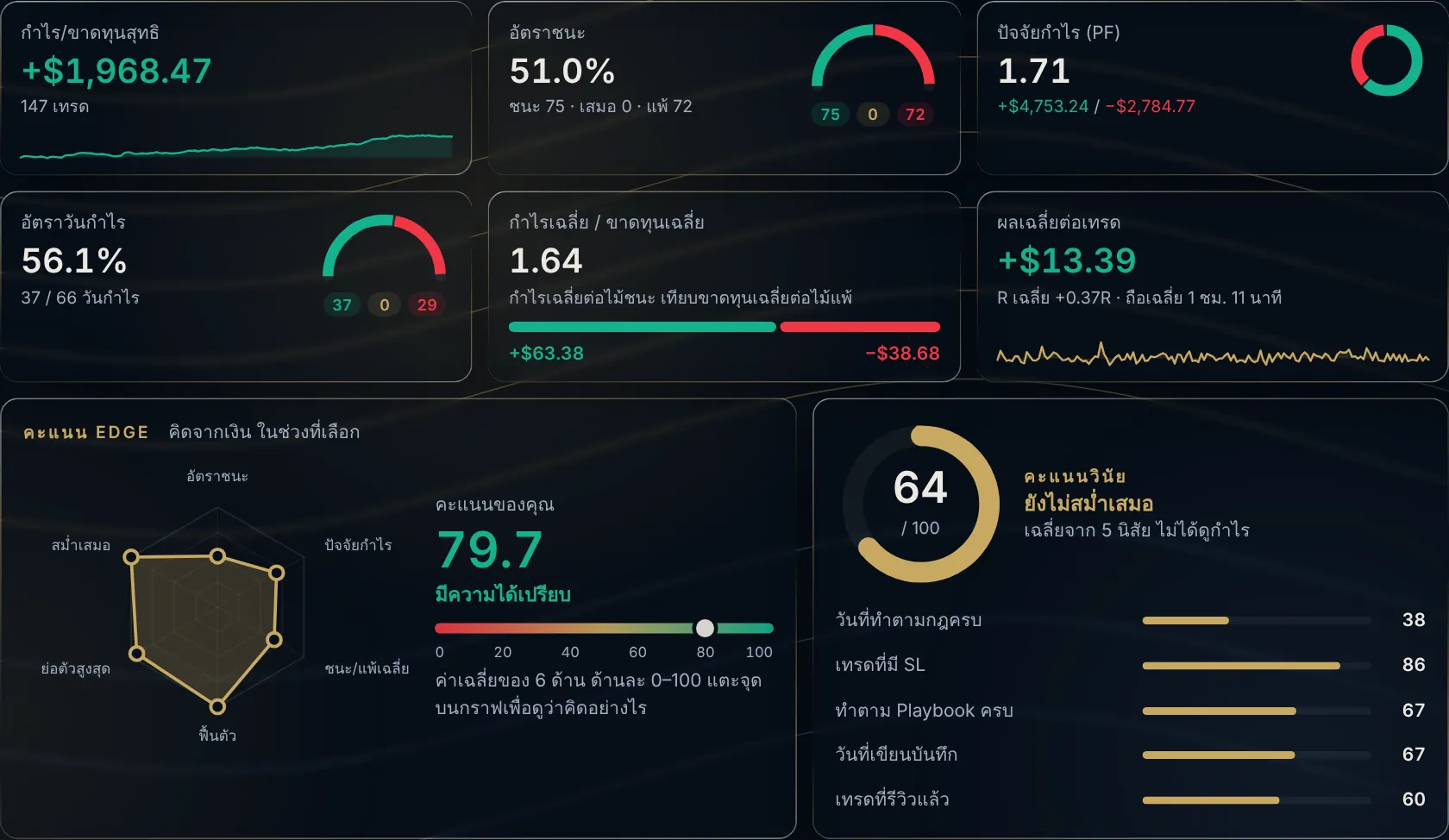
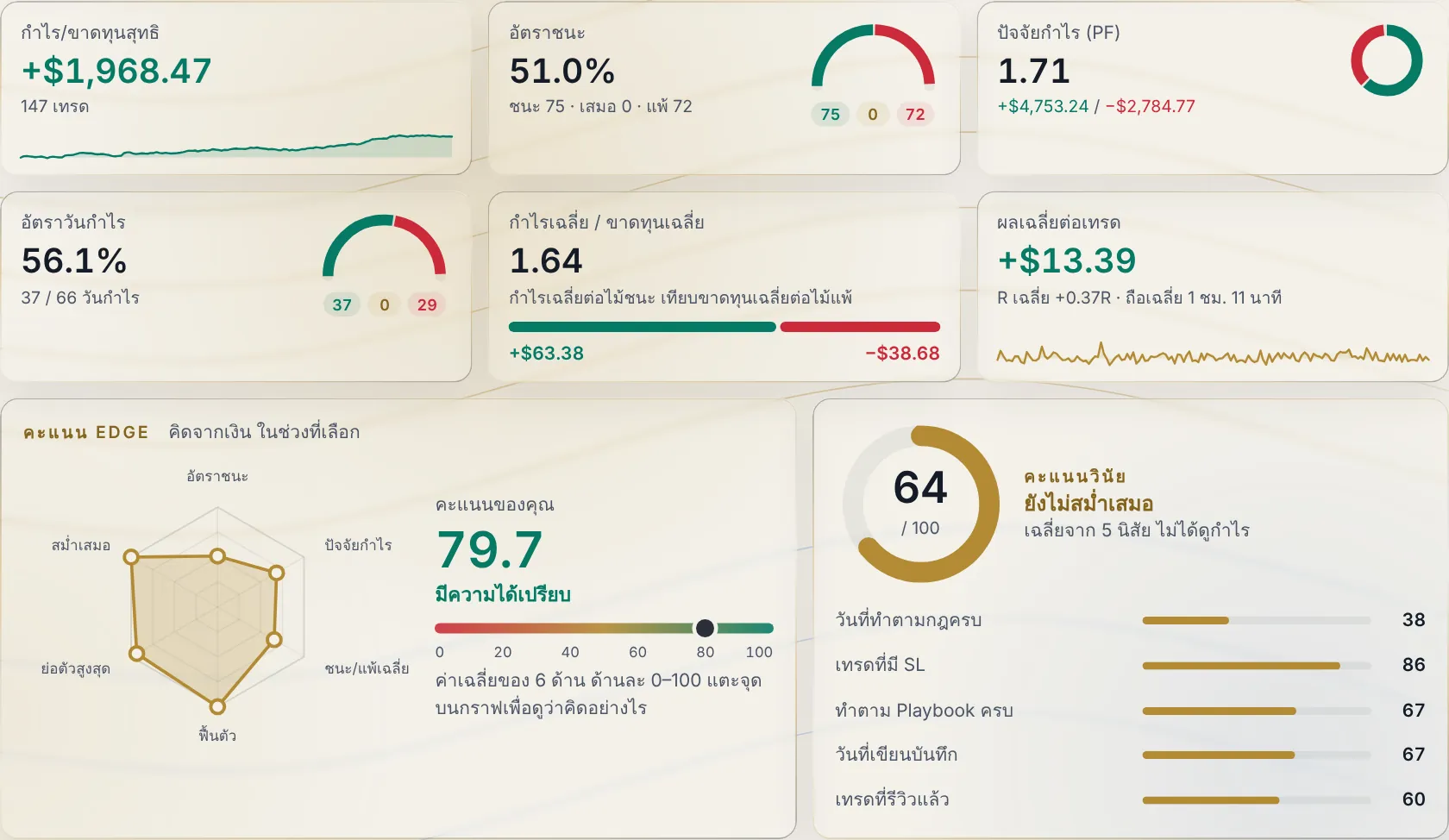
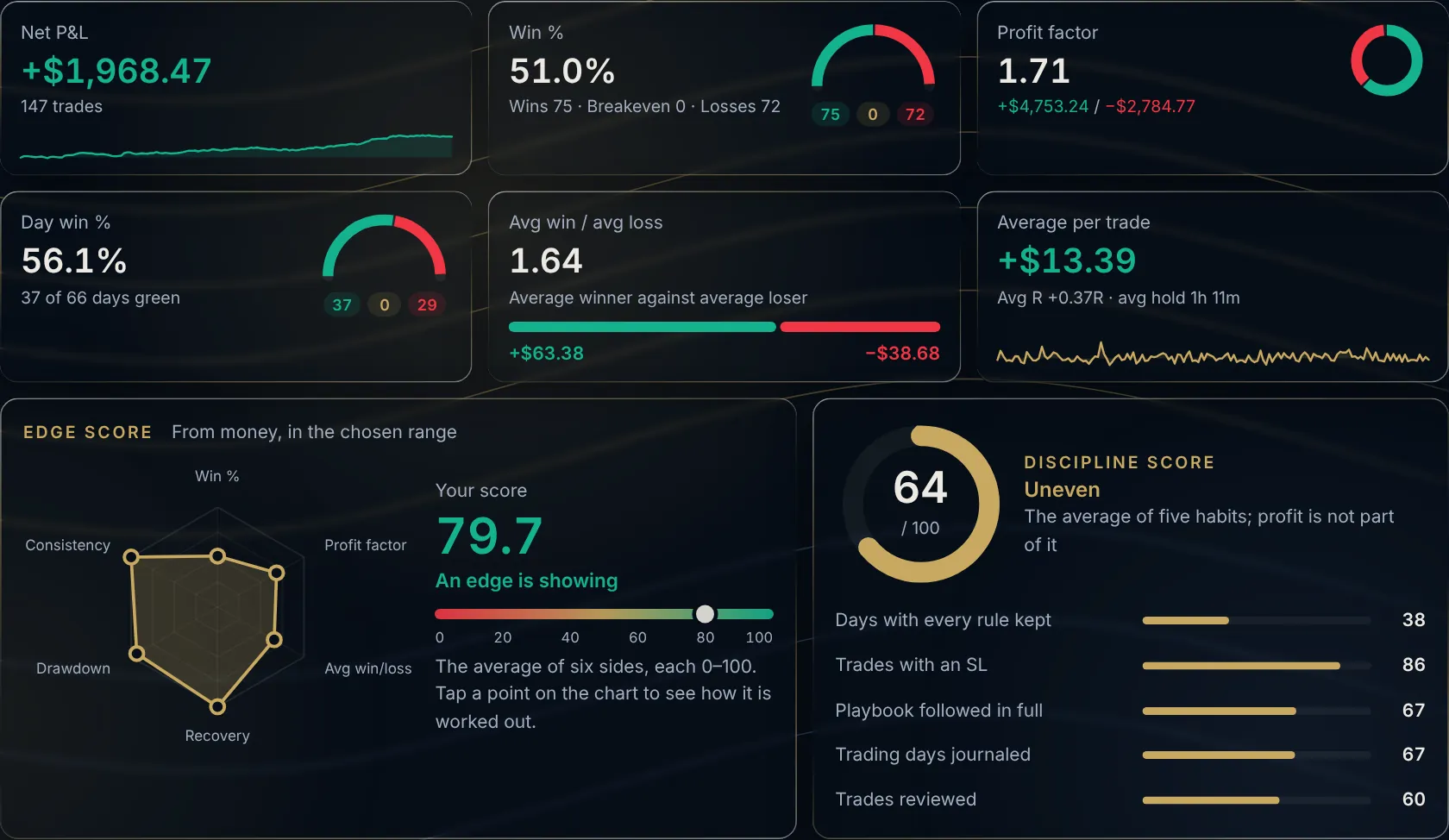
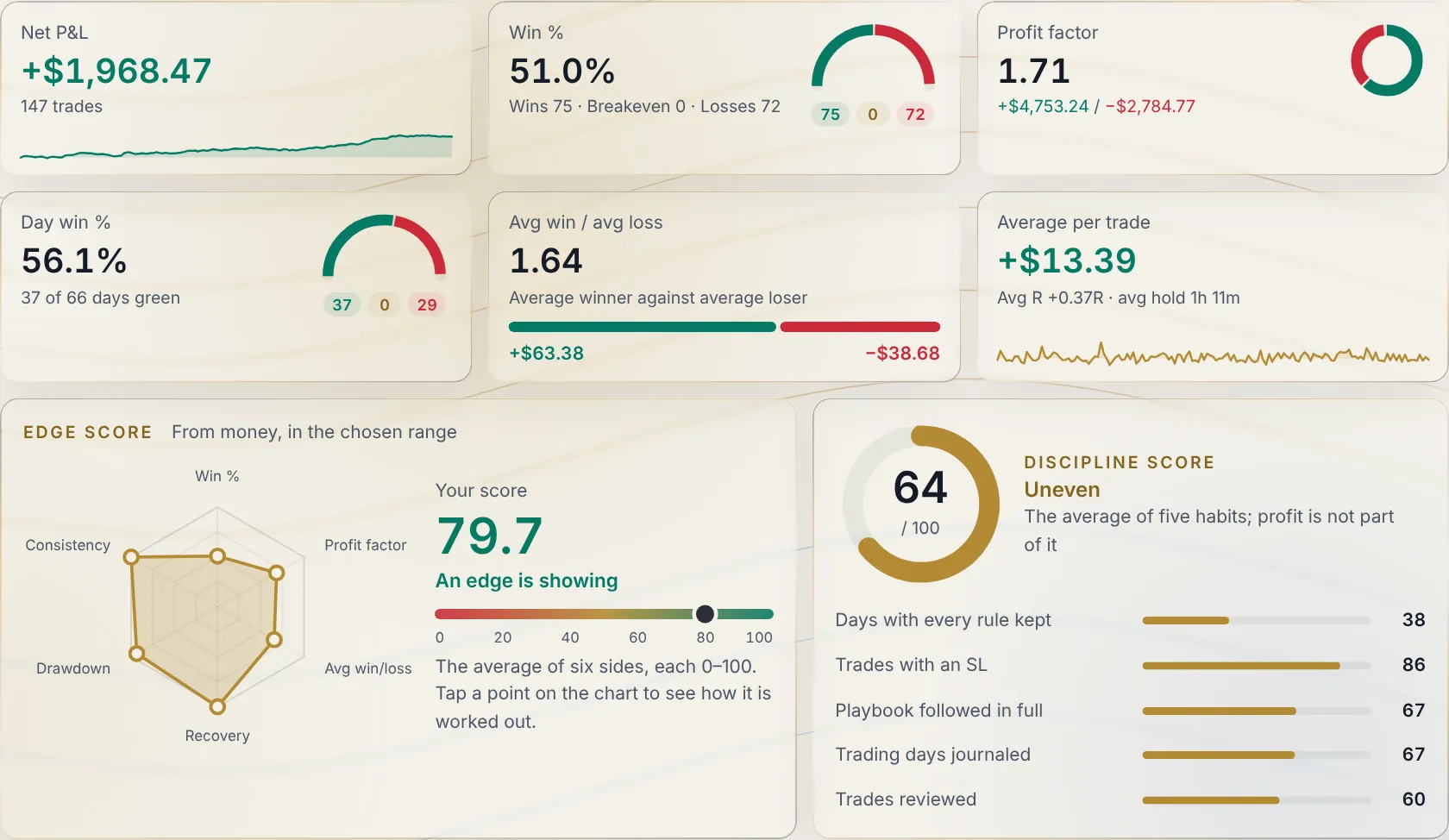
| ตัวเลขNumber | คิดอย่างไรHow it is worked out |
|---|---|
| กำไร/ขาดทุนสุทธิNet P&L | ผลรวมหลังค่าคอมมิชชันและ swapThe total after commission and swap |
| อัตราชนะWin % | ไม้ชนะ ÷ (ชนะ + แพ้) ไม้เสมอไม่นับWins ÷ (wins + losses); break-even trades are left out |
| ปัจจัยกำไร (PF)Profit factor | กำไรรวมของไม้ชนะ ÷ ขาดทุนรวมของไม้แพ้ มากกว่า 1 แปลว่าได้มากกว่าเสียGross profit ÷ gross loss; above 1 means more won than lost |
| อัตราวันกำไรDay win % | วันกำไร ÷ (วันกำไร + วันขาดทุน)Green days ÷ (green + red days) |
| กำไรเฉลี่ย / ขาดทุนเฉลี่ยAvg win / avg loss | ไม้ชนะเฉลี่ยเทียบกับไม้แพ้เฉลี่ยThe average winner against the average loser |
| ผลเฉลี่ยต่อเทรดAverage per trade | ผลสุทธิ ÷ จำนวนเทรดNet ÷ trades |
3คะแนน EdgeEdge score
ค่าเฉลี่ยของหกด้าน แต่ละด้าน 0–100 คิดจากเงินในช่วงที่เลือก ต้องมีอย่างน้อย 5 เทรด แตะจุดบนกราฟเพื่อดูว่าแต่ละด้านคิดอย่างไรThe average of six sides, each 0–100, from money in the chosen range; it needs at least 5 trades. Tap a point on the chart to see how it is worked out.
- อัตราชนะ: ใช้ตัวเลขตามจริง 0–100Win %: as it is, 0–100
- ปัจจัยกำไร: PF 2.5 ขึ้นไปได้ 100, PF 0 ได้ 0Profit factor: PF 2.5 or more scores 100, PF 0 scores 0
- กำไรเฉลี่ย/ขาดทุนเฉลี่ย: 2.5 เท่าขึ้นไปได้ 100Avg win / avg loss: a ratio of 2.5 or more scores 100
- ปัจจัยฟื้นตัว: กำไรสุทธิ ÷ drawdown ที่ลึกที่สุด 3 ขึ้นไปได้ 100 ต่ำกว่า 0 ได้ 0Recovery factor: net profit ÷ largest drawdown; 3 or more scores 100, below 0 scores 0
- ย่อตัวสูงสุด: เทียบกับยอดตอนจุดสูงสุด ไม่ย่อเลยได้ 100 ย่อ 30% ขึ้นไปได้ 0 (ถ้ายังไม่ตั้งยอดเริ่มต้น จะเทียบกับกำไรรวมแทน)Max drawdown: against the balance at the peak; none scores 100, 30% or more scores 0 (with no starting balance it is measured against gross profit)
- ความสม่ำเสมอ: กำไรของวันที่ดีที่สุดคิดเป็นสัดส่วนเท่าไรของกำไรวันบวกทั้งหมด 20% หรือน้อยกว่าได้ 100 ยิ่งพึ่งวันเดียวมากคะแนนยิ่งต่ำConsistency: how much of all green-day profit came from the best day; 20% or less scores 100, the more rests on one day the lower
4คะแนนวินัยDiscipline score
ค่าเฉลี่ยของห้านิสัย ไม่เอากำไรมาคิด: วันที่ทำตามกฎครบ, เทรดที่มี SL, ทำตาม Playbook ครบ (เฉพาะเทรดที่ผูก Playbook), วันที่เขียนบันทึก และเทรดที่รีวิวแล้ว ส่วนที่ยังไม่มีข้อมูลจะไม่ถูกนับThe average of five habits; profit is not part of it: days with every rule kept, trades with an SL, playbook followed in full (of trades linked to one), trading days journaled, and trades reviewed. A habit with no data yet is left out.
5สรุปและคำแนะนำSummary & advice
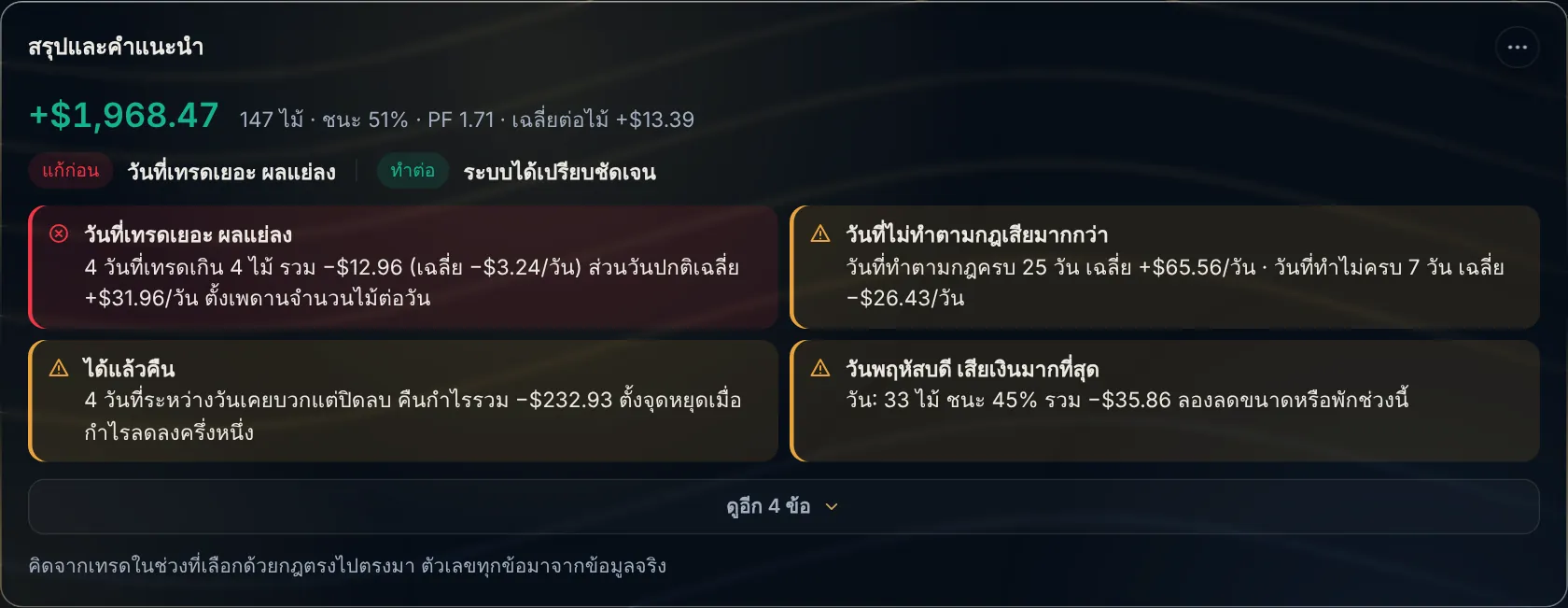
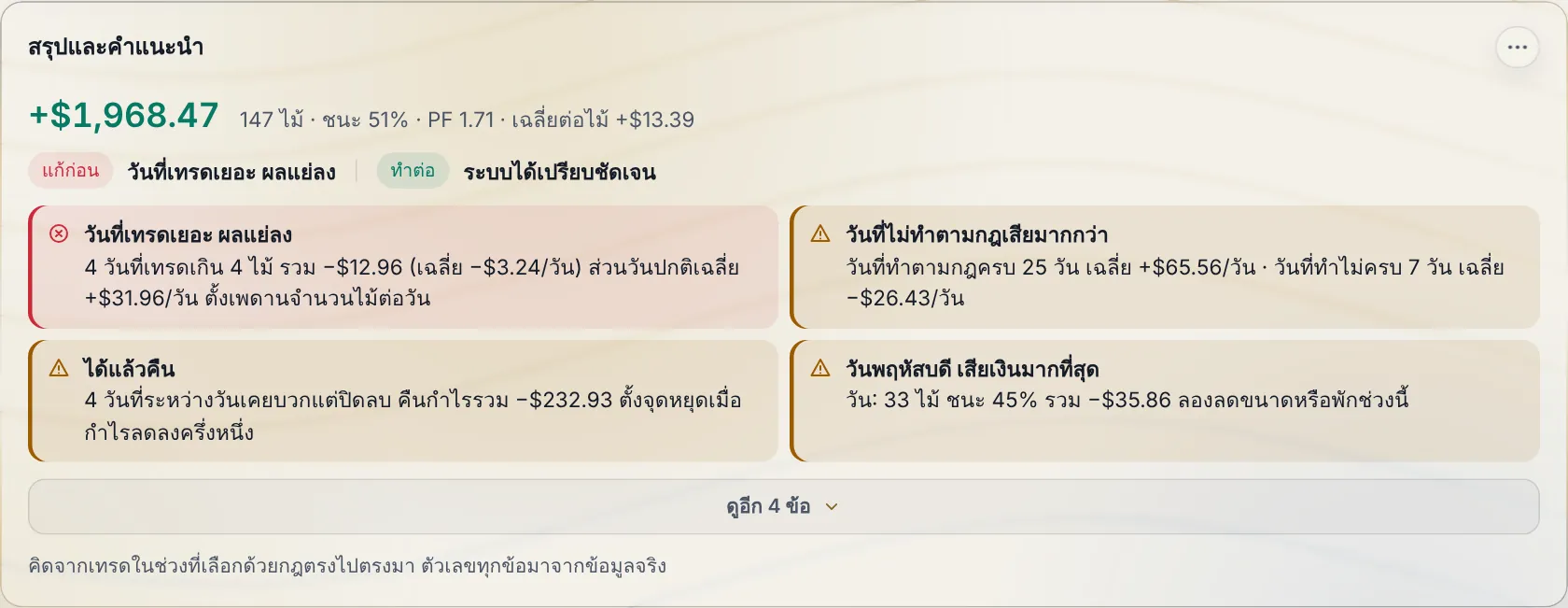
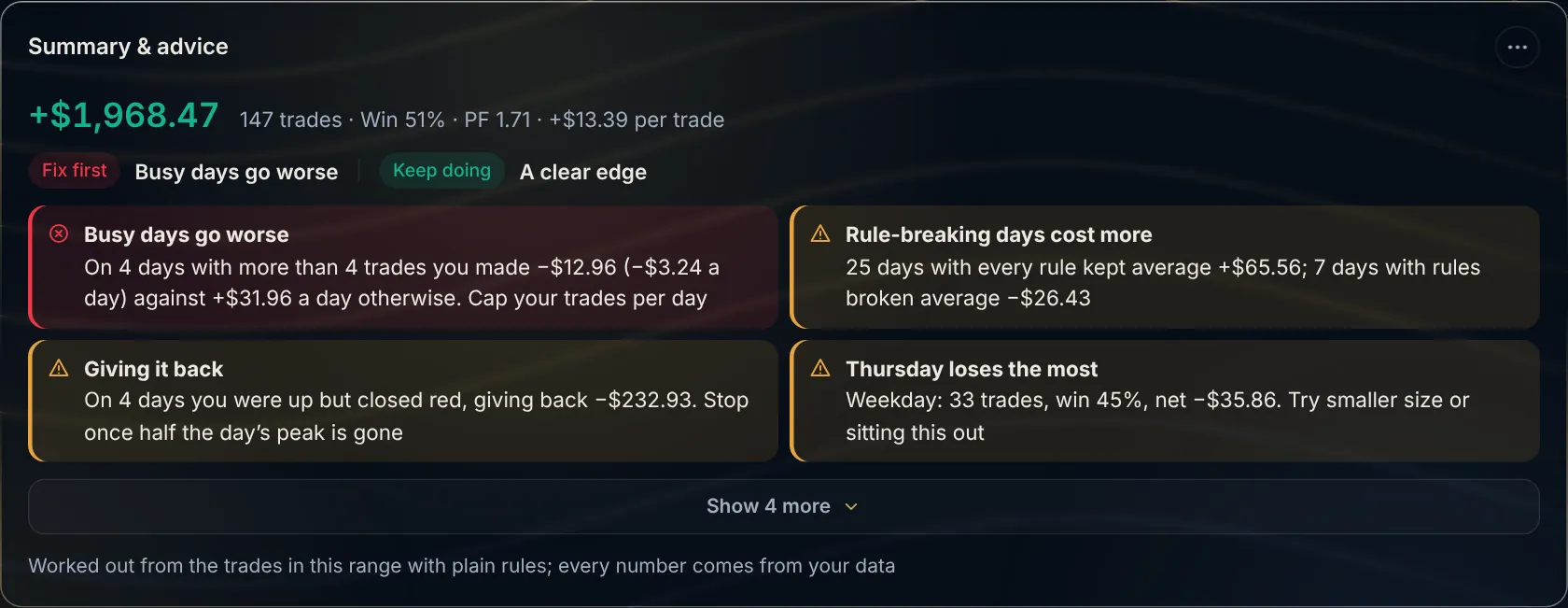
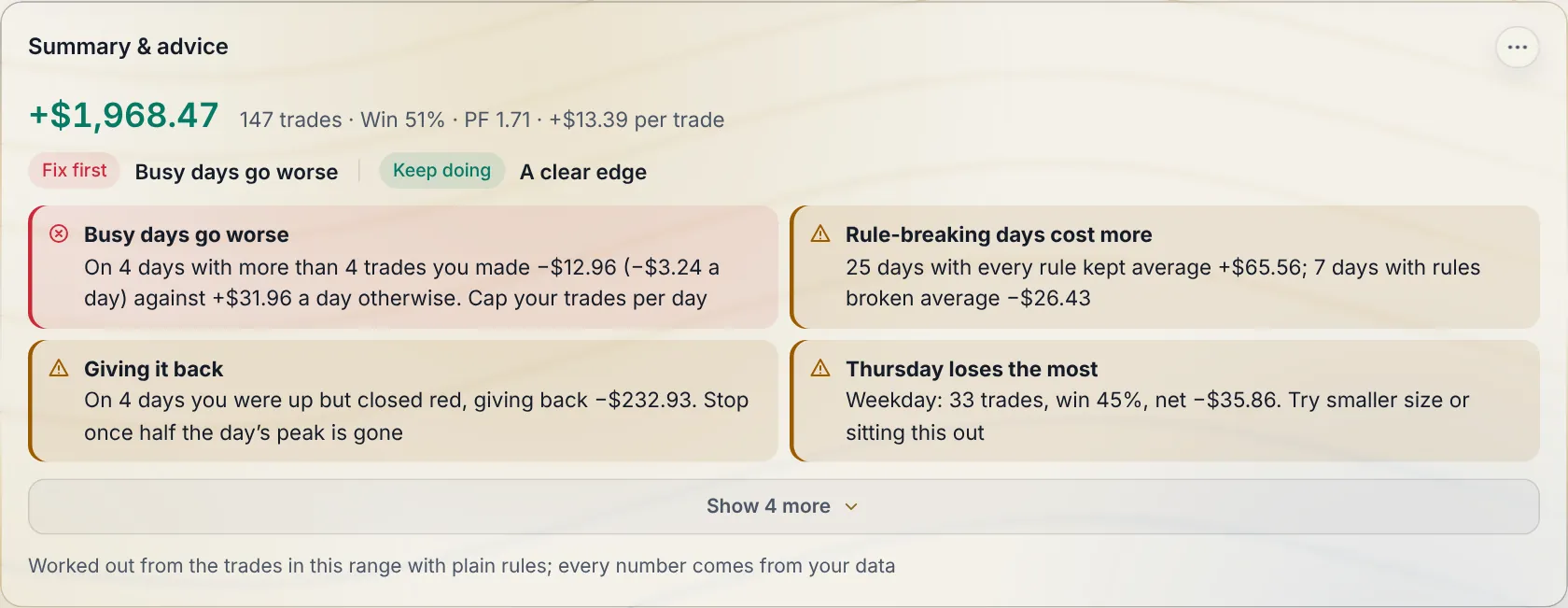
ตั้งแต่ 10 เทรดขึ้นไป Journal จะคิดจากเทรดในช่วงที่เลือกด้วยกฎที่ตรงไปตรงมา (ไม่ได้เดาอารมณ์) แล้วบอกเรื่องที่ควรแก้ก่อนและสิ่งที่ทำได้ดี เช่น วันที่เทรดเยอะแล้วผลแย่ วันที่ผิดกฎแล้วเสียมากกว่า หรือวันในสัปดาห์ที่เสียบ่อย กดดูทั้งหมดเพื่อเปิดข้อที่เหลือFrom 10 trades up, the journal works out plain rules from the trades in the range (not a guess at how you felt) and names what to fix first and what to keep: busy days that go worse, rule-breaking days that cost more, a weekday that loses most. Open the rest with the button underneath.
6ผลงานและส่วนอื่นของหน้าPerformance and the rest of the page
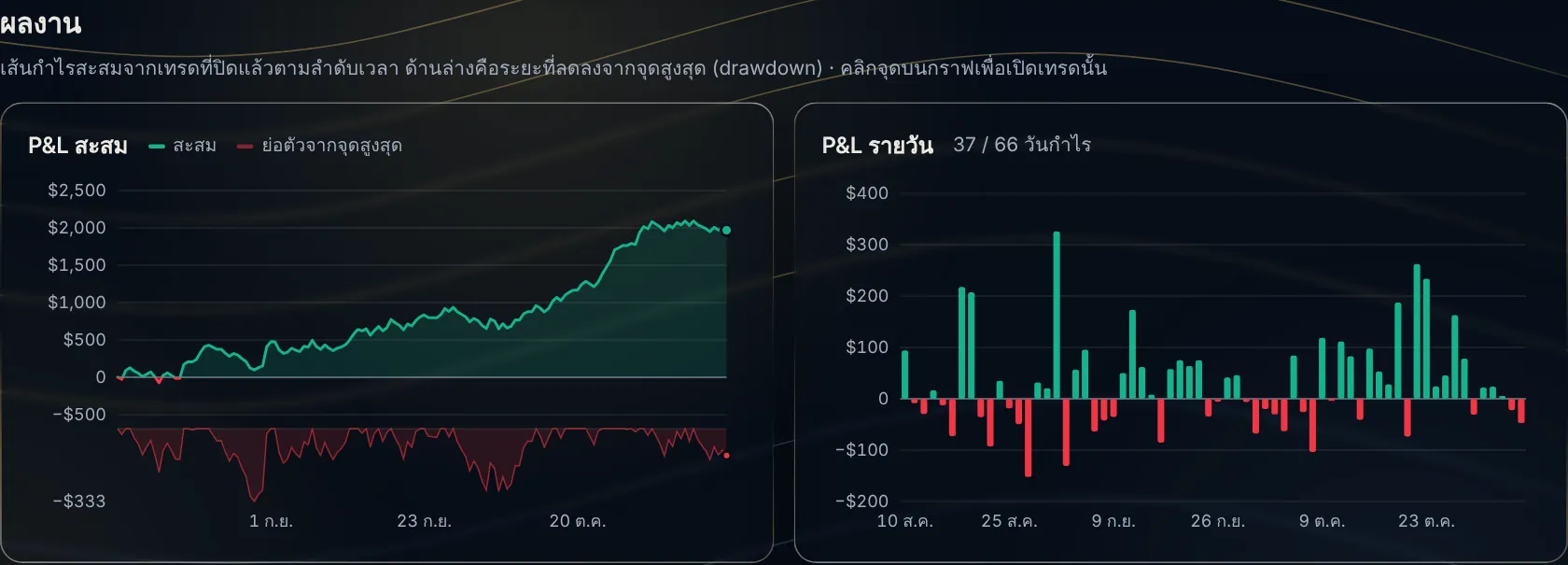
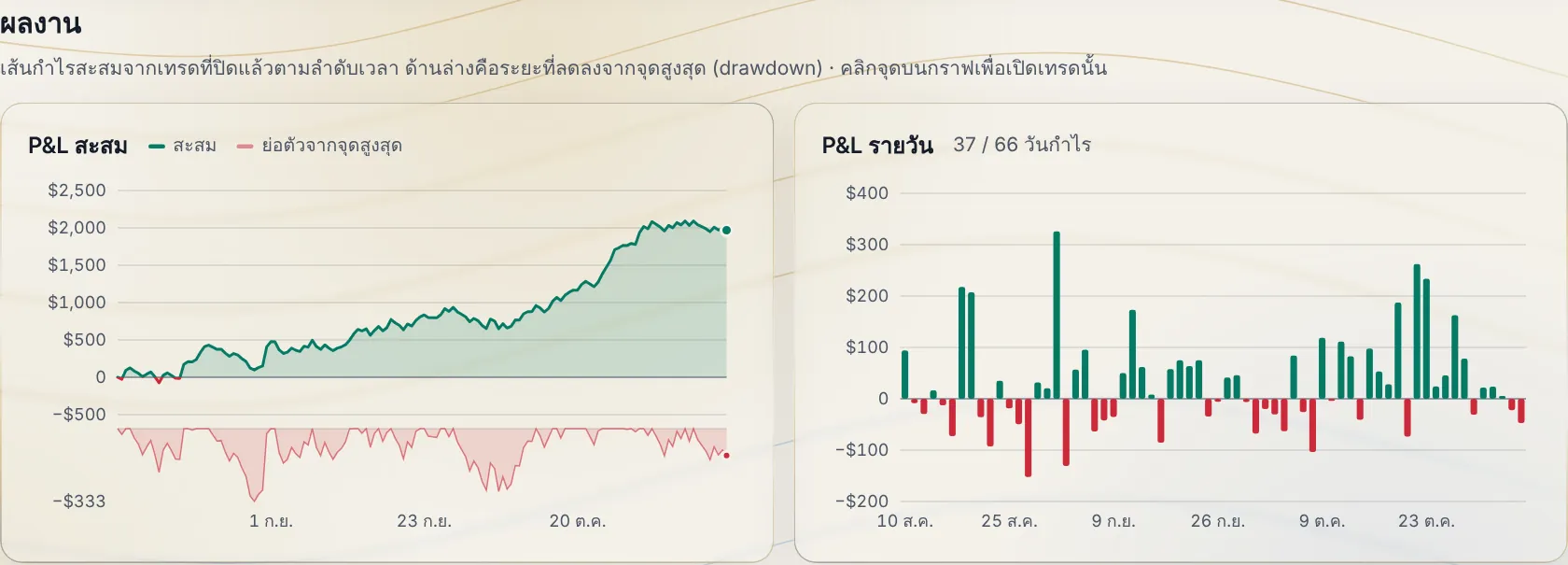
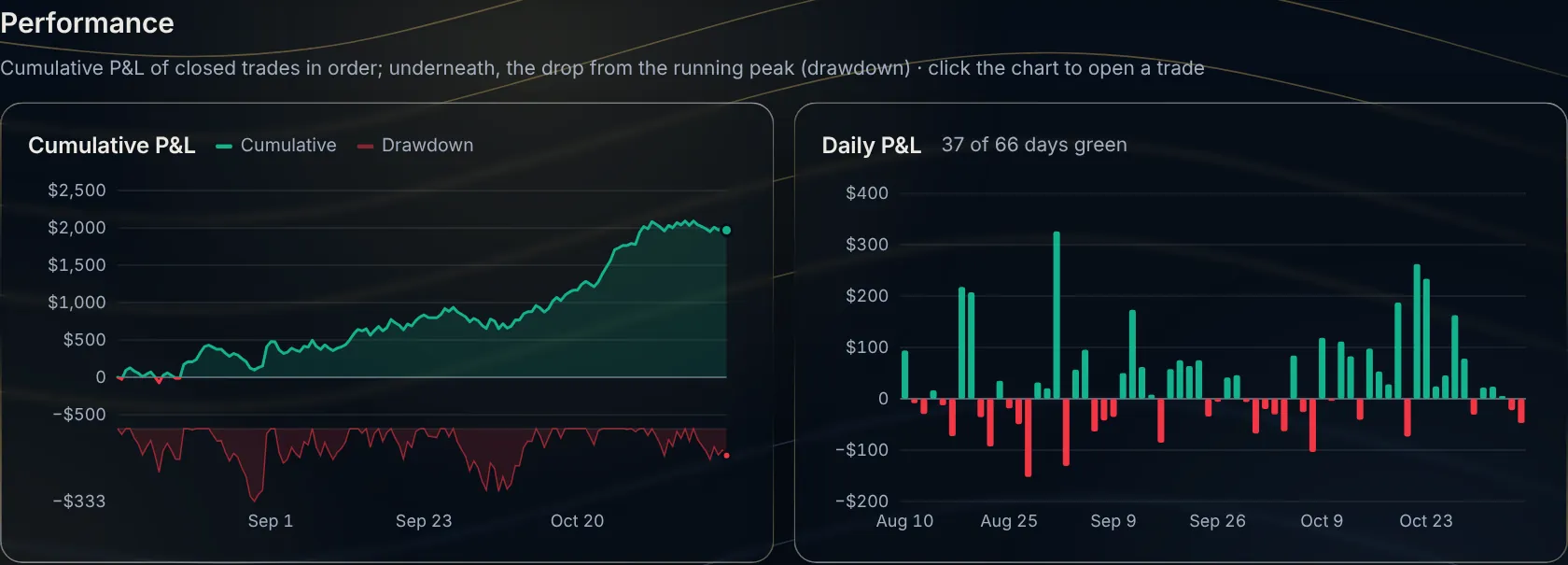
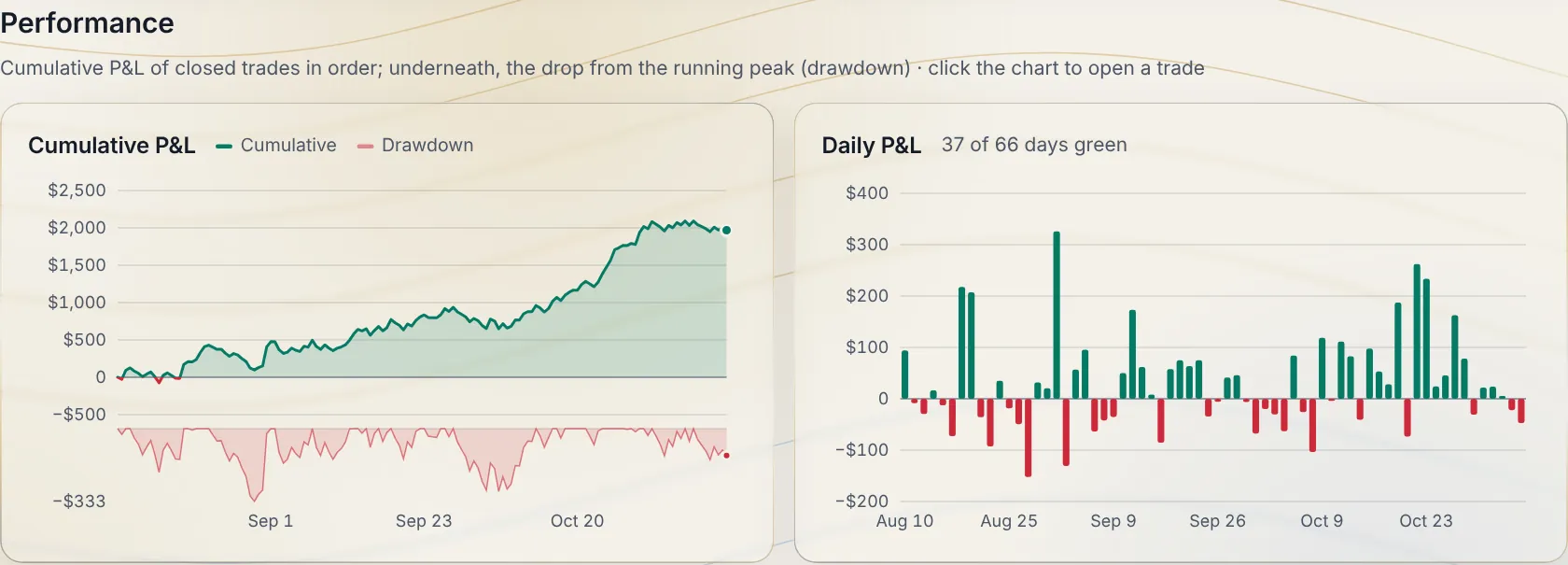
P&L สะสมคือผลของเทรดที่ปิดแล้วเรียงตามลำดับ ด้านล่างคือระยะที่ลงมาจากจุดสูงสุด (drawdown) คลิกกราฟเพื่อเปิดเทรดนั้น ถัดลงไปคือปฏิทินเดือนนี้กับเทรดล่าสุด, การ์ดสรุปจากรายงาน (เวลาถือของไม้ชนะเทียบไม้แพ้, ชั่วโมงที่ดีที่สุด, เทรดที่ถือไม่ถึง 2 นาที, สัปดาห์ที่กำไร: แท่งละหนึ่งสัปดาห์ กำไรขึ้นจากเส้นศูนย์ ขาดทุนลงจากเส้น สัปดาห์ที่เสมอเป็นขีดเทาสั้นบนเส้น นับจากสัปดาห์ล่าสุดที่มีเทรด) และอะไรทำเงิน อะไรเสียเงิน สามกลุ่มที่ดีที่สุดและแย่ที่สุด ตามเซสชัน วัน สินค้า และชั่วโมง (อย่างน้อย 3 เทรด)Cumulative P&L is closed trades in order, with the drop from the running peak (drawdown) underneath; click the chart to open a trade. Further down: this month’s calendar with recent trades, From the reports cards (winners’ against losers’ hold, best hour, trades under 2 minutes, green weeks: a bar per week, profit up from one zero line, loss down, a flat week a short gray mark on it, over the last weeks with trades) and What makes and loses money: the three best and worst groups by session, weekday, product and hour (3 trades or more).
ส่วนที่ 4Part 4
ปฏิทินCalendar
ปฏิทินดูทีละเดือนตามบัญชีที่เลือก ไม่ขึ้นกับช่วงเวลาด้านบน แต่ละวันบอกผล จำนวนเทรด และอัตราชนะ ด้านขวาคือยอดของแต่ละสัปดาห์ จุดทองคือวันที่มีบันทึกThe calendar goes month by month for the chosen account, apart from the range above. Each day shows its result, number of trades and win %; the column on the right totals each week; a gold dot marks a journaled day.
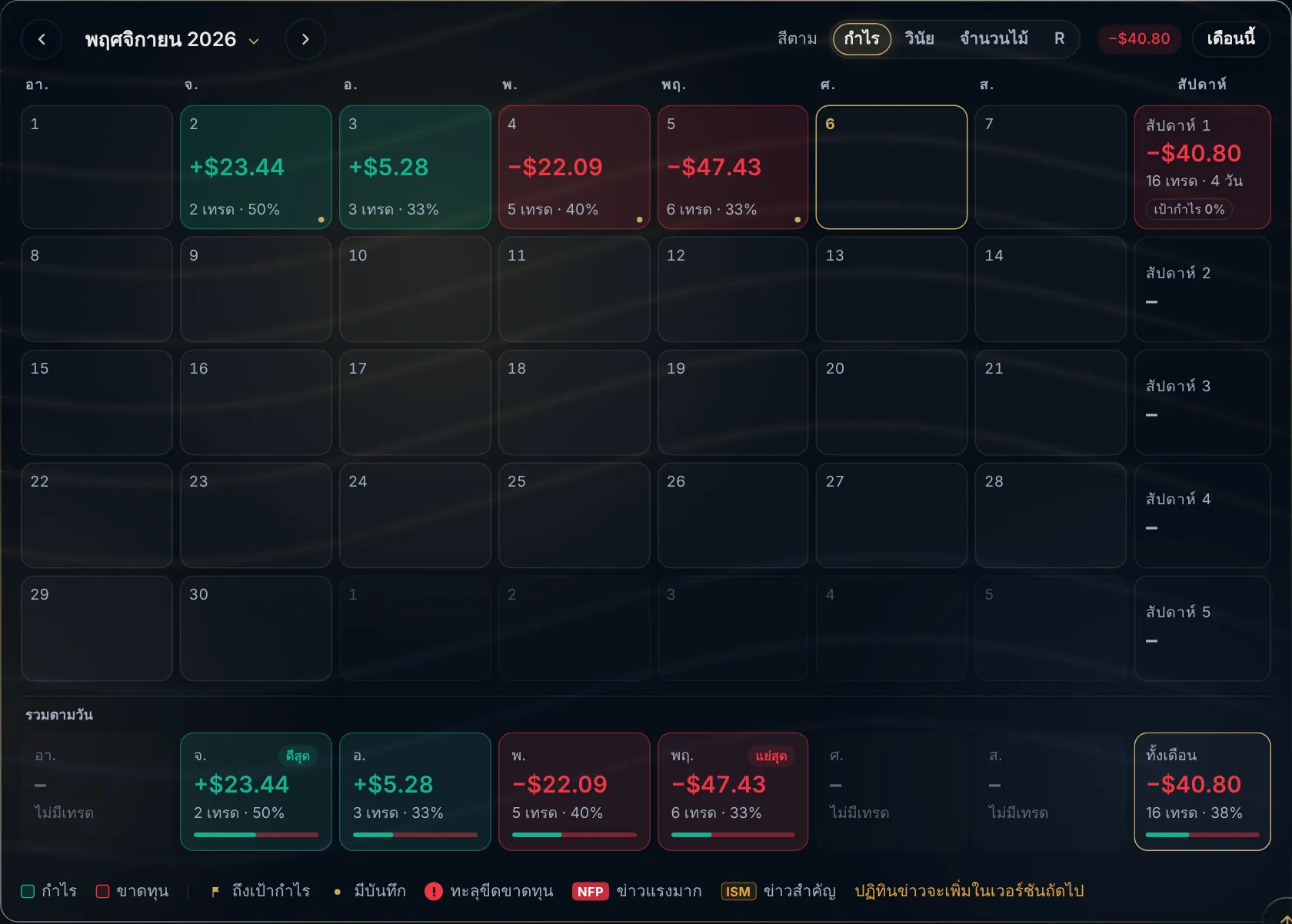
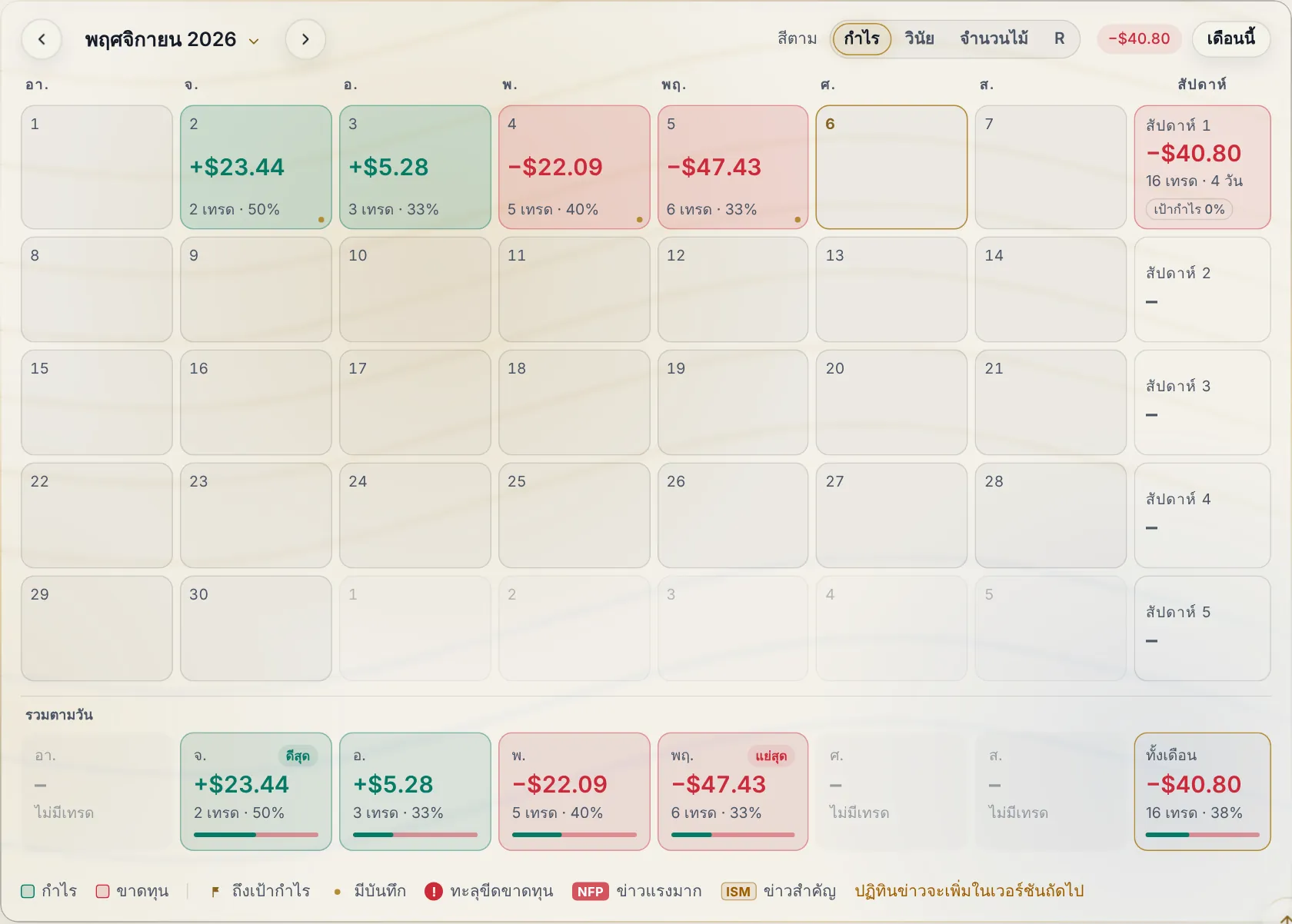
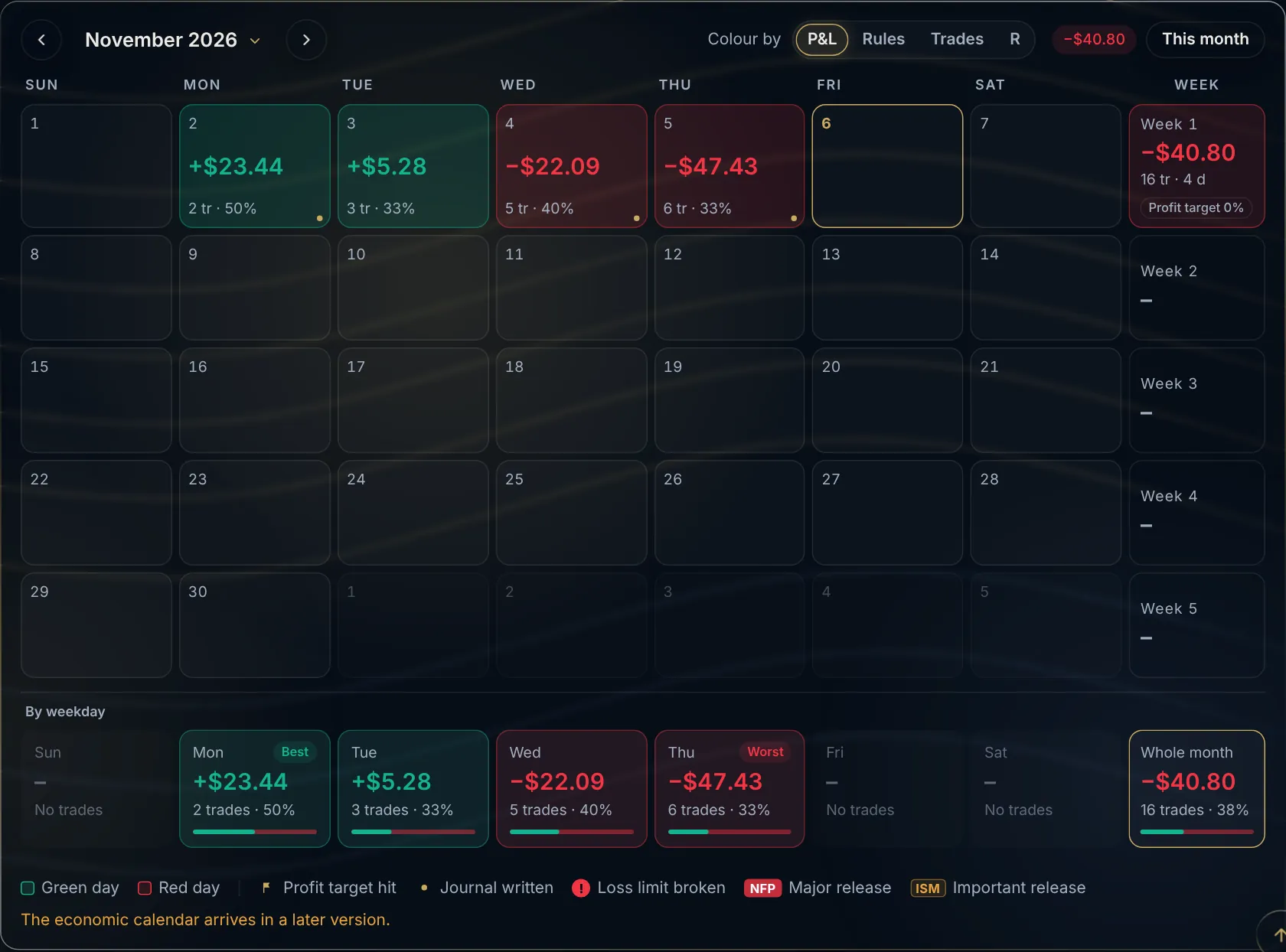
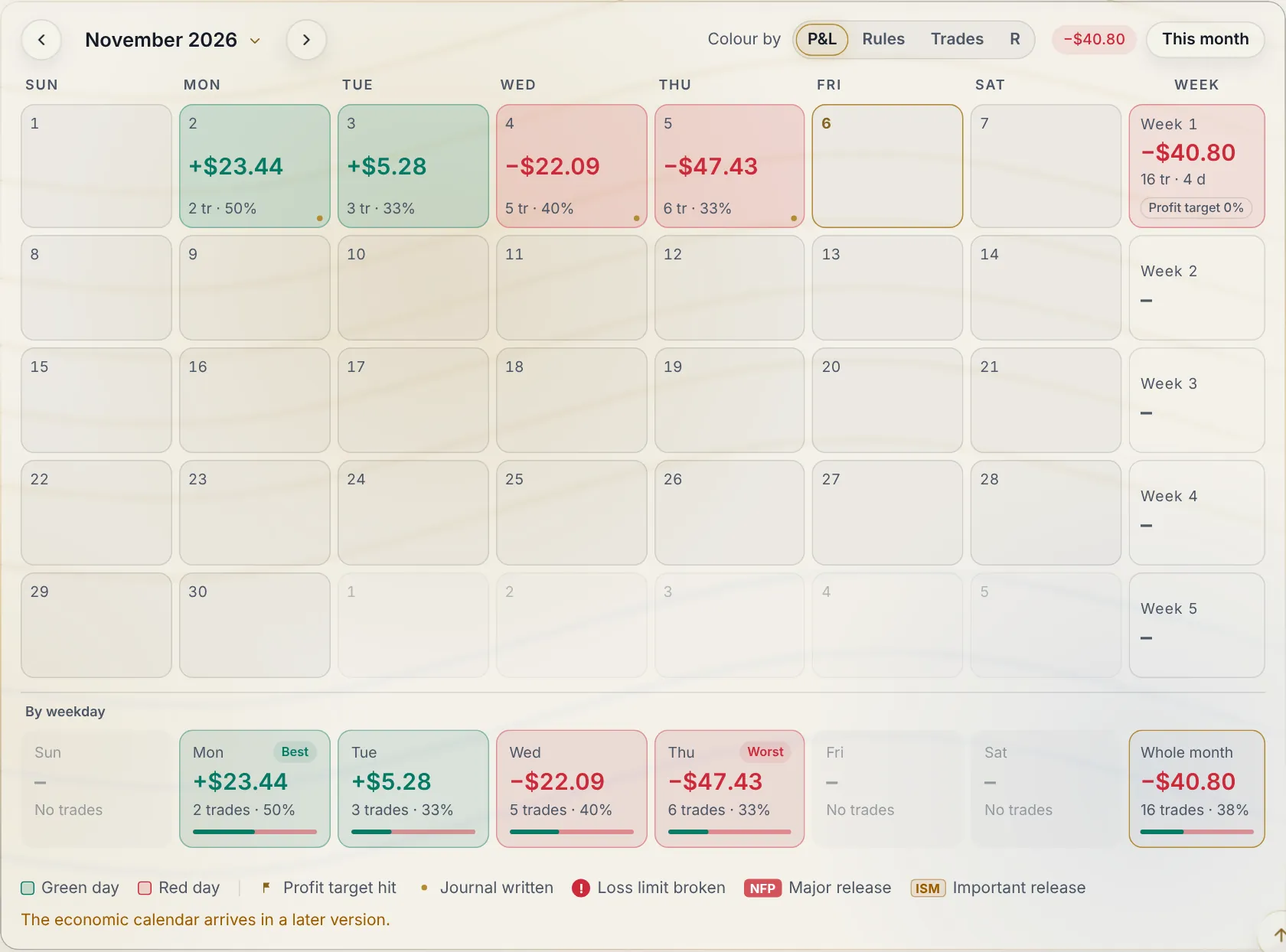
- ระบายสีตาม: P&L, วินัย (ทำตามกฎครบ ส่วนใหญ่ หรือผิดกฎ), จำนวนเทรด หรือ RColour by: P&L, rules (all kept, most kept, broken), number of trades, or R
- ไอคอนในช่อง: ถึงเป้ากำไร, เขียนบันทึกแล้ว, ผิดขีดขาดทุนMarks in a day: profit target hit, journal written, loss limit broken
- P&L สะสมของเดือน เทียบกับเดือนก่อน (เส้นเล็กใต้ตัวเลข) และรวมตามวัน บอกว่าวันจันทร์ถึงศุกร์ของเดือนนั้นเป็นอย่างไรThe month, building up against last month (the small line under each number) and By weekday, how each weekday went that month
- ปฏิทินรายปี ด้านบนสุด: แตะเดือนเพื่อเปิด สียิ่งเข้มผลยิ่งมากThe Yearly calendar at the top: tap a month to open it; the deeper the color, the bigger the result
1รายละเอียดของวันA day in detail
คลิกวันที่มีเทรดเพื่อเปิดแผงด้านข้าง: ผลของวัน กราฟ P&L ระหว่างวัน อัตราชนะ PF เทรดที่ดีและแย่ที่สุด ช่วงเวลาที่เทรด และข้อสังเกตของวันนี้ ซึ่งคิดจากเทรดของวันเทียบกับ 60 วันก่อนหน้า เช่น เทรดมากผิดปกติ เข้าใหม่ภายใน 2 นาทีหลังขาดทุน เพิ่มขนาดหลังชนะติดกัน แพ้ติดกัน คืนกำไรหลังขึ้นไปสูงสุด หรือไม่ตั้ง SLClick a day with trades to open its panel: the day’s result, P&L through the day, win %, PF, best and worst trade, when it was traded, and What stood out, worked out from the day’s trades against the 60 days before: an unusual number of trades, re-entries within 2 minutes of a loss, size raised after a winning run, losses in a row, profit given back from the high, or no stop loss.
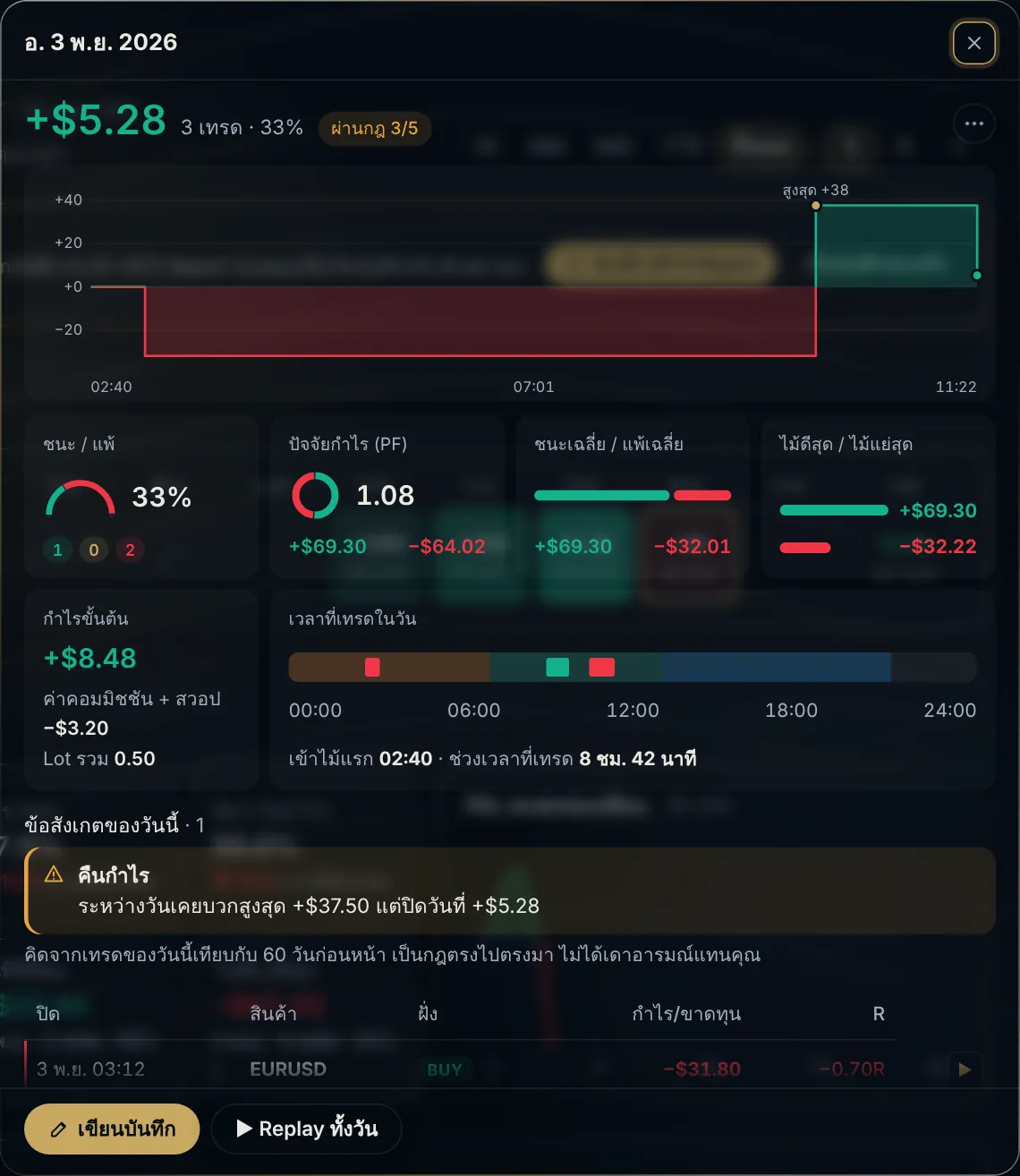
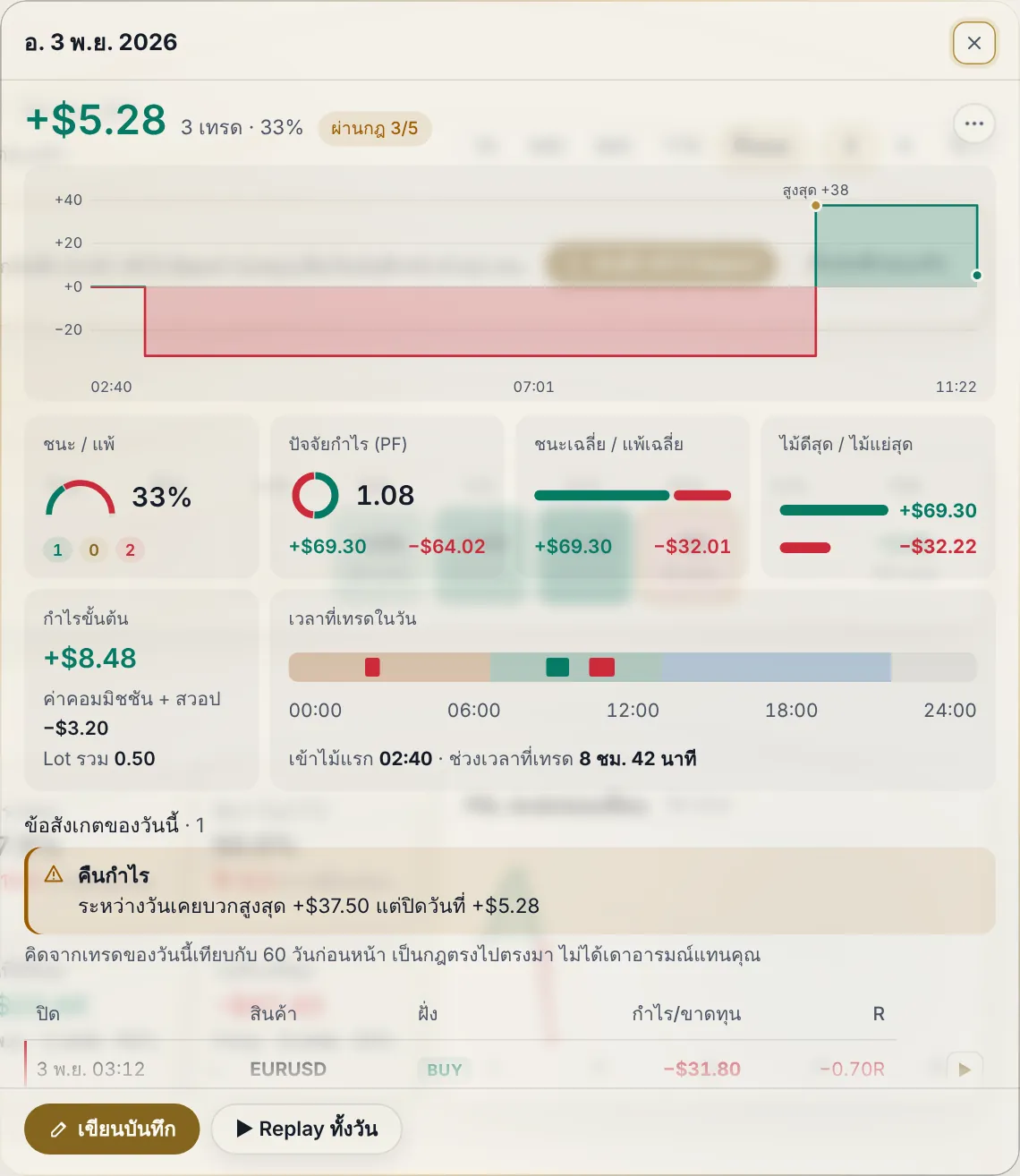
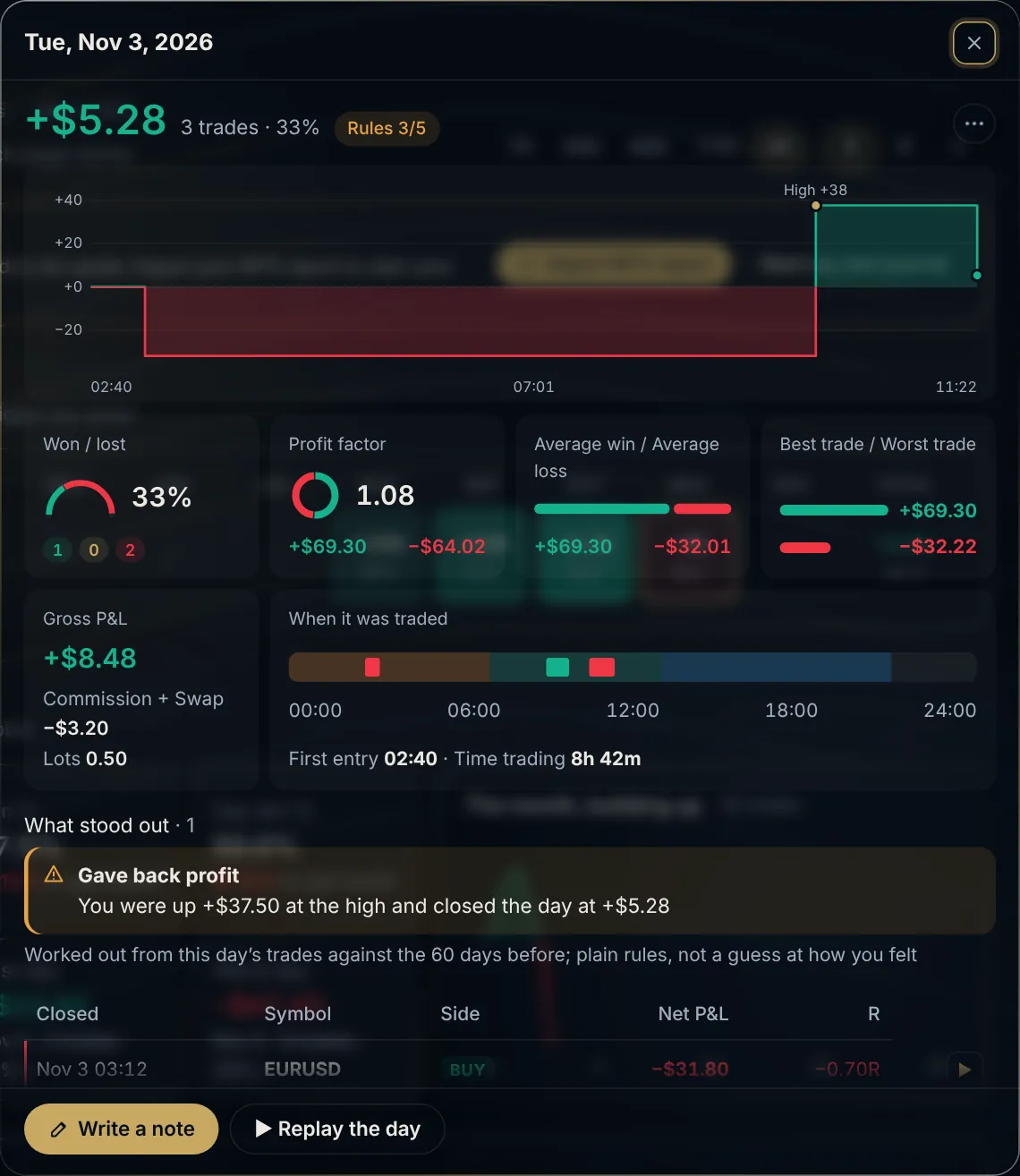
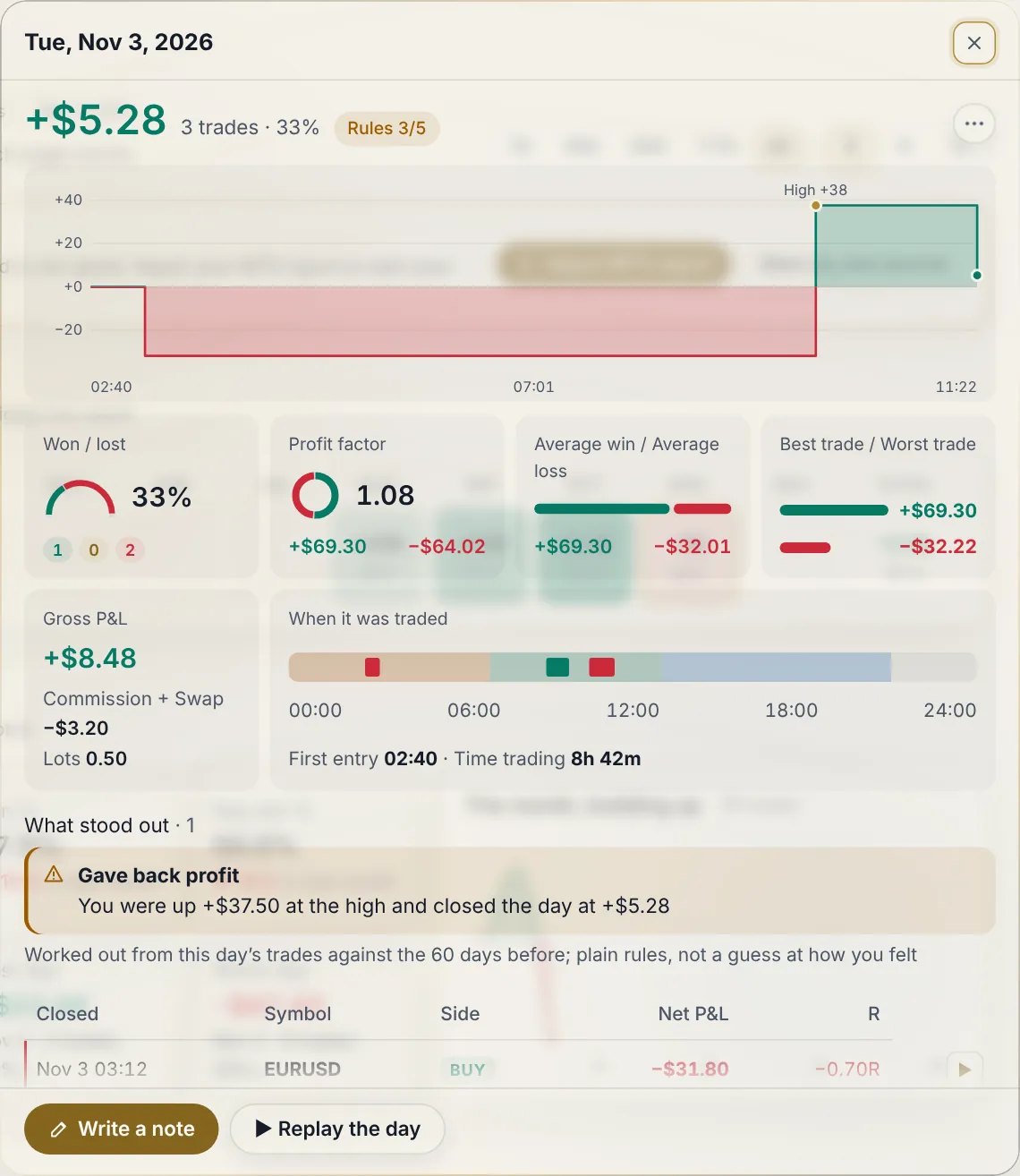
ปฏิทินข่าวเศรษฐกิจยังไม่มีในเวอร์ชันนี้ จะเพิ่มในเวอร์ชันถัดไปThe economic calendar is not in this version; it arrives in a later one.
ส่วนที่ 5Part 5
รายงานReports
รายงานมีสี่แท็บ ทุกแท็บใช้บัญชี ช่วงเวลา และหน่วยด้านบนReports has four tabs, each following the account, range and unit at the top.
| แท็บTab | ดูอะไรWhat it shows |
|---|---|
| ภาพรวมOverview | ช่วงที่เลือกในห้ากลุ่ม: ผลรวม, ไม้, วัน, เวลาที่ถือ, ความเสี่ยงและ R ชี้ที่แถวเพื่อดูว่าคิดอย่างไรThe range in five groups: result, trades, days, holding time, risk and R; point at a row for how it is worked out |
| ตามเวลาOver time | เลือกตัววัด (สุทธิ, สะสม, อัตราชนะ, PF, จำนวนเทรด, R เฉลี่ย) แล้วจัดกลุ่มรายวัน สัปดาห์ หรือเดือนPick a measure (net, cumulative, win %, PF, trades, average R) and group it by day, week or month |
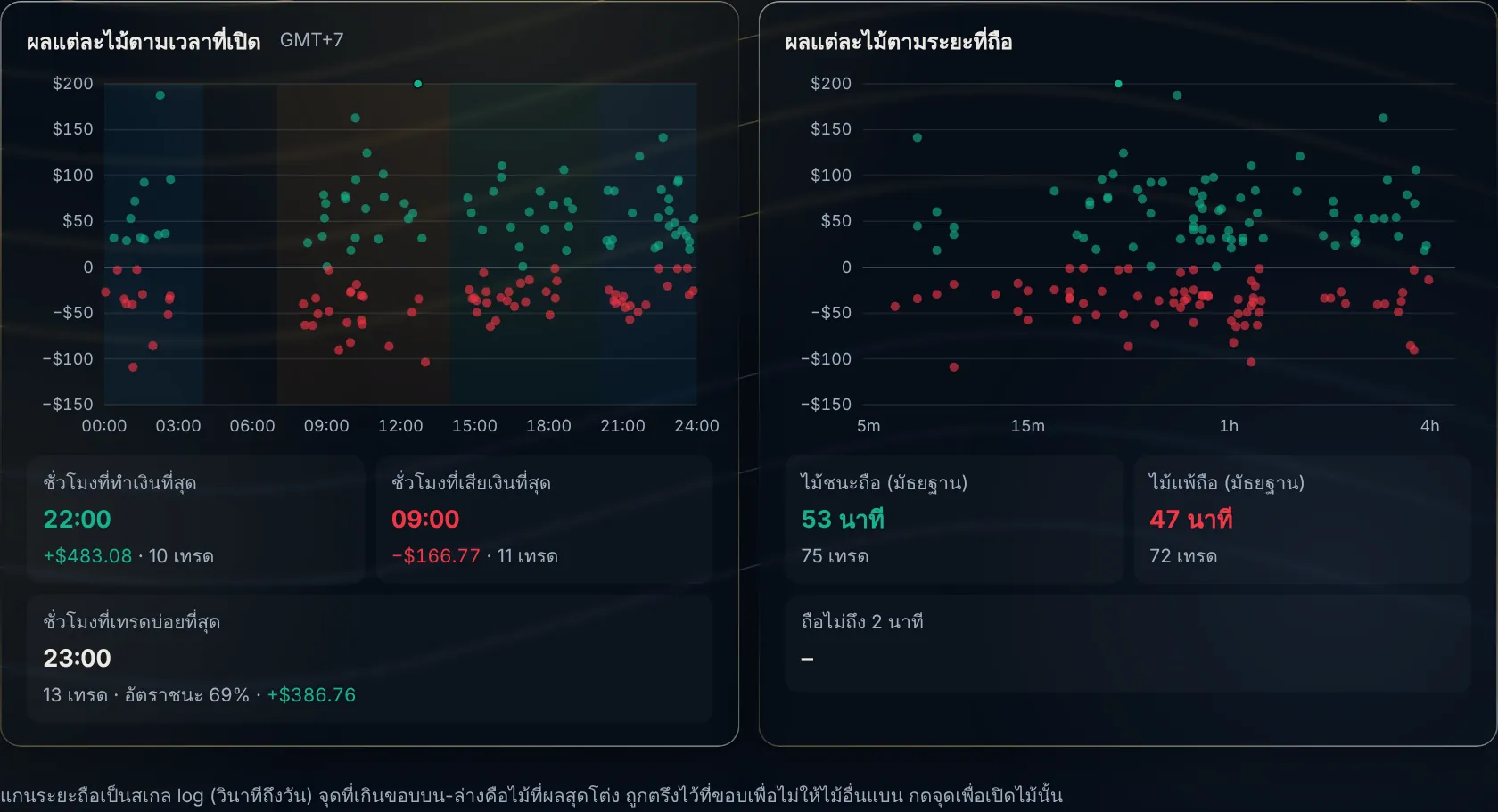
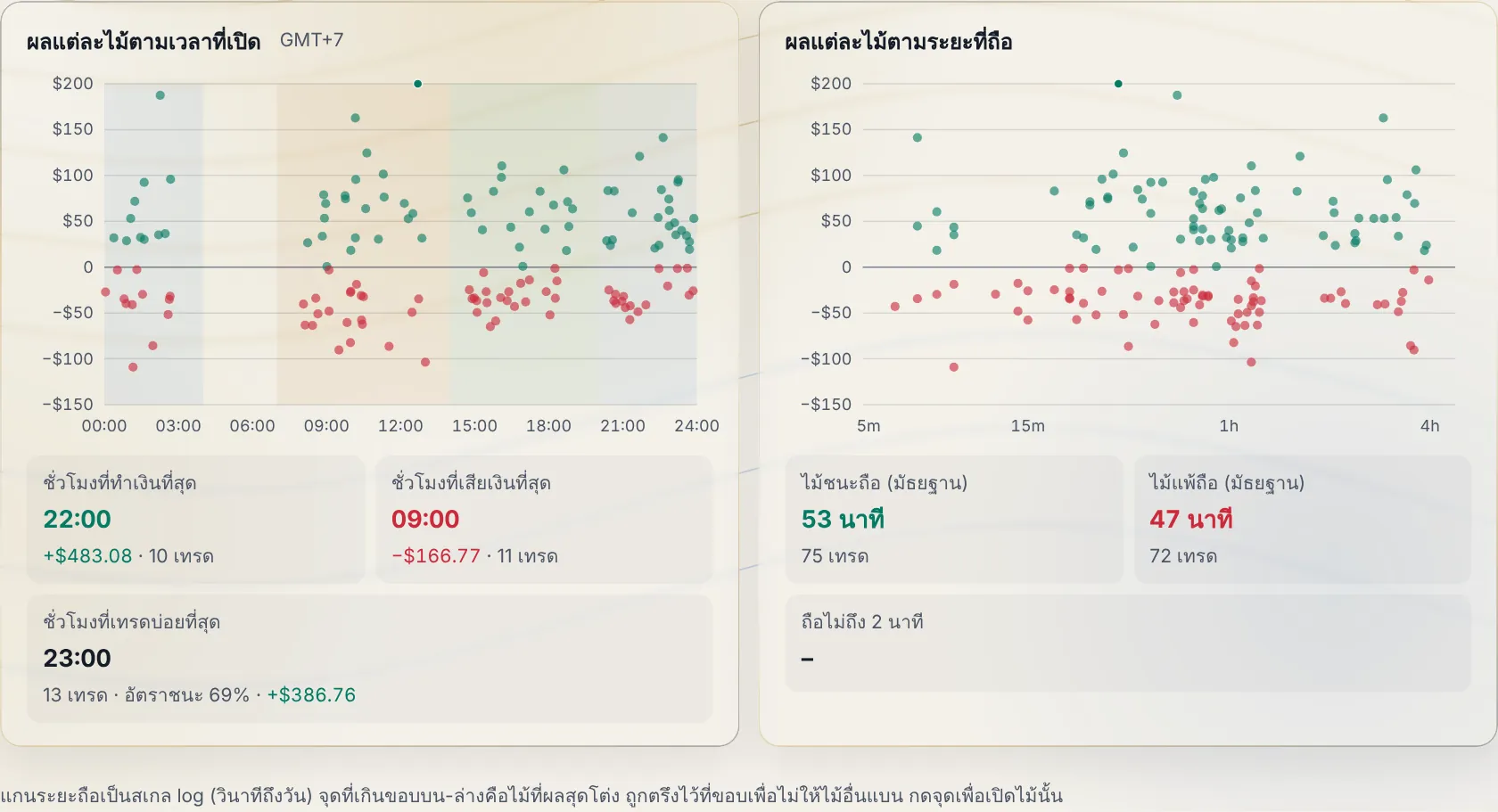
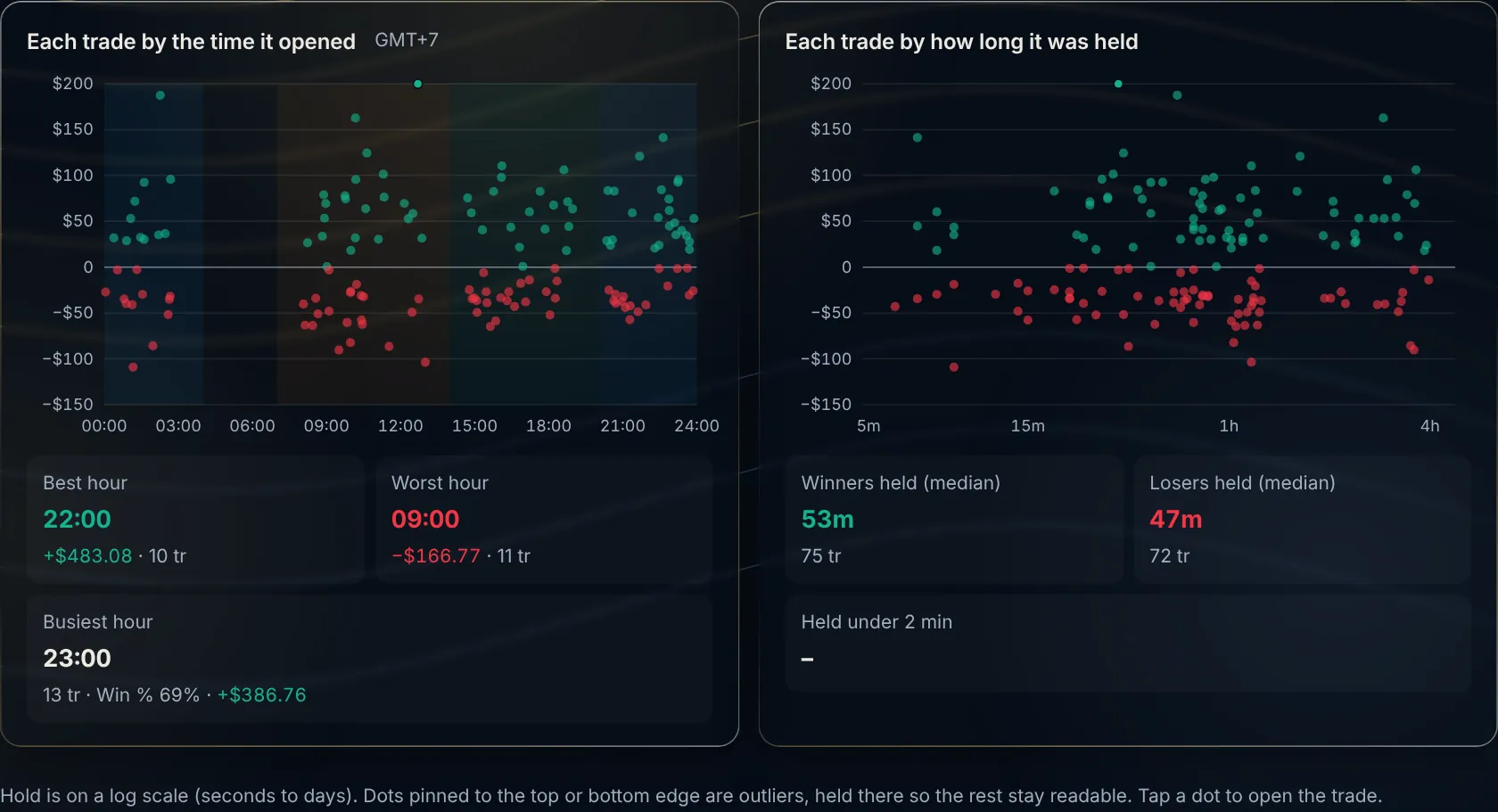
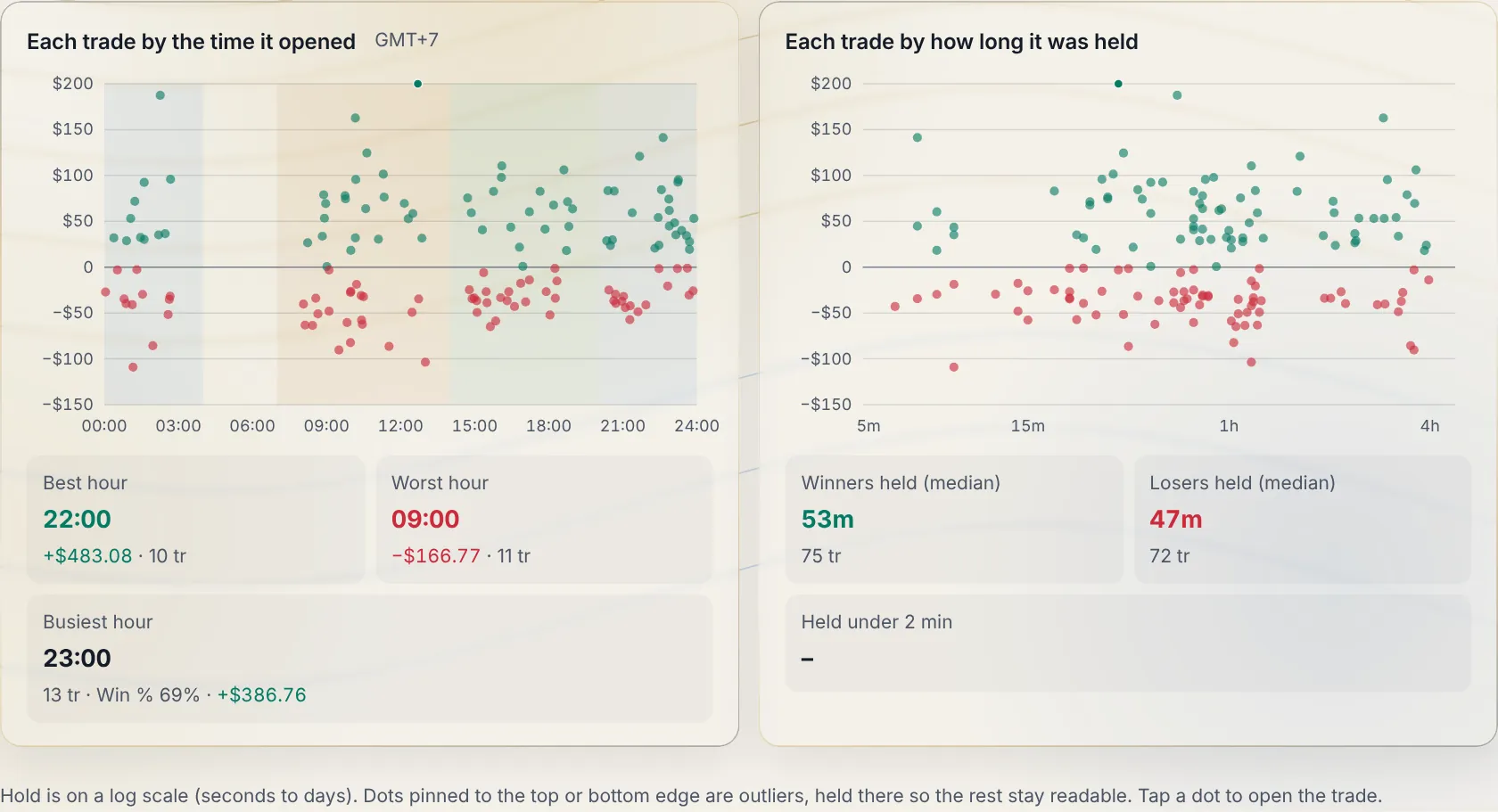
| รายไม้Every trade | แต่ละเทรดเป็นจุด ตามเวลาที่เปิด และตามเวลาที่ถือ (สเกล log) เห็นสิ่งที่ยอดรวมซ่อนไว้ เช่น ขาดทุนเล็ก ๆ ที่กระจุกตัว แตะจุดเพื่อเปิดเทรดEach trade a dot, by the time it opened and by how long it was held (log scale): patterns totals hide, such as clustered small losses. Tap a dot to open the trade |
| แยกผลBreakdowns | อะไรทำเงินและเสียเงิน แยกตามเซสชัน วัน สินค้า ชั่วโมงที่เปิด ระยะเวลาที่ถือ Playbook และแท็กWhat makes and loses money by session, weekday, product, opening hour, hold time, playbook and tag |
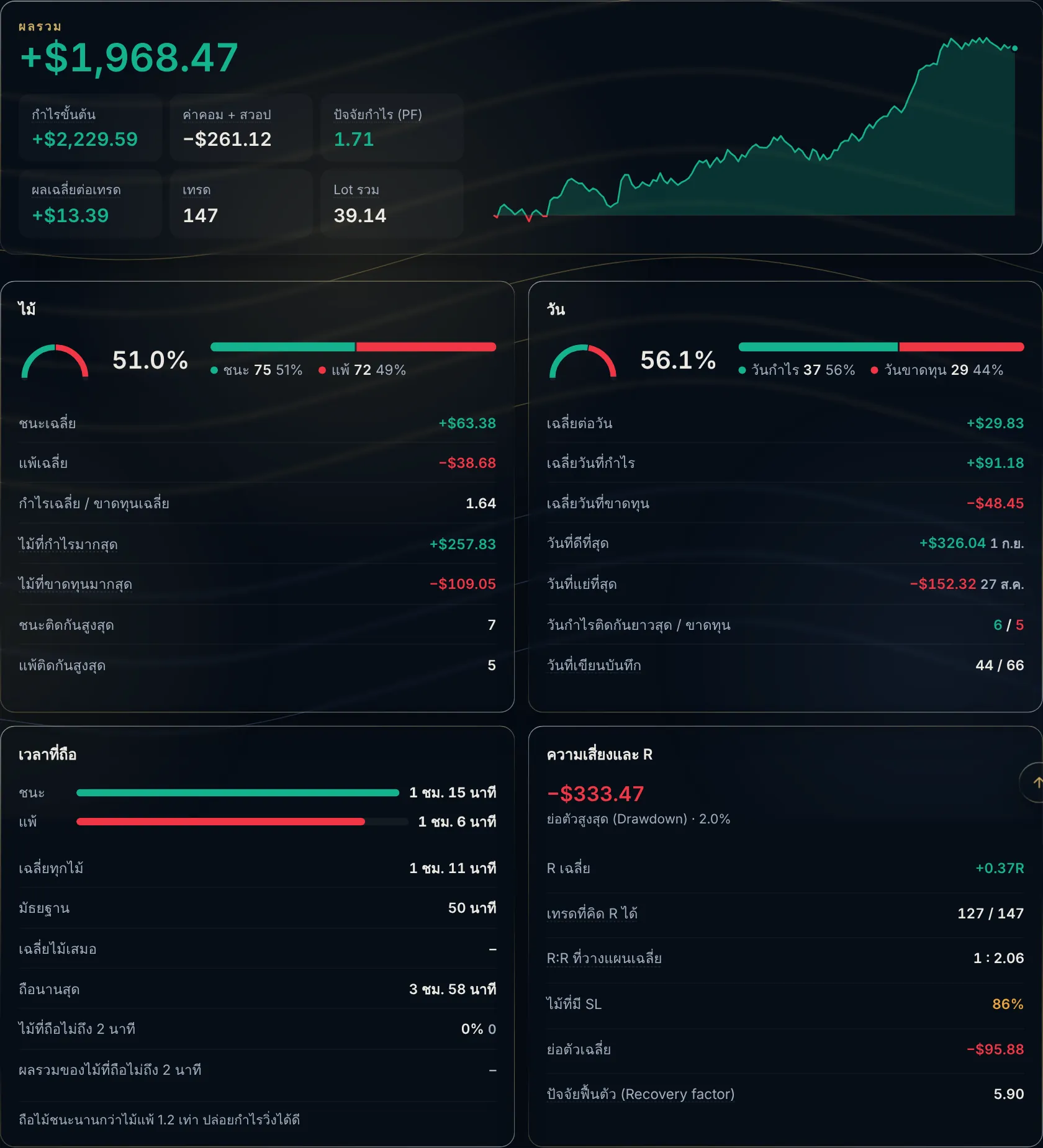
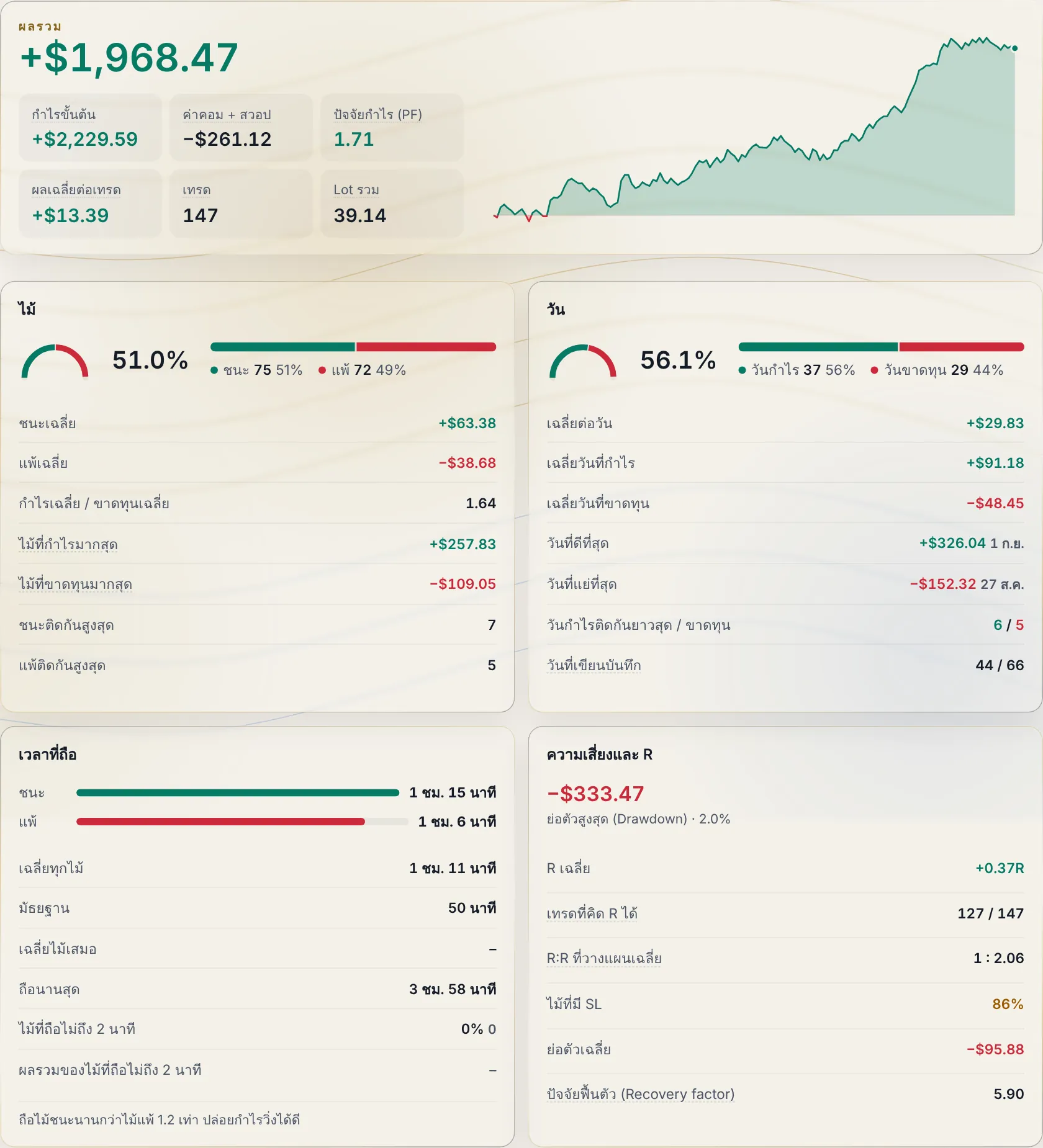
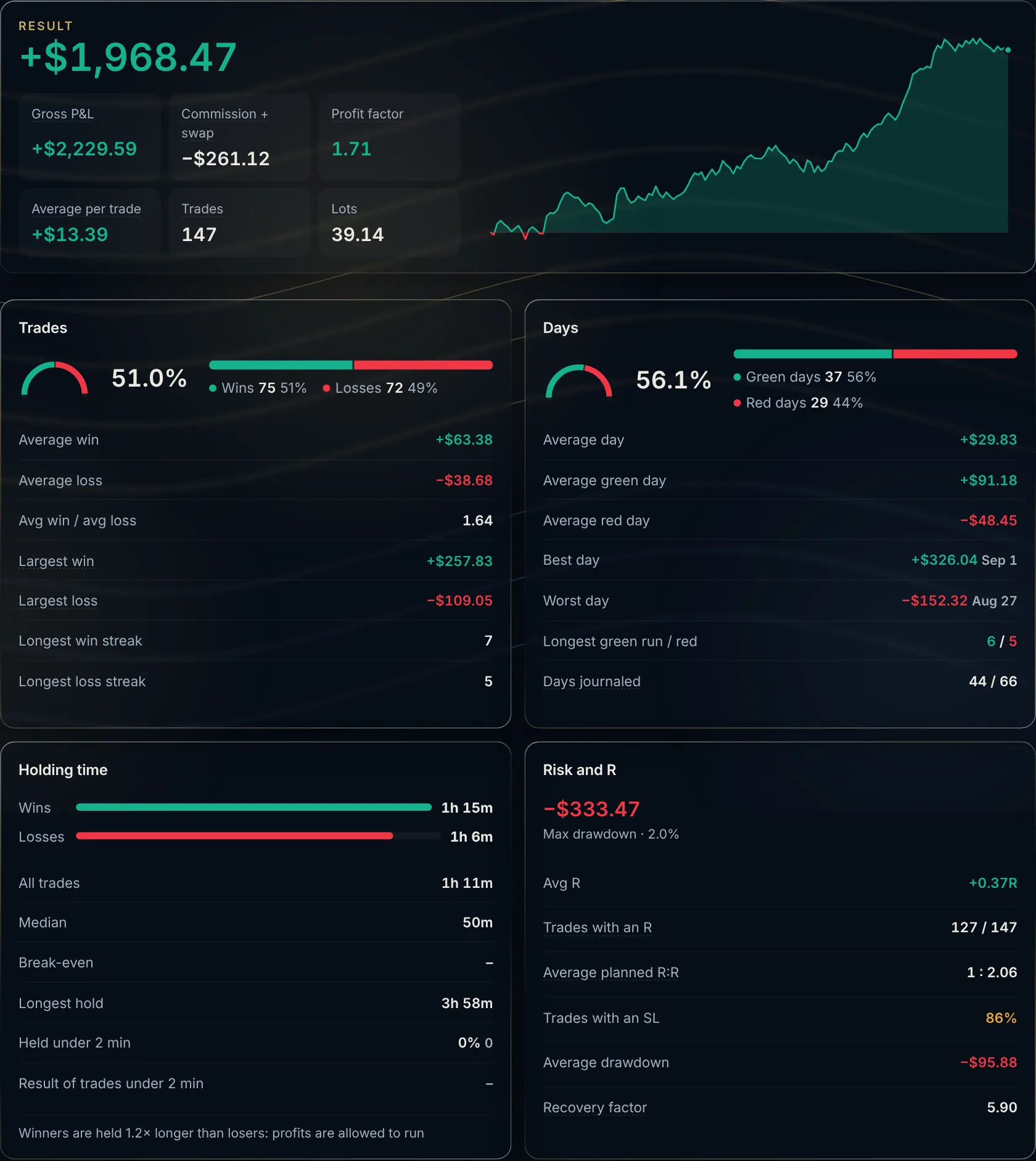
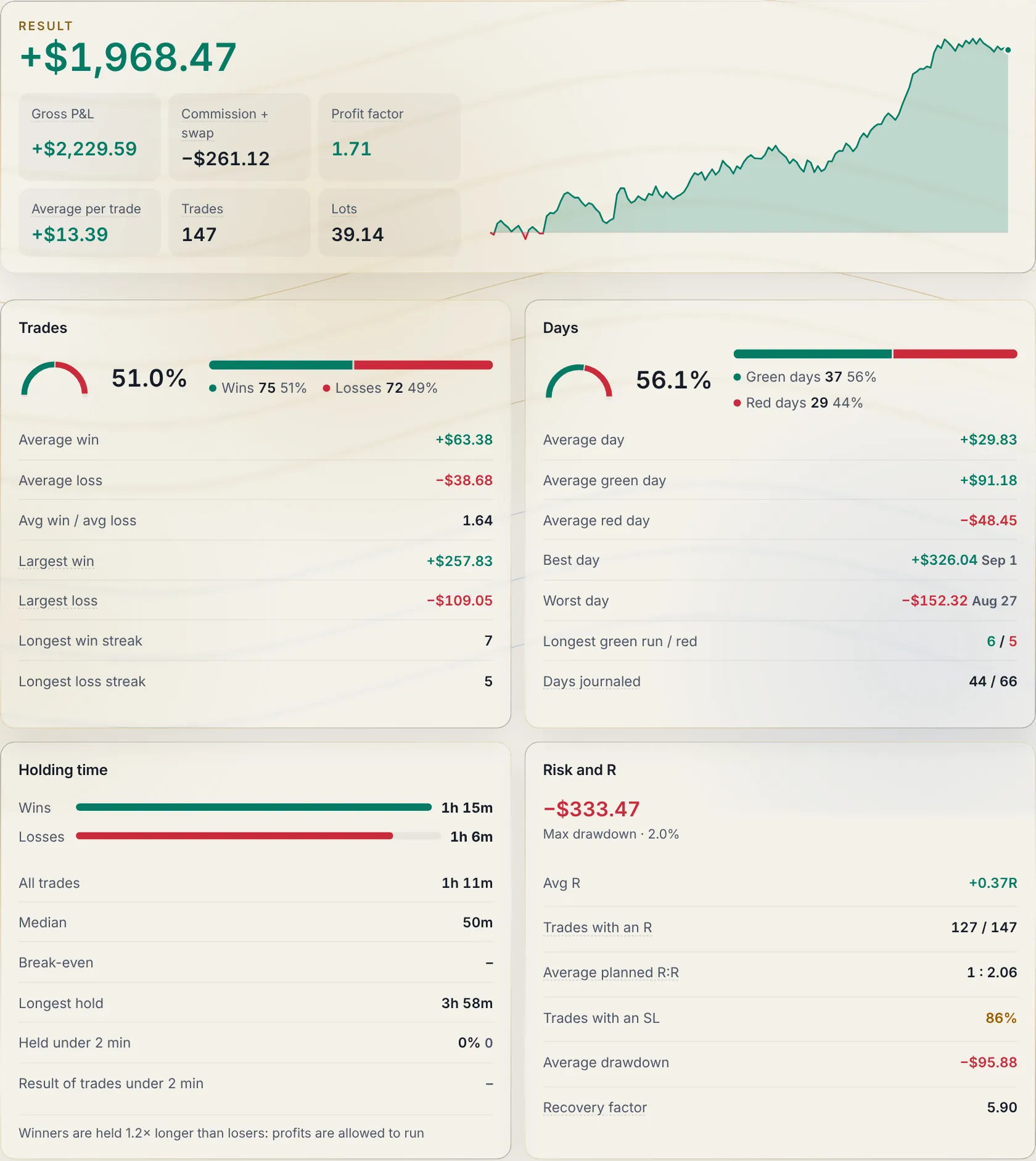
- เวลาที่ถือ: ถ้าถือไม้แพ้นานกว่าไม้ชนะ จะบอกว่าเป็นสัญญาณตัดกำไรเร็วและปล่อยขาดทุนวิ่งHolding time: if losers are held longer than winners, it says so: a sign of cutting gains early and letting losses run
- R:R ที่วางแผน: มัธยฐานของ TP ÷ SL ตอนเปิด ไม่นับเทรดที่เลื่อน SL ไปจุดคุ้มทุนAverage planned R:R: the median of TP ÷ SL as set at the open; trades whose stop was moved to break-even are left out
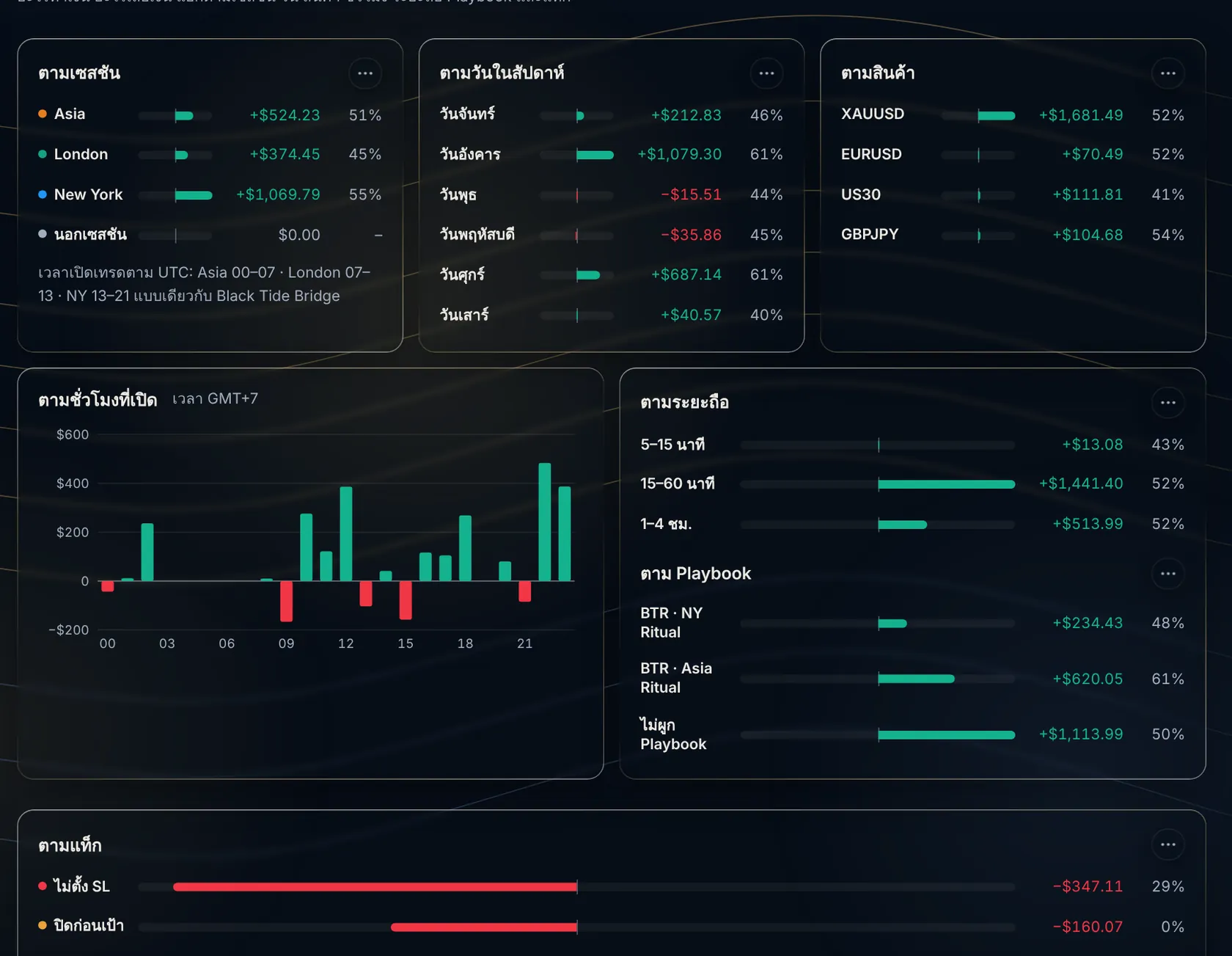
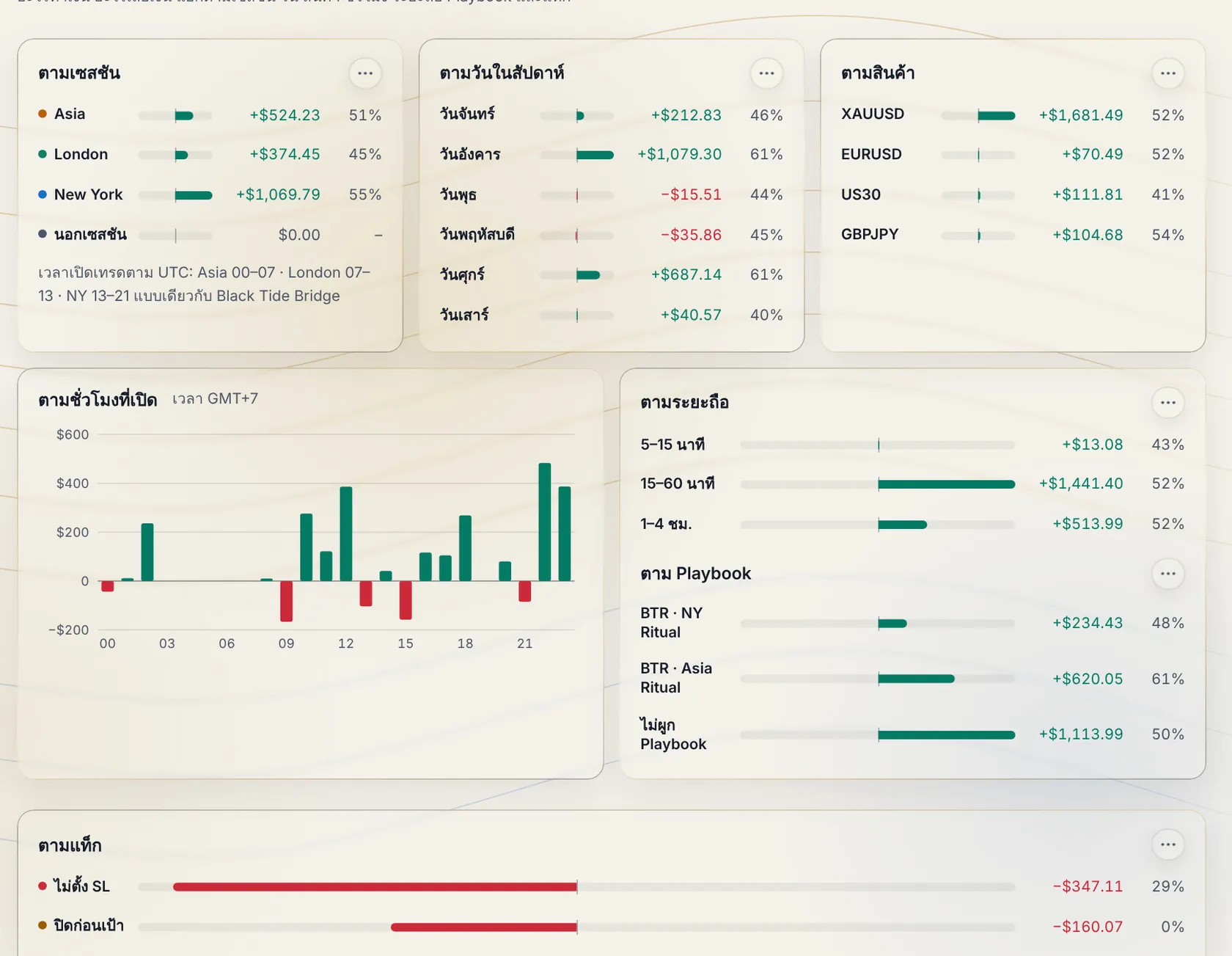
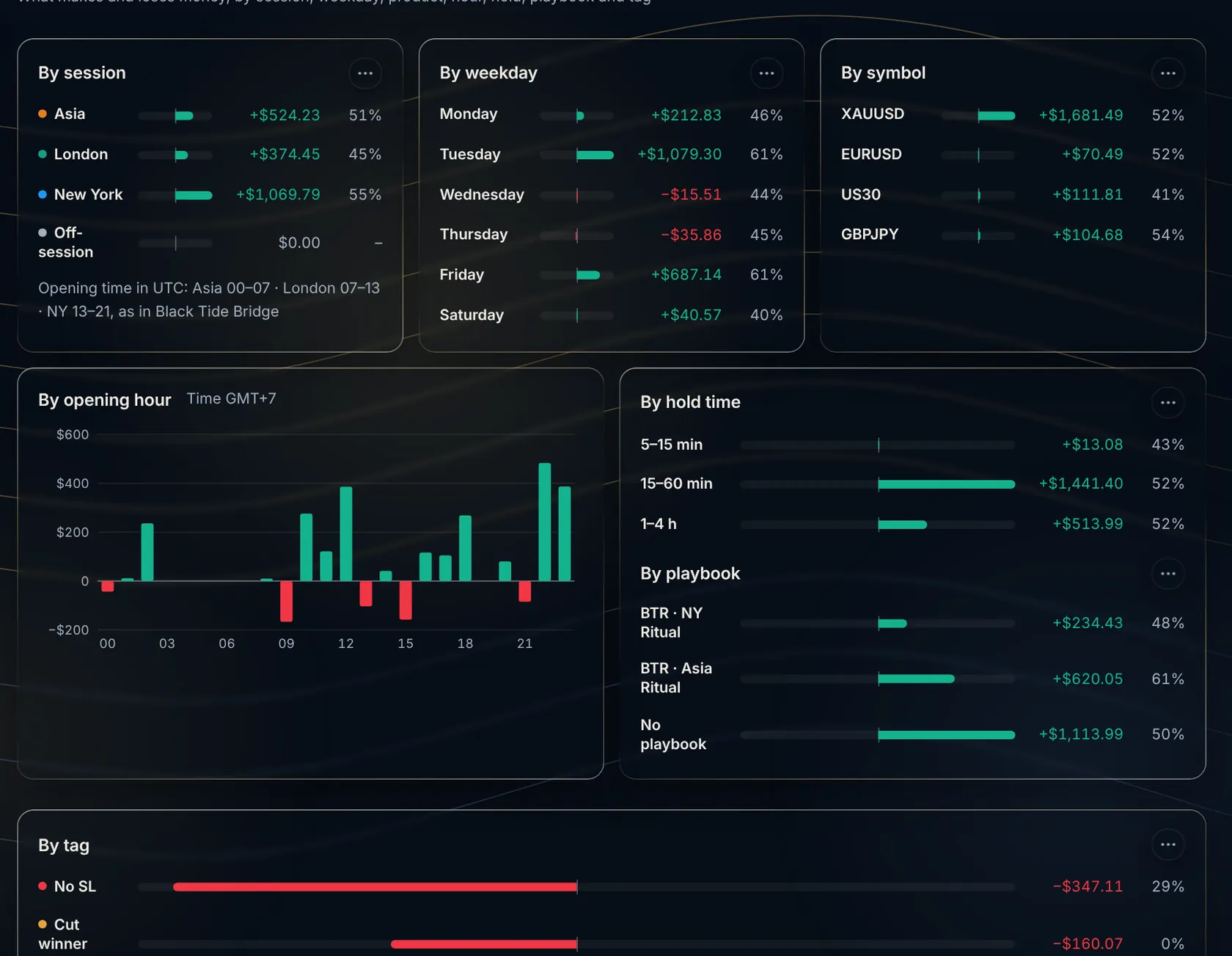
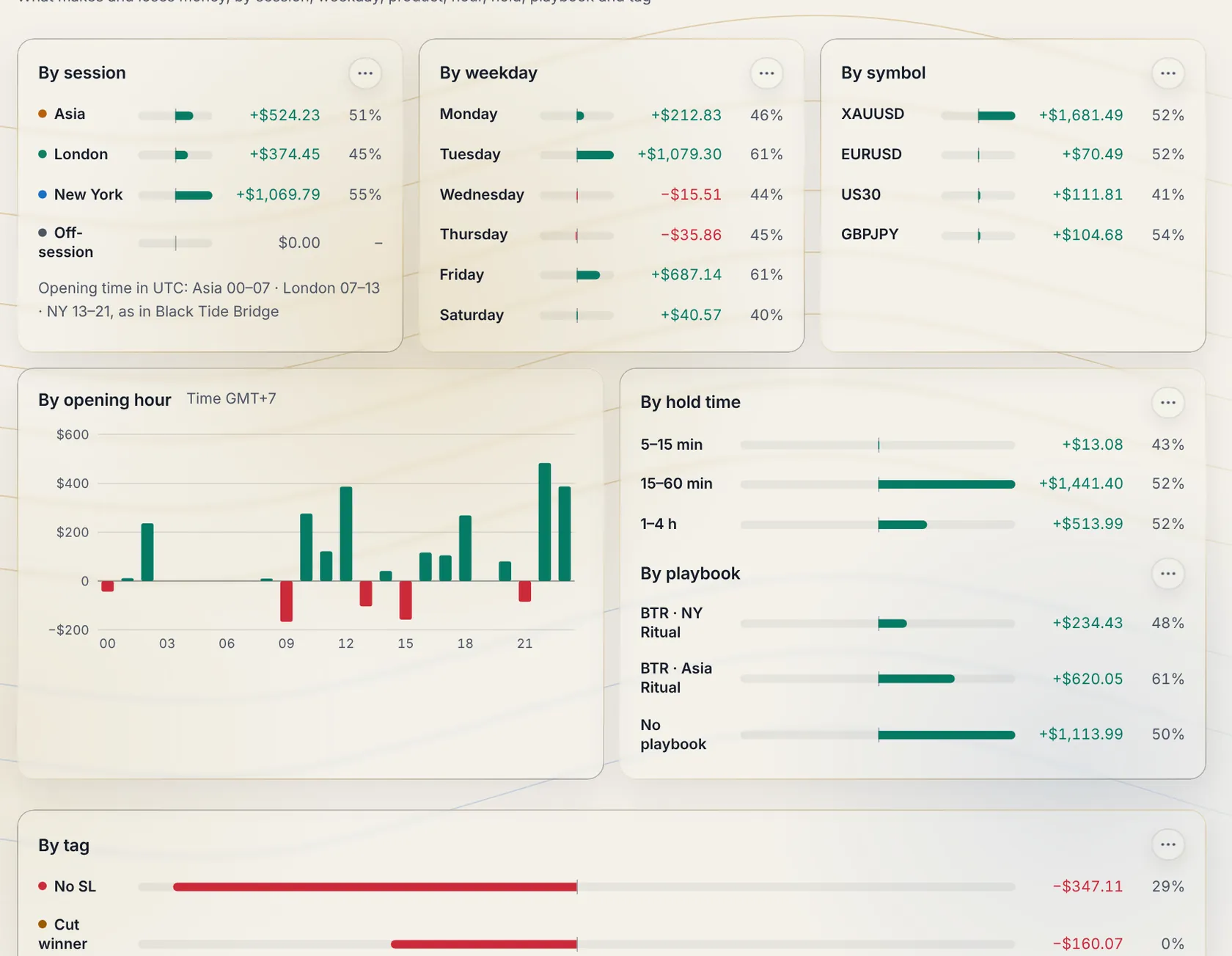
เซสชันนับจากเวลาที่เปิดเทรดตาม UTC: เอเชีย 00–07, ลอนดอน 07–13, นิวยอร์ก 13–21 นอกนั้นคือนอกเซสชัน ระยะถือแบ่งเป็น ต่ำกว่า 5 นาที, 5–15 นาที, 15–60 นาที, 1–4 ชม., 4–24 ชม. และเกิน 1 วันSessions go by the trade’s opening time in UTC: Asia 00–07, London 07–13, New York 13–21, the rest off-session. Hold times are split into under 5 min, 5–15 min, 15–60 min, 1–4 h, 4–24 h and over a day.
ส่วนที่ 6Part 6
รายการเทรดและการรีวิวTrades and review
1รายการเทรดThe Trades page
ดูแบบรายวัน (การ์ดของแต่ละวันพร้อมตัวเลขสรุป) หรือตาราง กรองตามสินค้า ฝั่ง Buy/Sell ผลลัพธ์ Playbook แท็ก การรีวิว เซสชัน และการมี SL เรียงลำดับได้ทุกคอลัมน์View it by day (a card per day with its numbers) or as a table. Filter by symbol, side, outcome, playbook, tag, review, session and whether there is an SL; sort by any column.
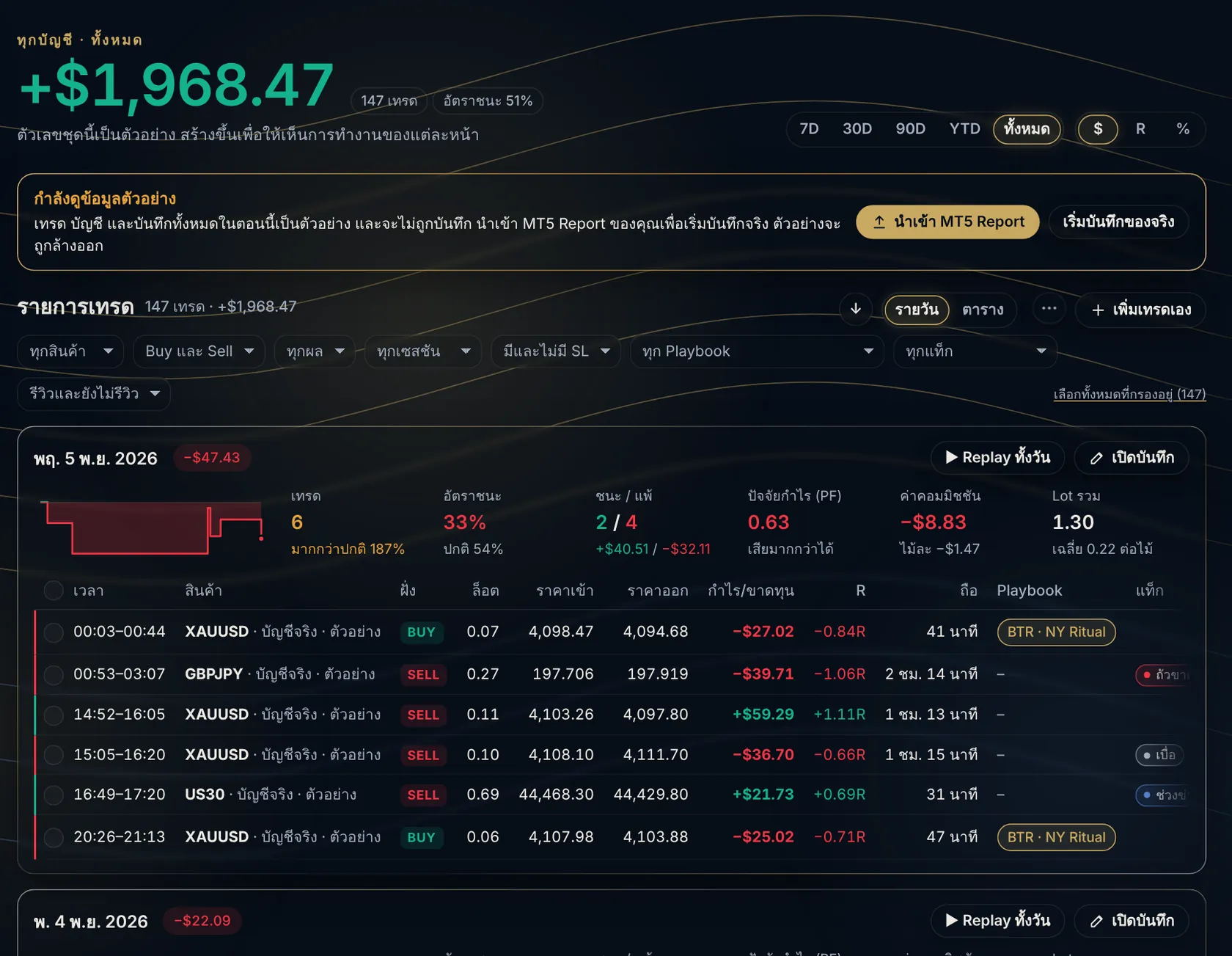
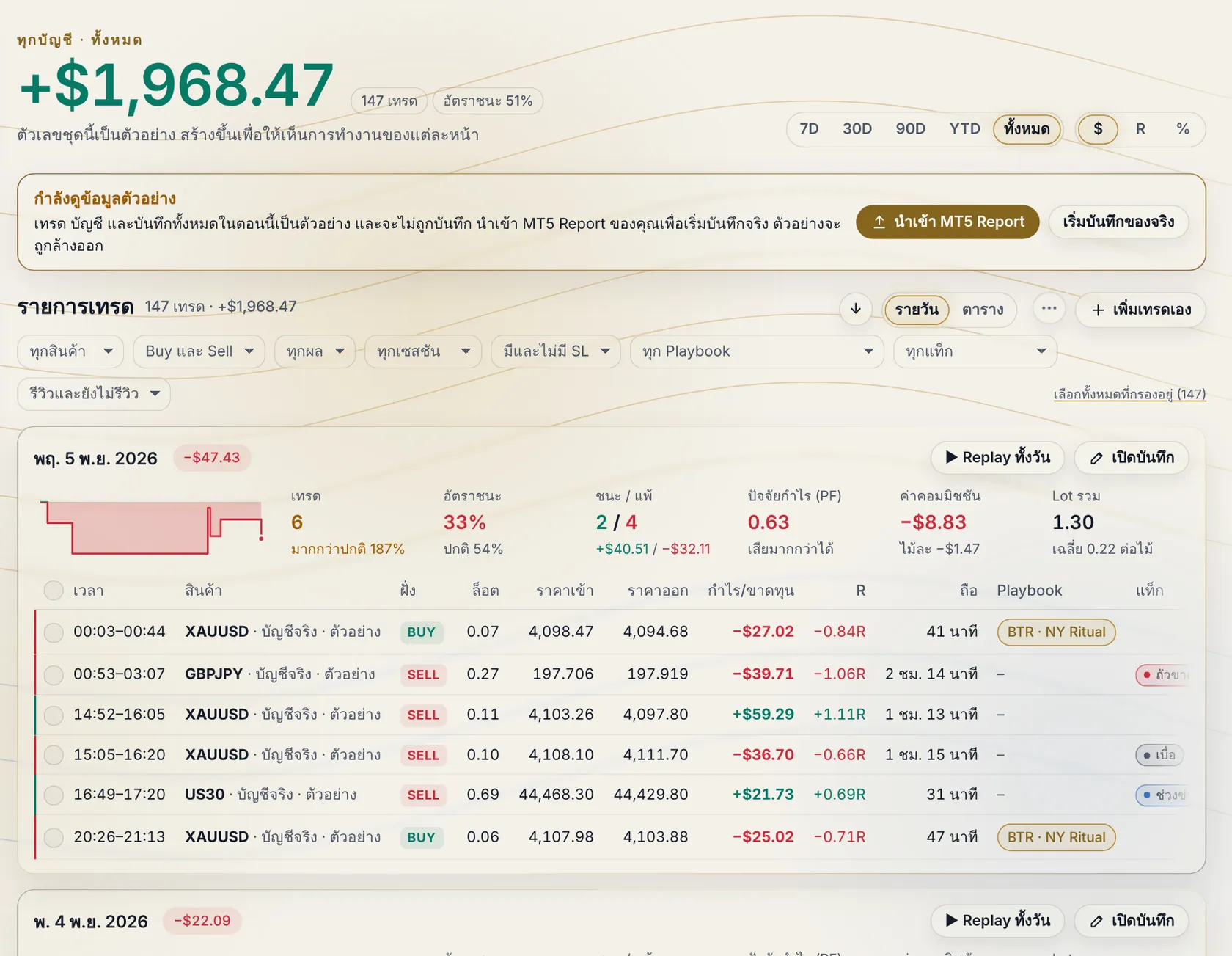
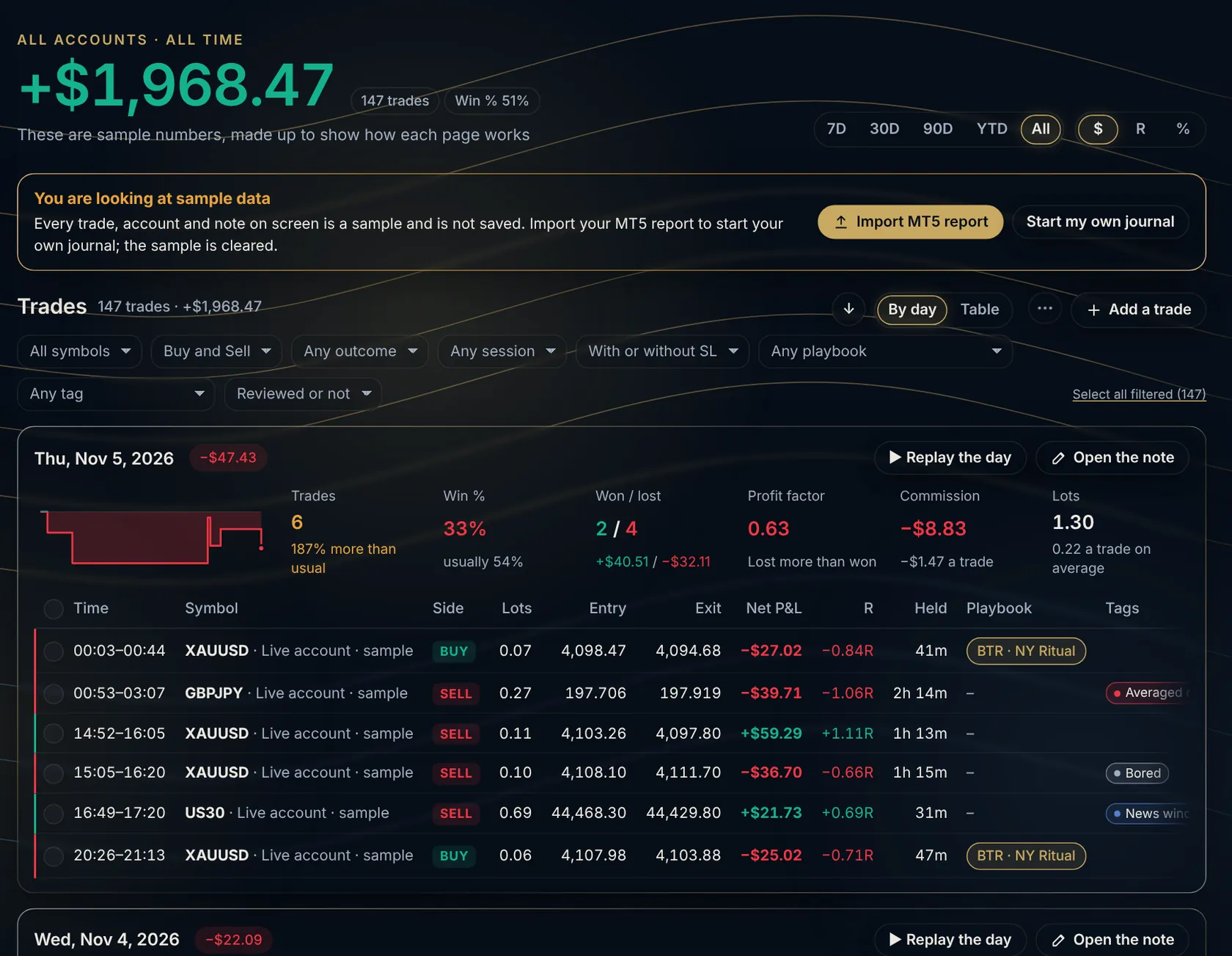
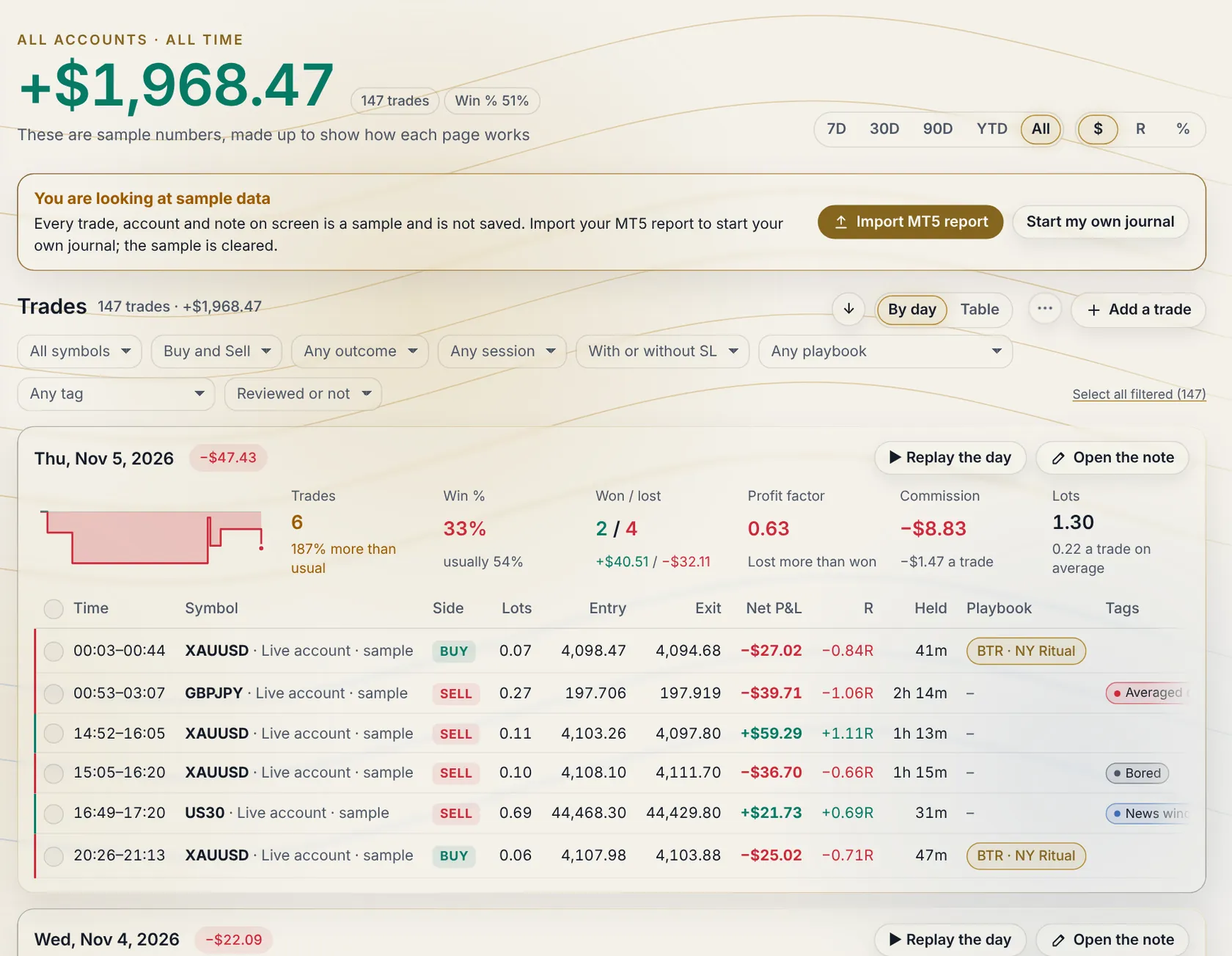
เลือกหลายไม้ (ทั้งตาราง ทั้งวัน หรือทั้งหมดที่กรองอยู่) แล้วผูก Playbook เพิ่มหรือลบแท็ก หรือตั้งว่ารีวิวแล้วพร้อมกันได้Select several (a table, a day, or everything filtered) to link a playbook, add or remove a tag, or mark them reviewed in one go.
2หน้ารีวิวเทรดReviewing a trade
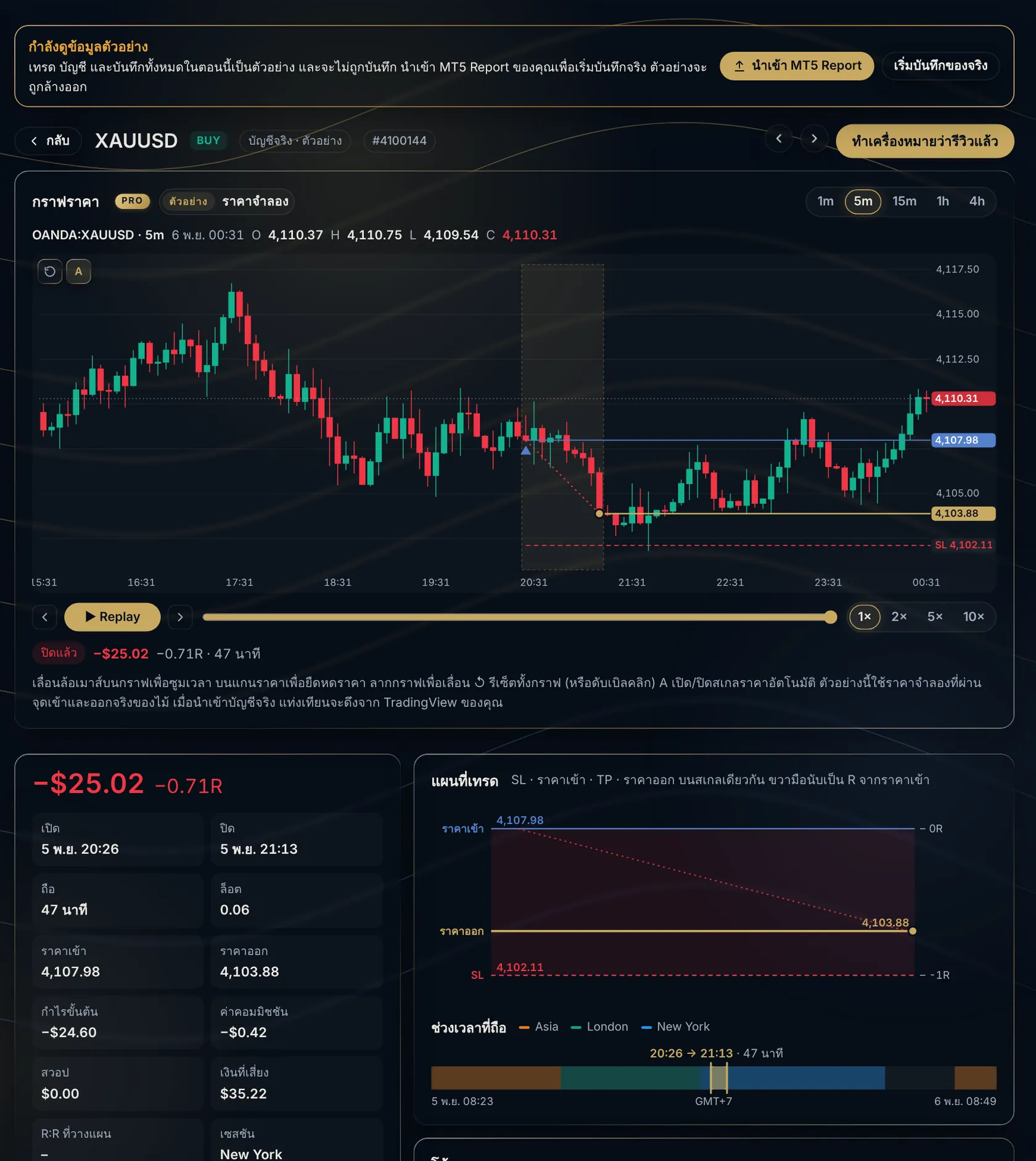
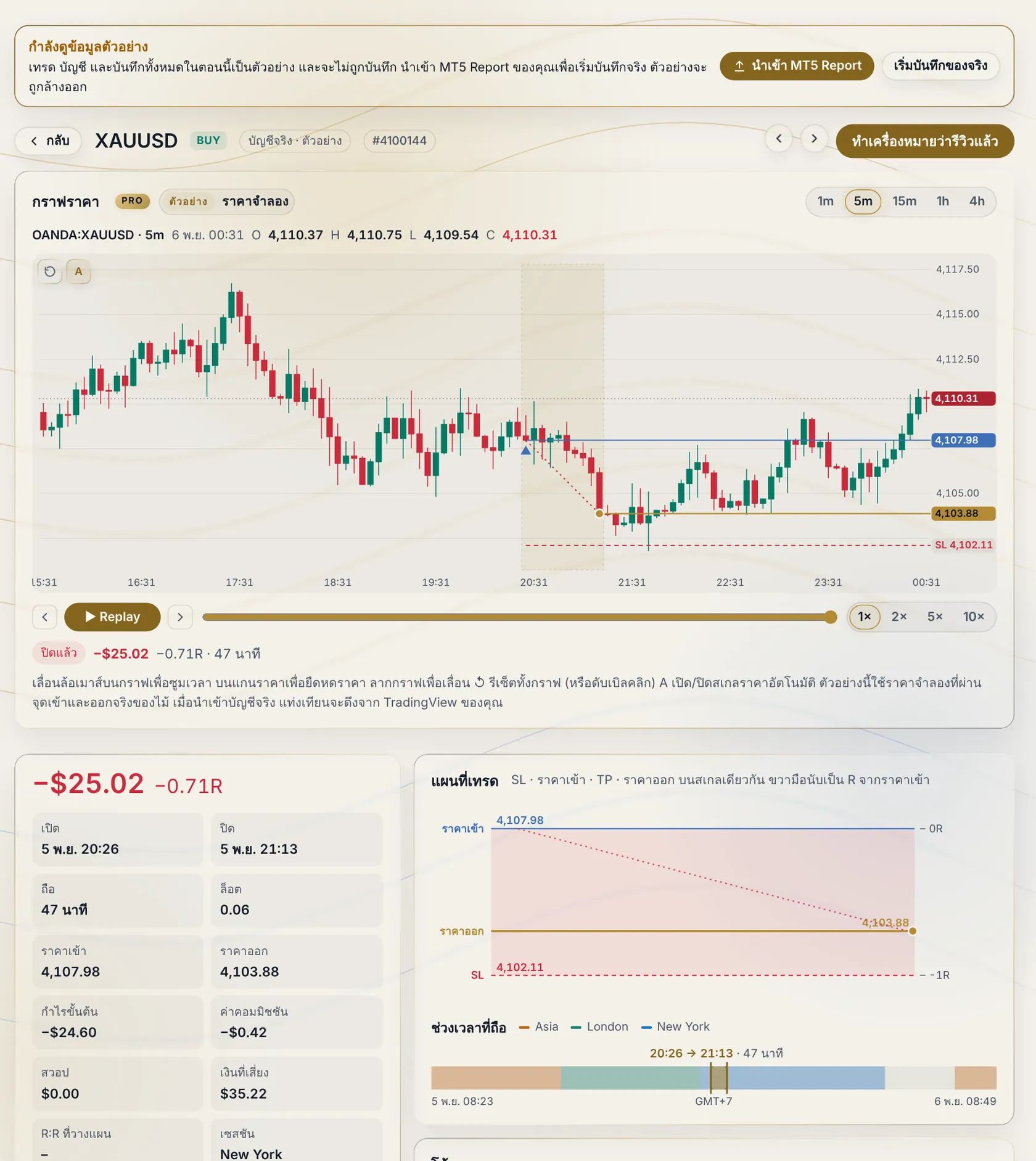
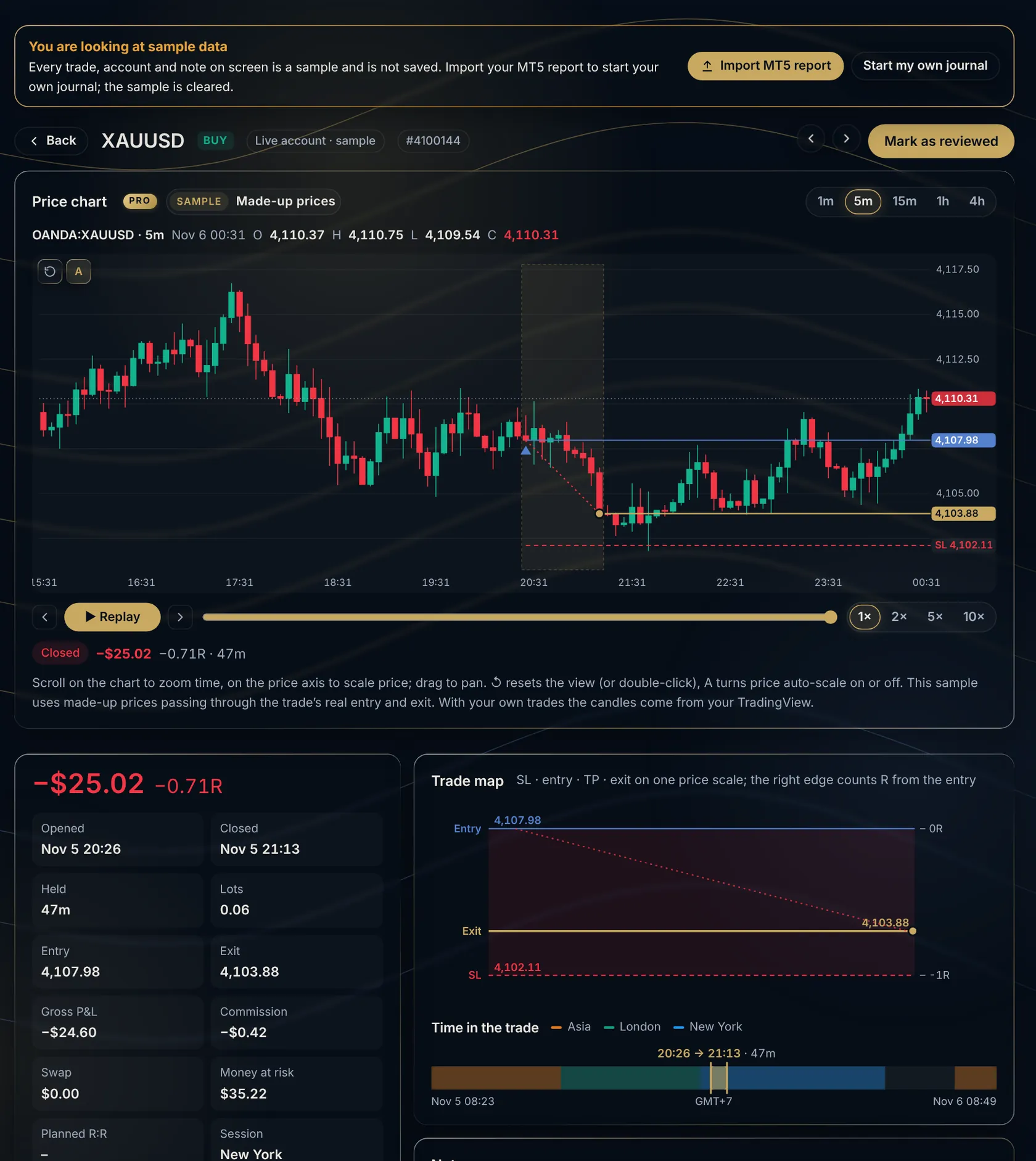
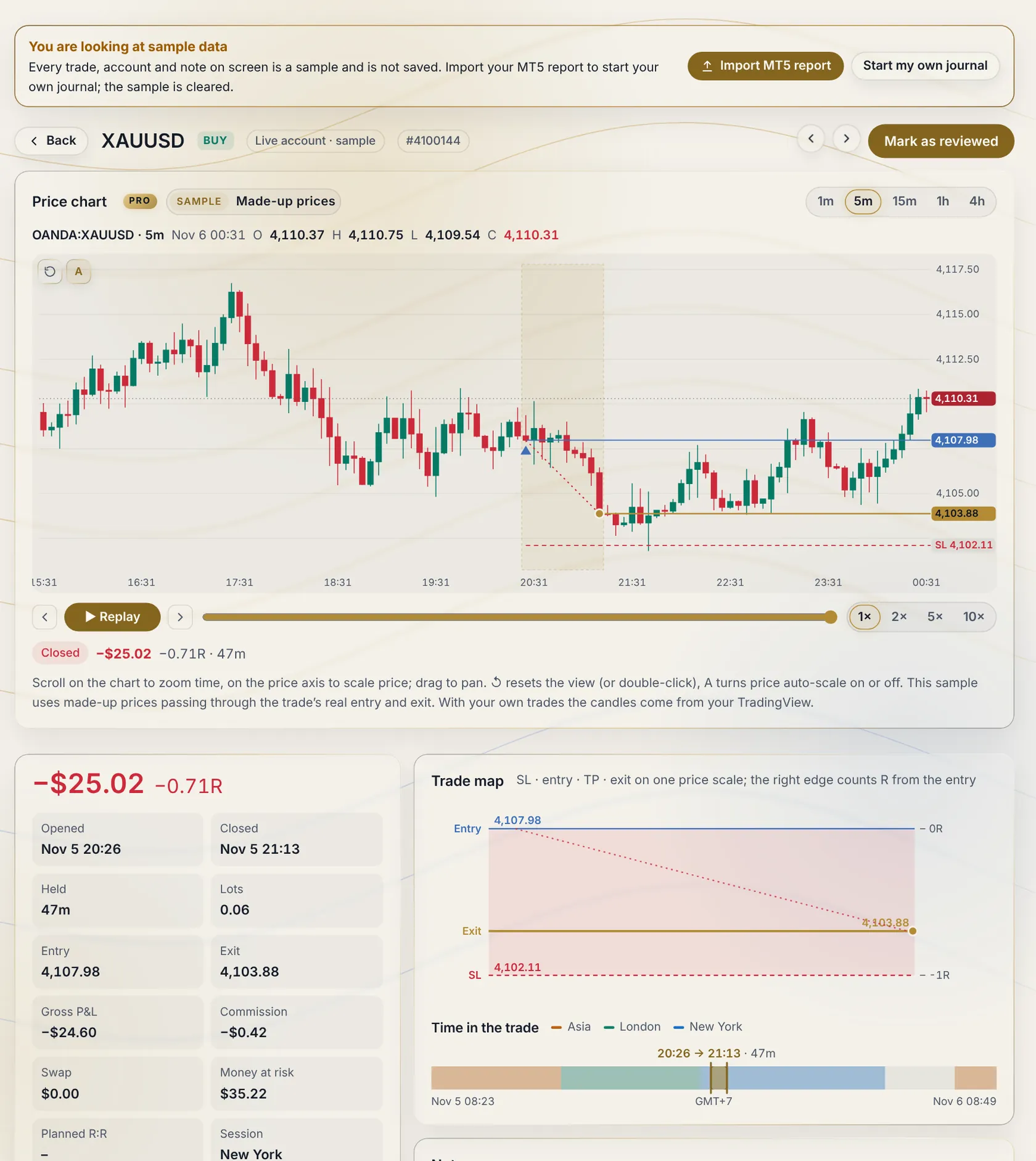
- แผนที่เทรด: SL จุดเข้า TP และจุดออกบนสเกลราคาเดียวกัน ขอบขวานับ R จากจุดเข้าTrade map: SL, entry, TP and exit on one price scale; the right edge counts R from the entry
- ให้คะแนนการเทรดนี้ และติดแท็ก 3 กลุ่ม: ความผิดพลาด รูปแบบเข้าเทรด และอารมณ์ (พิมพ์แท็กใหม่แล้วกด Enter ได้)Rate the trade and add tags in three groups: mistakes, setup and emotion (type a new tag and press Enter)
- Playbook: เลือก Playbook แล้วติ๊กกฎที่ทำตามPlaybook: pick one and tick the rules you followed
- โน้ต: ทำไมเข้า ทำตามแผนไหม จะทำอะไรต่างไป บันทึกเองขณะพิมพ์Note: why you took it, whether you followed the plan, what you would do differently; it saves as you type
- SL ที่ตั้งใจ: ถ้า SL ในไฟล์ถูกเลื่อนหรือไม่มี ใส่ค่าที่ตั้งใจไว้ R จะใช้ค่านี้ เว้นว่างเพื่อใช้ค่าจากไฟล์The stop you meant: when the file’s SL was moved or missing, enter it and R uses it; leave it empty to use the file’s value
- ตั้งว่ารีวิวแล้ว แล้วไปไม้ก่อนหน้าหรือถัดไป และดูเทรดอื่นของวันเดียวกันMark as reviewed, move to the previous or next trade, and see the same day’s other trades
กราฟราคาในหน้ารีวิวมากับ Journal Pro และต้องมีบัญชีที่เชื่อมอัตโนมัติ ในข้อมูลตัวอย่างใช้ราคาสมมติที่ผ่านจุดเข้าและออกจริงของเทรดThe price chart on the review page comes with Journal Pro and needs an auto-synced account; in the sample it uses made-up prices passing through the trade’s real entry and exit.
ส่วนที่ 7Part 7
บันทึกJournal
1รายวันDaily
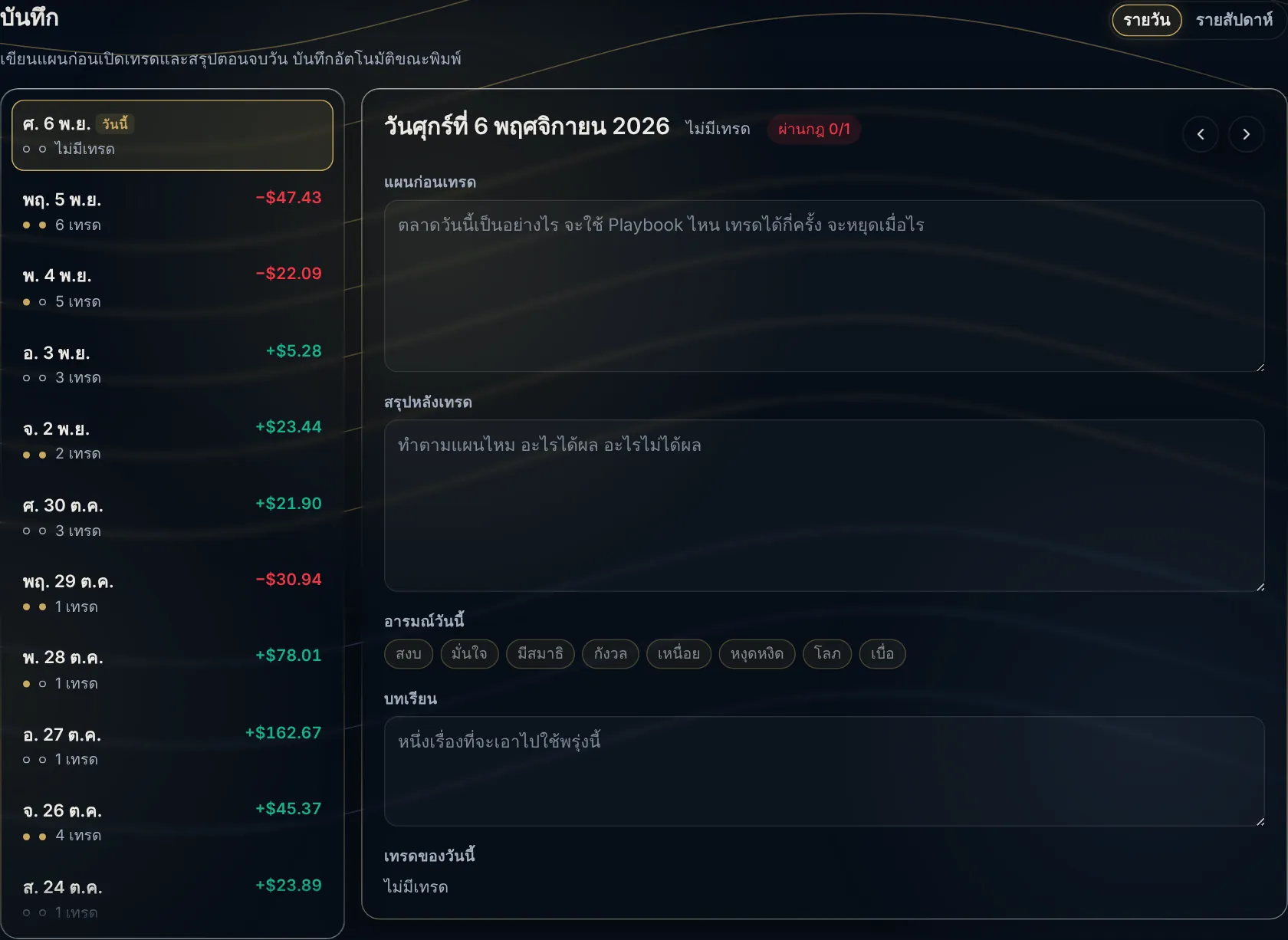
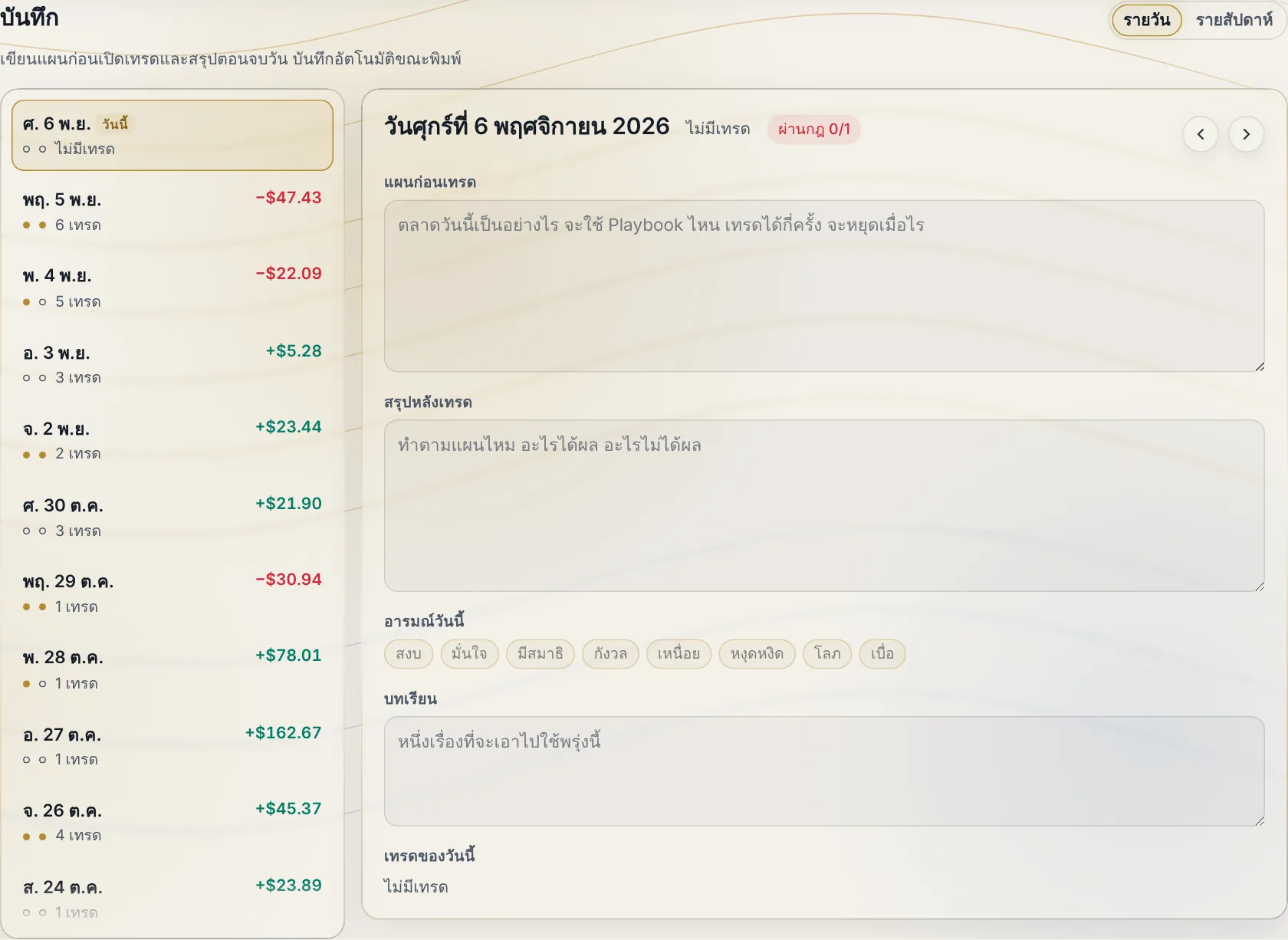
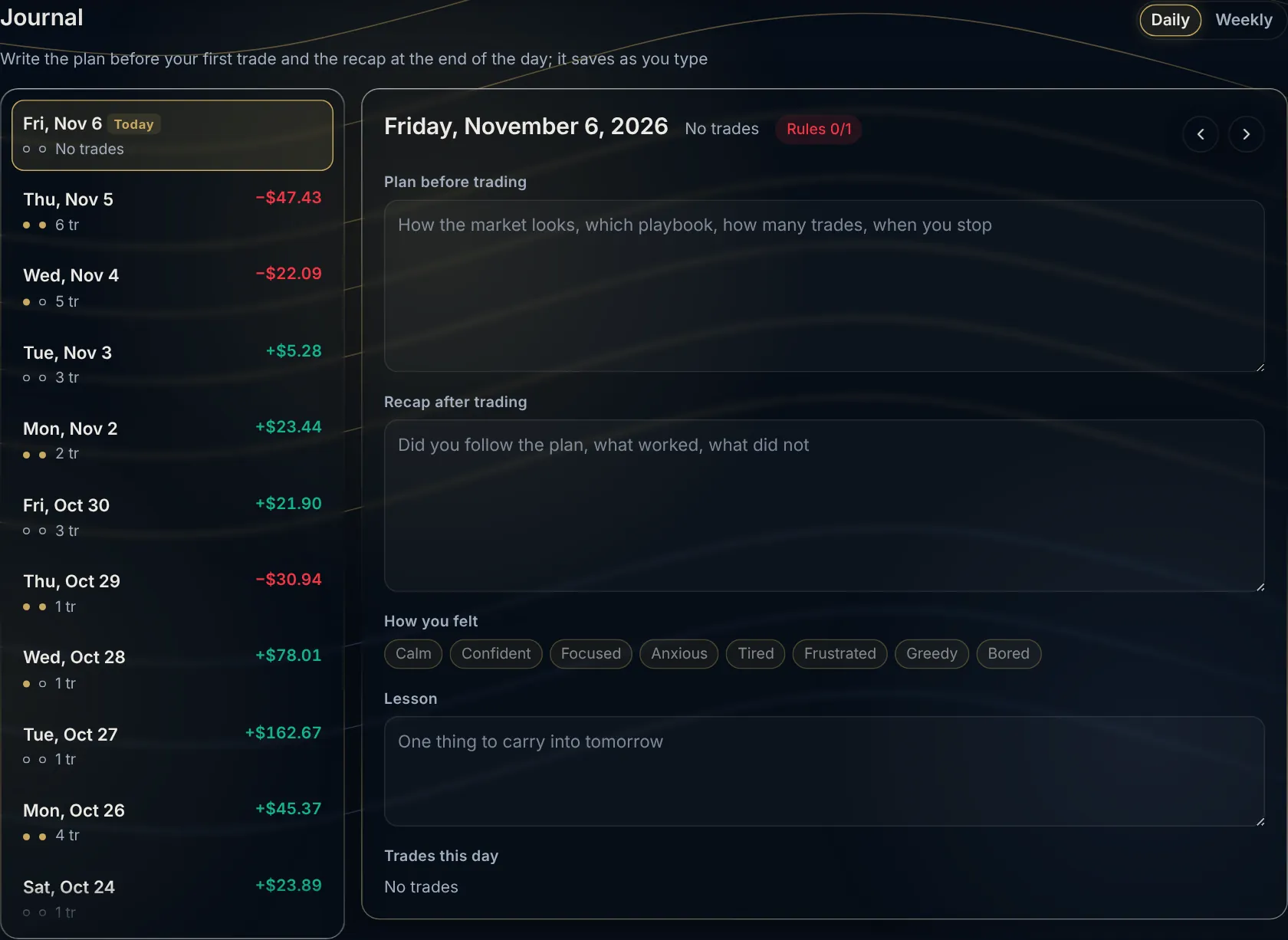
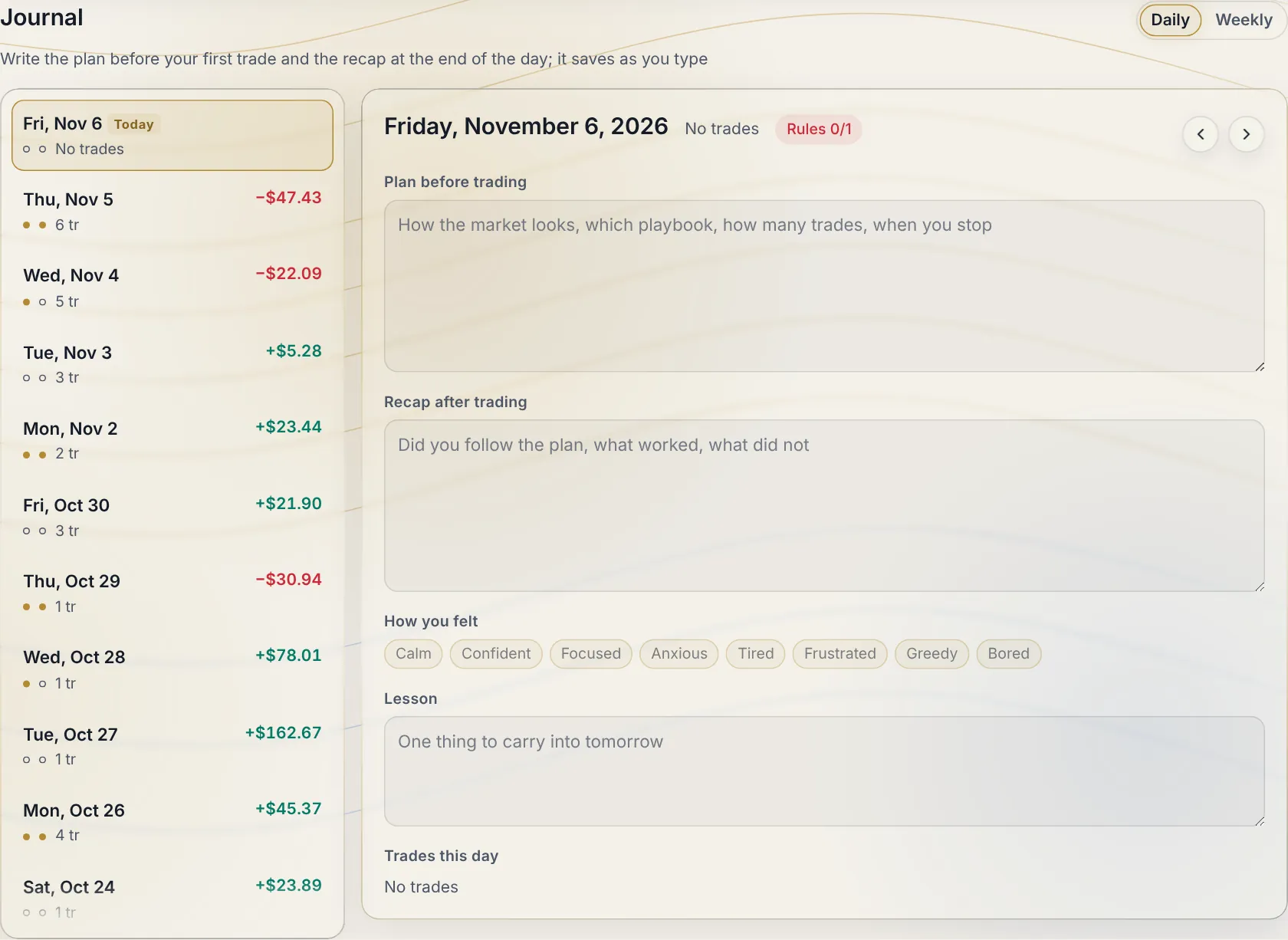
เลือกวันจากรายการด้านซ้าย เขียนแผนก่อนเทรด (ตลาดเป็นอย่างไร ใช้ Playbook ไหน กี่เทรด หยุดเมื่อไร) ก่อนเทรดแรก และสรุปหลังเทรดตอนจบวัน เลือกอารมณ์วันนี้ (สงบ มั่นใจ มีสมาธิ กังวล เหนื่อย หงุดหงิด โลภ เบื่อ) และเขียนบทเรียนหนึ่งข้อไปพรุ่งนี้ ใต้นั้นคือเทรดของวัน ทุกช่องบันทึกเองขณะพิมพ์Pick a day on the left. Write the plan (how the market looks, which playbook, how many trades, when you stop) before your first trade and the recap at the end of the day. Choose how you felt (calm, confident, focused, anxious, tired, frustrated, greedy, bored) and one lesson for tomorrow; the day’s trades are underneath. Everything saves as you type.
2ทบทวนสัปดาห์Weekly review
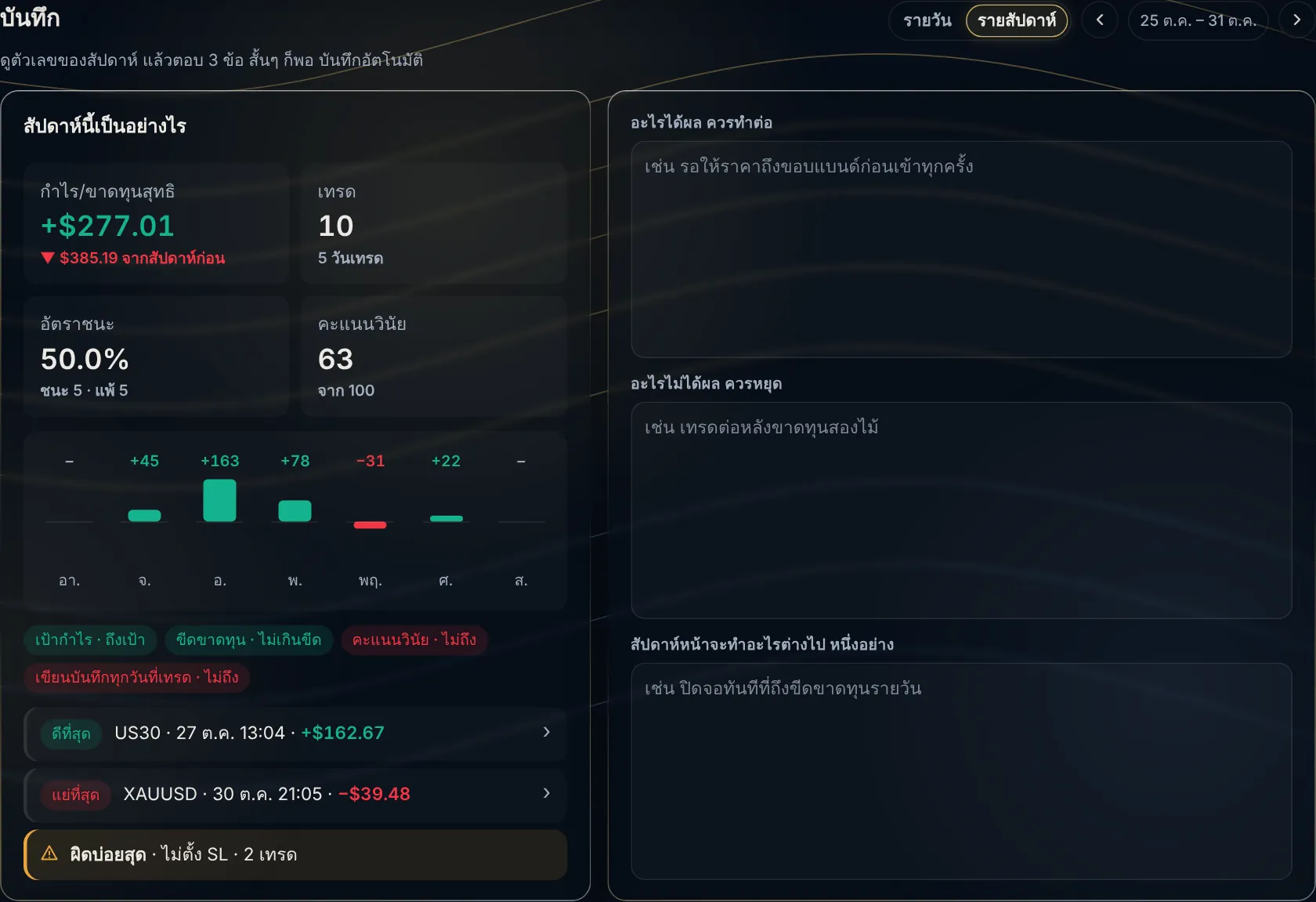
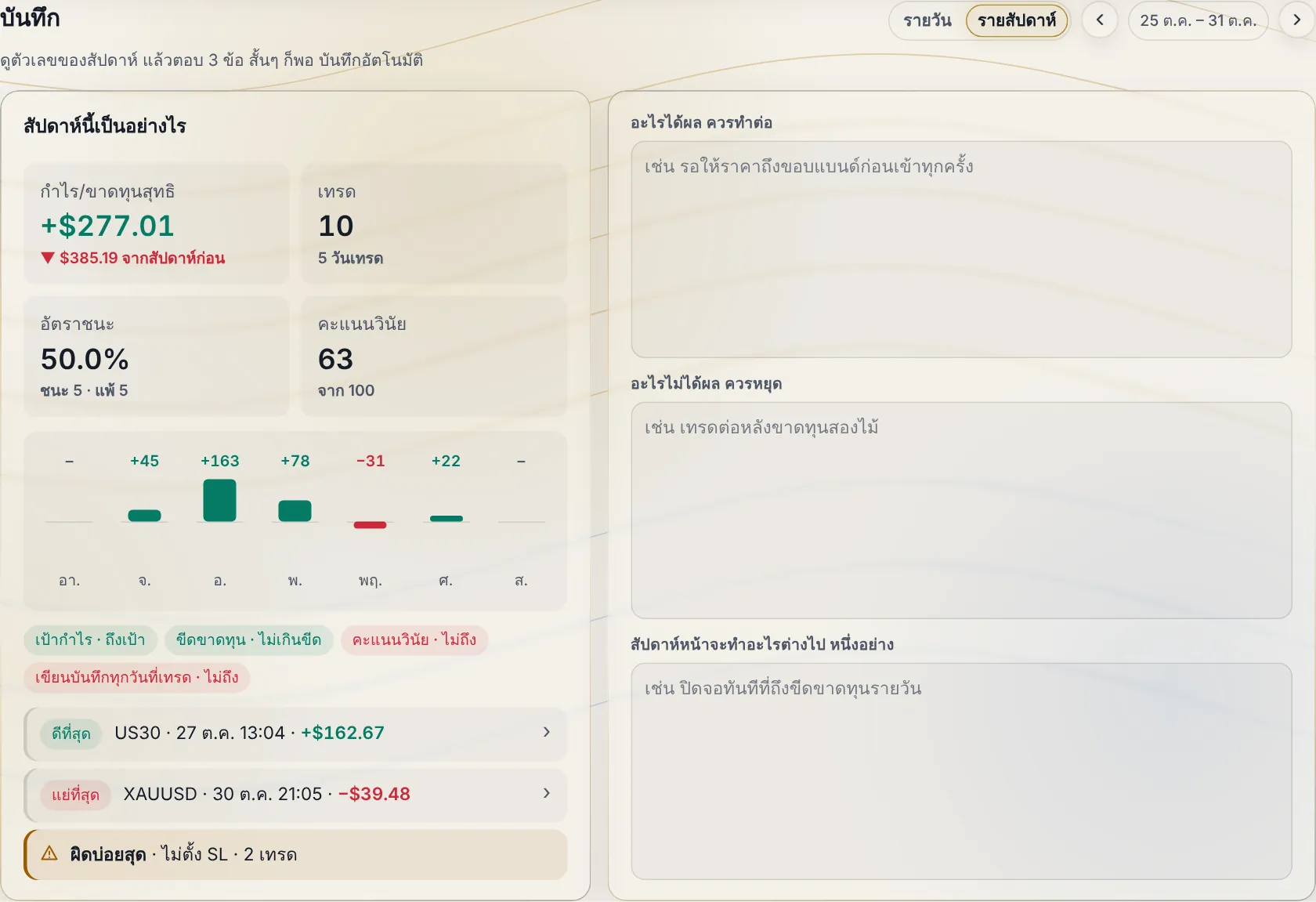
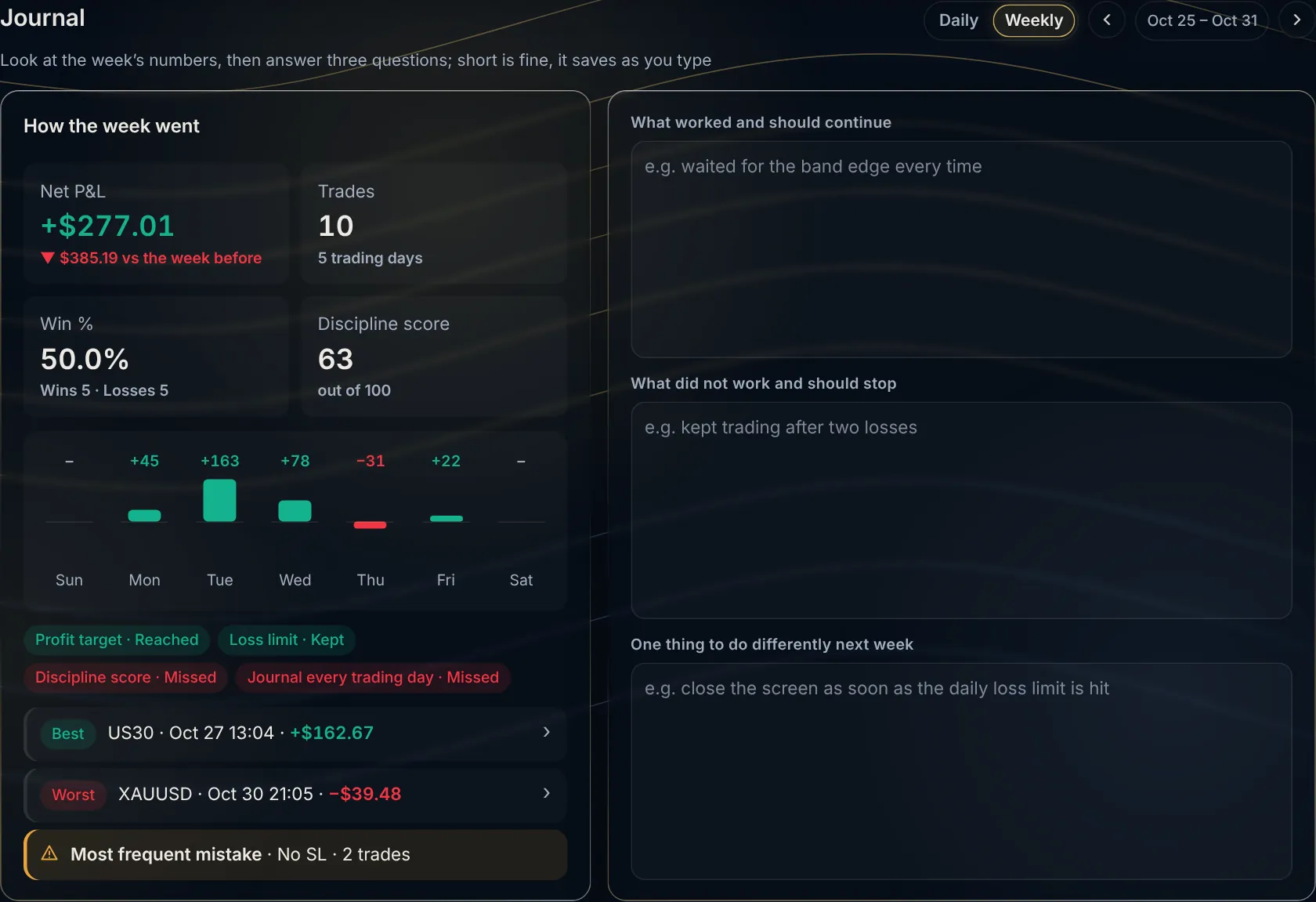
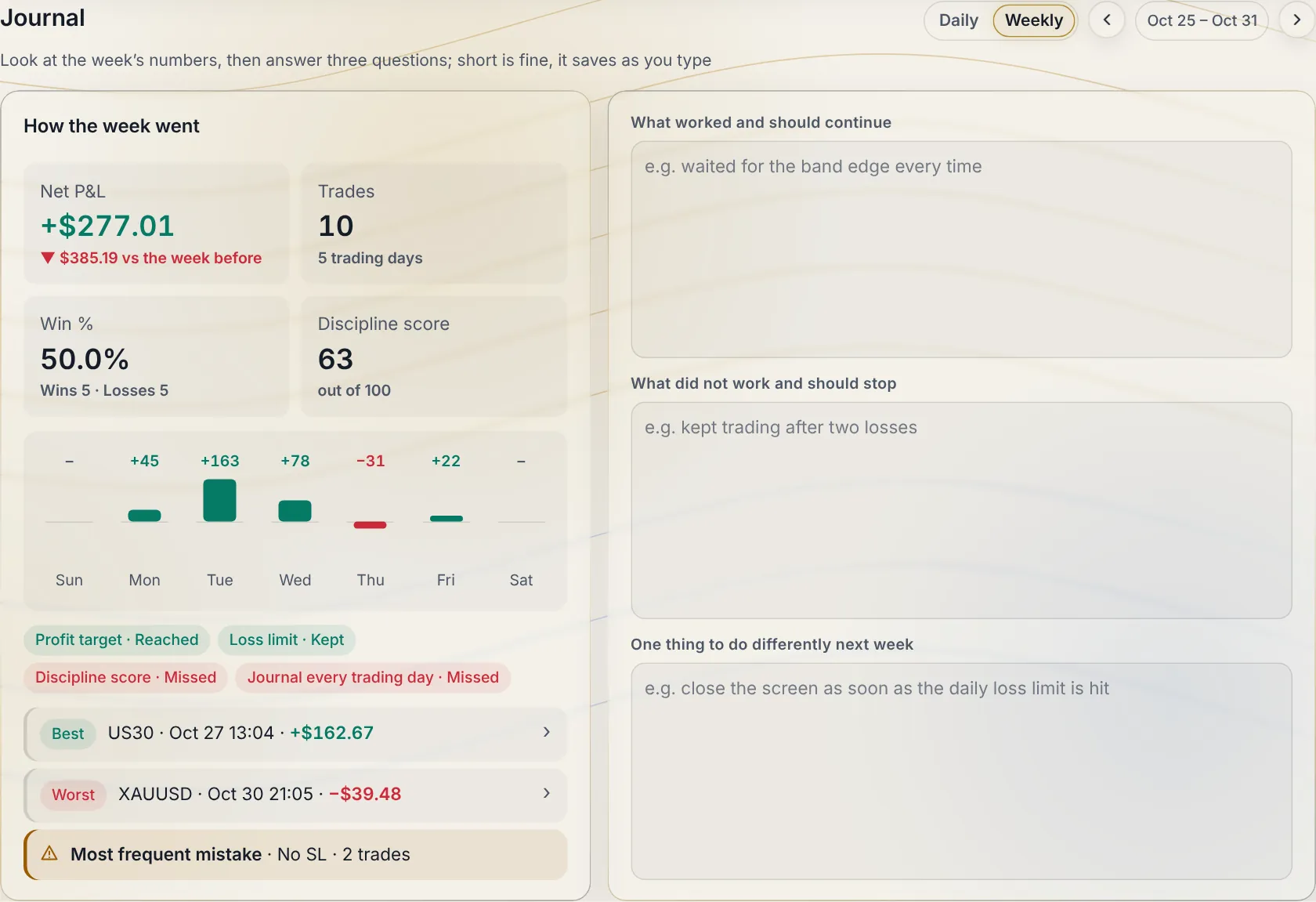
แท็บรายสัปดาห์แสดงตัวเลขของสัปดาห์เทียบกับสัปดาห์ก่อน วันที่ดีและแย่ที่สุด ความผิดพลาดที่เกิดบ่อยที่สุด แล้วให้ตอบสามคำถาม: อะไรได้ผลและควรทำต่อ อะไรไม่ได้ผลและควรหยุด และสัปดาห์หน้าจะทำอะไรต่างไปหนึ่งอย่าง ใช้เวลาราวห้านาทีThe Weekly tab shows the week’s numbers against the week before, the best and worst day and the most frequent mistake, then asks three questions: what worked and should continue, what did not and should stop, and one thing to do differently next week. About five minutes.
ส่วนที่ 8Part 8
เป้าหมายGoals
หน้าเป้าหมายมีสองแบบ ตั้งที่ ตั้งค่าและประวัติ: เป้ารวม จากทุนตั้งต้นไปถึงยอดที่อยากได้ (หัวข้อ 2) และเป้าตามช่วงเวลา รายวัน รายสัปดาห์ รายเดือน (หัวข้อ 1) เปิดแบบไหนก็ได้ หรือทั้งสองแบบThe Goals page holds two kinds, set under Set up and history: the Overall target, from a starting capital to the balance you want (heading 2), and Goals by period, daily, weekly and monthly (heading 1). Use either, or both.
1เป้าตามช่วงเวลาGoals by period
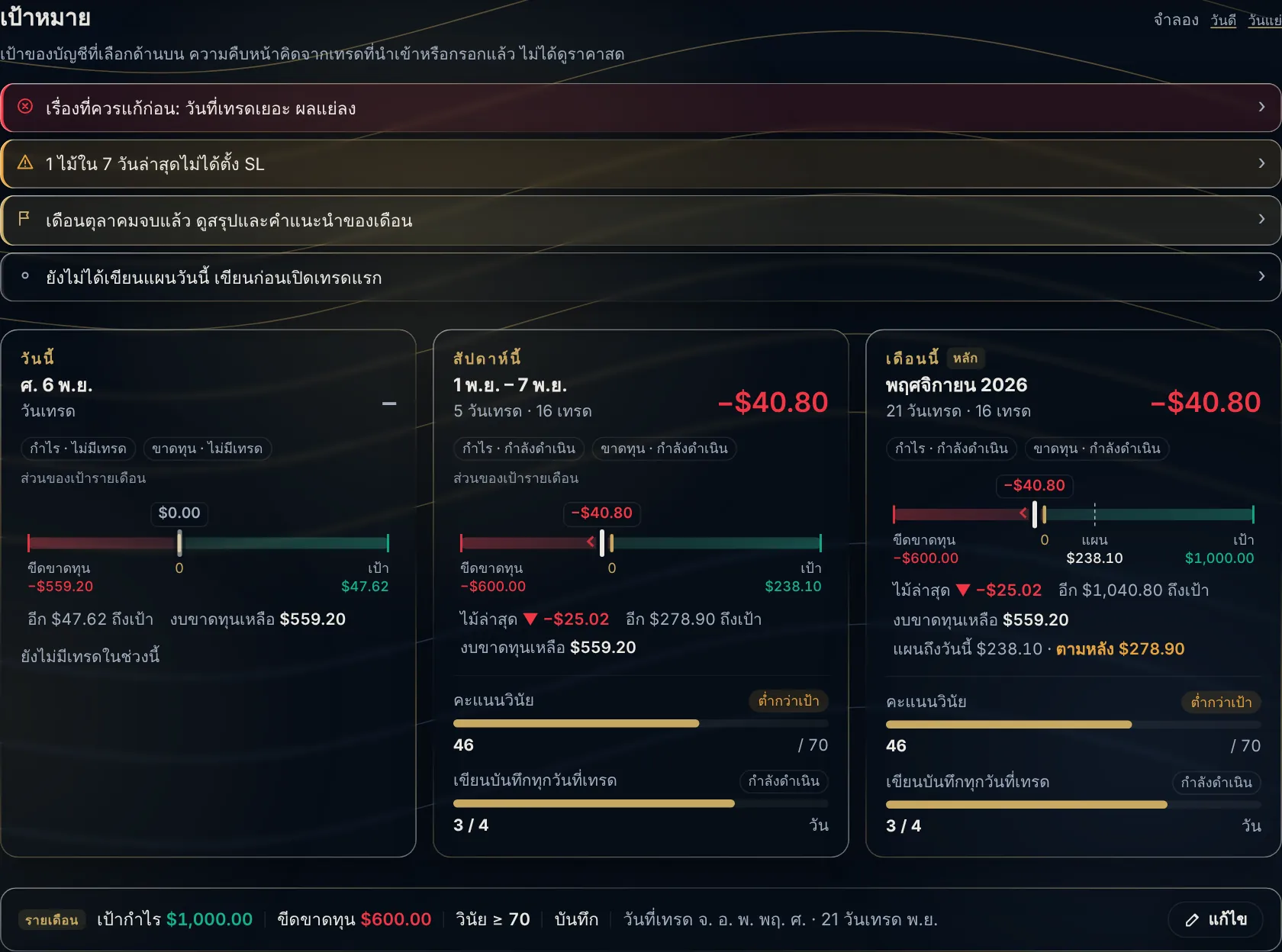
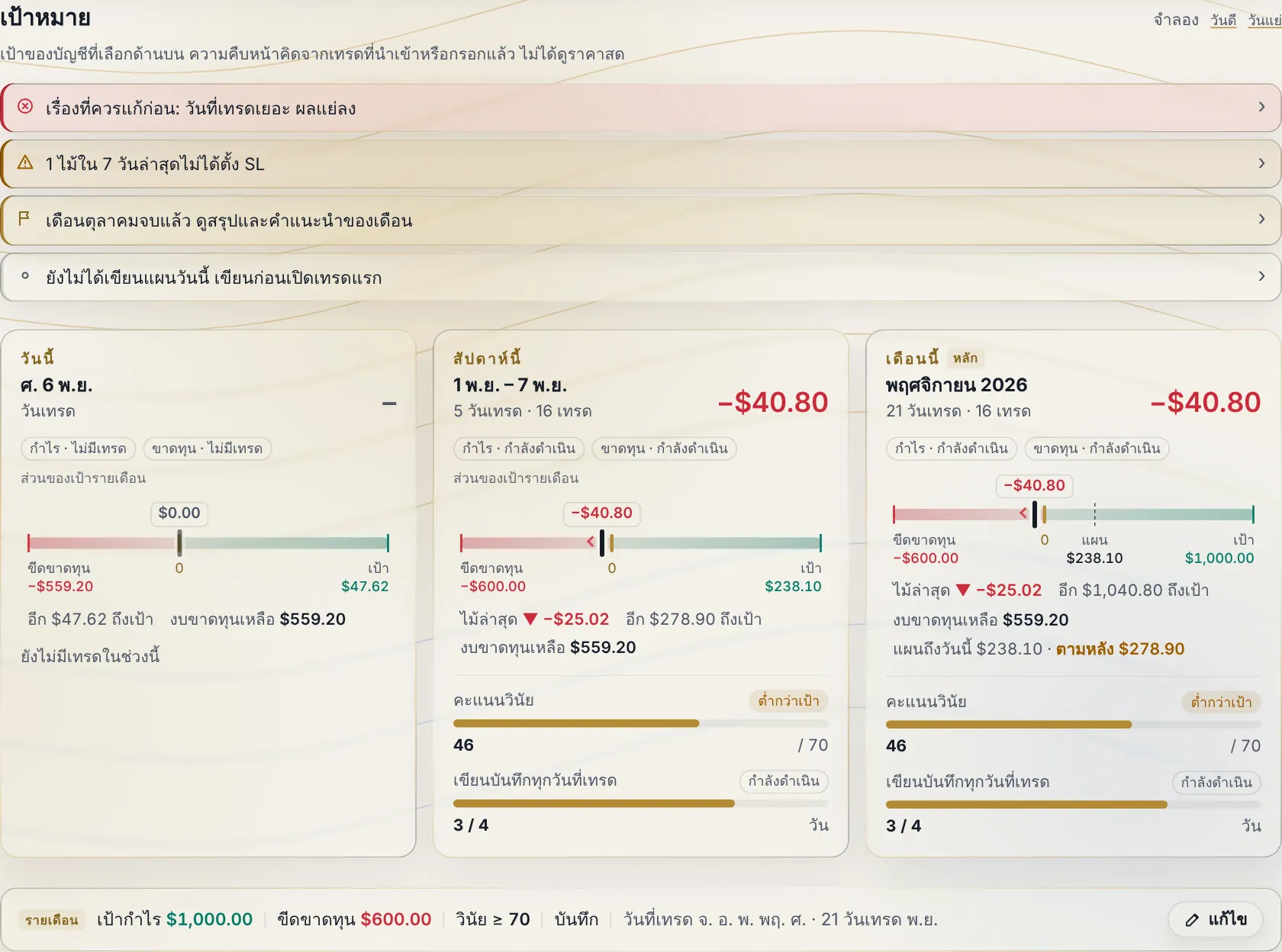
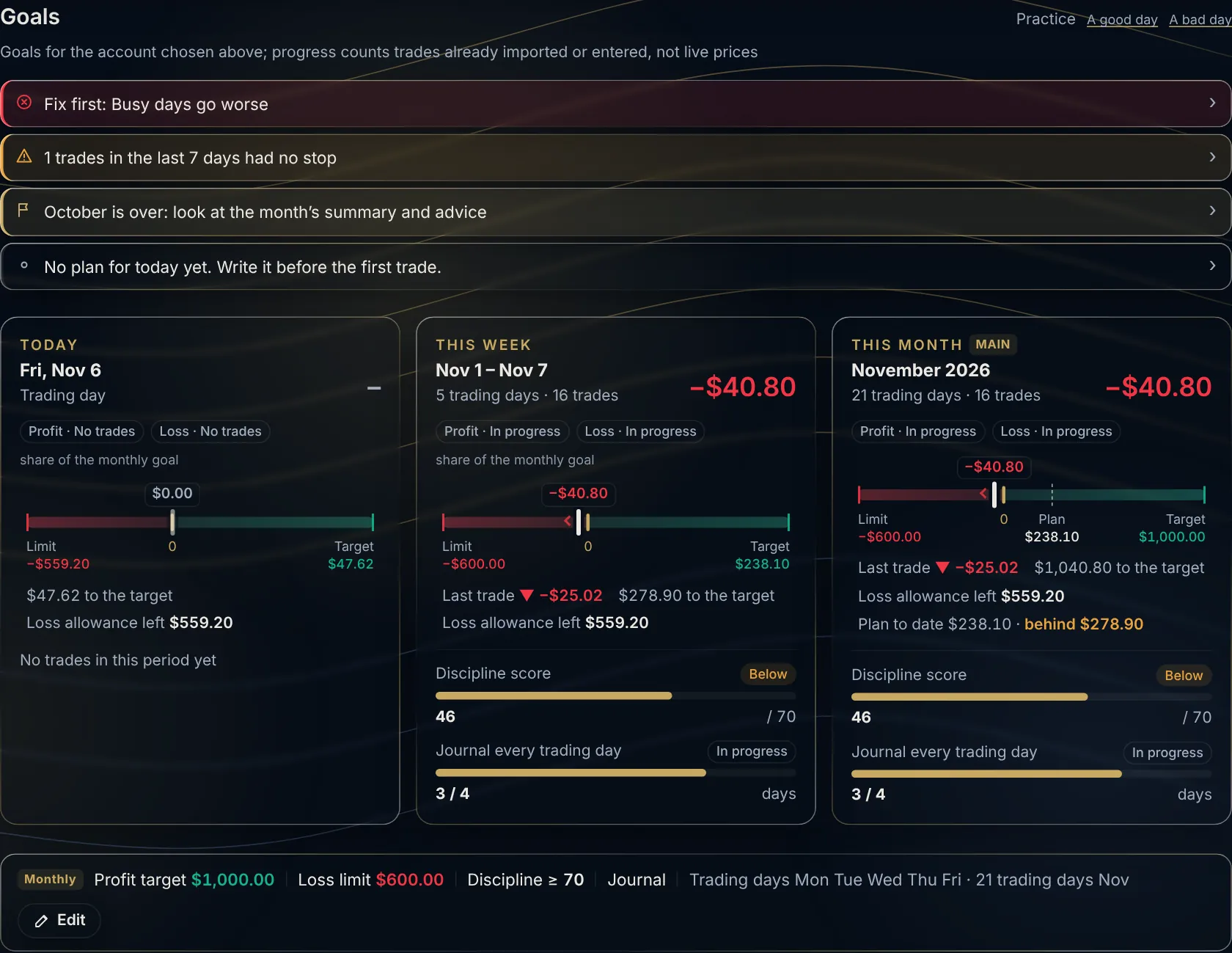
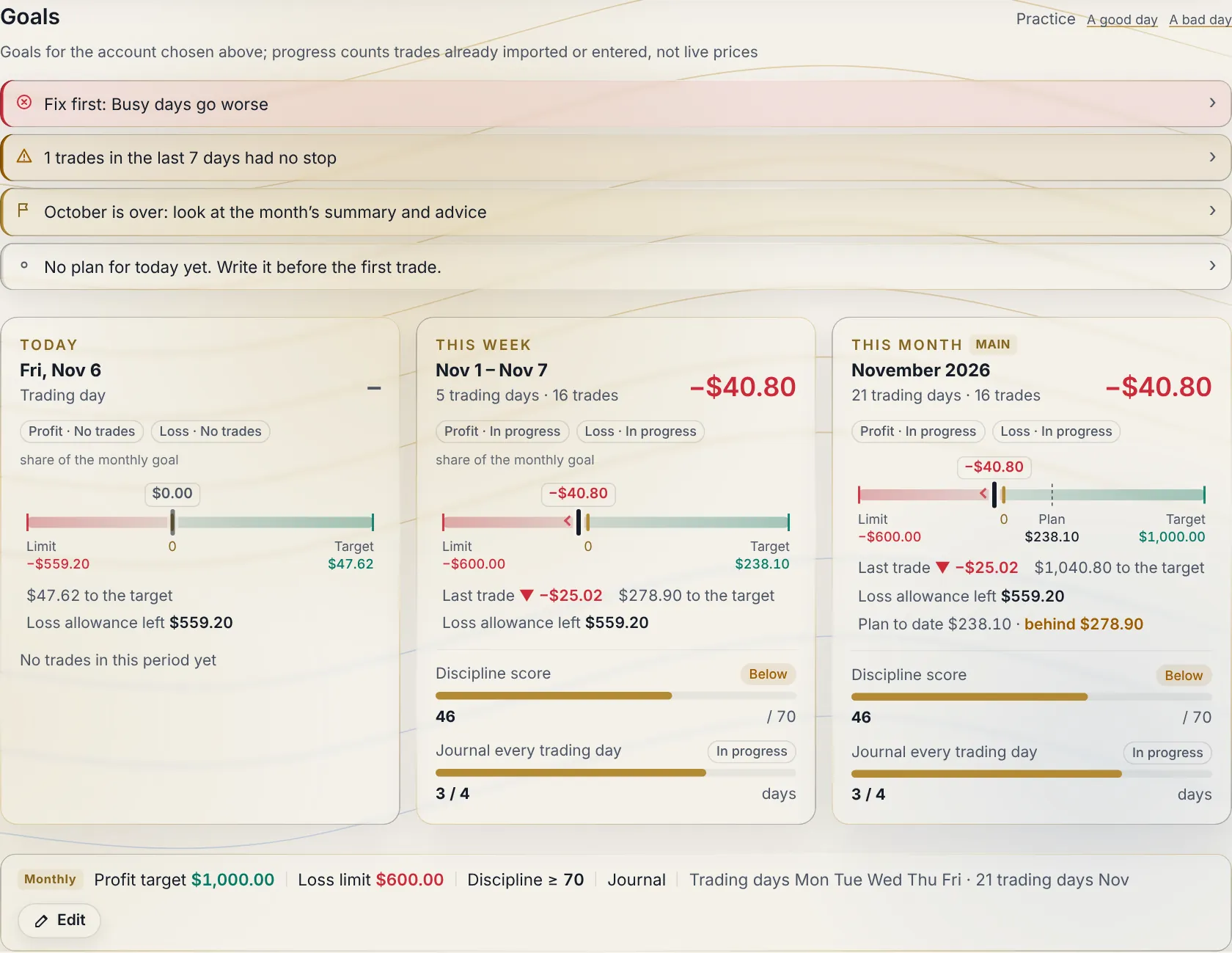
เลือกเป้าหลักหนึ่งช่วง (รายวัน รายสัปดาห์ หรือรายเดือน) และวันที่จะเทรด Journal จะแตกเป้าเล็กให้เอง เปิดเฉพาะเป้าที่ใช้ เป้ากำไรและขาดทุนตั้งเป็นเงิน R หรือ % ของยอดตอนเริ่มช่วงได้ (นับจากทุนตั้งต้นในบล็อกนี้ ถ้าใส่ไว้ ดูด้านล่าง) เป้าใช้กับบัญชีที่เลือกด้านบน และนับจากเทรดที่นำเข้าหรือกรอกแล้ว ไม่ได้ดูราคาสดPick one main period (daily, weekly or monthly) and your trading days; the smaller targets are worked out for you. Switch on only the goals you use; profit and loss goals take money, R or % of the balance the period opened with (counted from this block’s Starting capital when you set one; see below). Goals follow the account chosen above and count trades already imported or entered, not live prices.
| เป้าGoal | ทำงานอย่างไรHow it works |
|---|---|
| เป้ากำไรProfit target | แบ่งเท่า ๆ กันตามวันเทรดเป็นเป้ารายวันและรายสัปดาห์ เป้ารายวันไม่เพิ่มขึ้นเพื่อเอาคืนวันที่ขาดทุน ถึงเป้าแล้วจะเตือนให้พิจารณาหยุดSplit evenly over trading days into daily and weekly targets; daily targets never rise to win back a losing day. Once reached, you are reminded to consider stopping |
| ขีดขาดทุนLoss limit | ทั้งก้อนเป็นของช่วงหลัก วันและสัปดาห์ใช้ส่วนที่เหลือ ไม่ได้แบ่งเป็นชิ้น เหลืองเมื่อใช้ 70% แดงเมื่อถึง แยกจากกฎขาดทุนรายวันในหน้าวินัยBelongs to the main period as a whole; days and weeks use what is left rather than a slice. Amber at 70%, red when reached; separate from the daily loss rule on the Discipline page |
| คะแนนวินัยDiscipline score | คะแนนวินัยของเทรดในช่วงต้องไม่ต่ำกว่าค่านี้The period’s discipline score stays at or above this |
| เขียนบันทึกทุกวันที่เทรดJournal every trading day | ทุกวันที่มีเทรดต้องมีแผนหรือสรุปEvery day with trades has a plan or a recap |
| รีวิวครบทุกเทรดReview every trade | ทุกเทรดในช่วงถูกตั้งว่ารีวิวแล้วEvery trade in the period is marked reviewed |
- รางเป้า: ผลของช่วงวิ่งบนรางจากขีดขาดทุน ผ่าน 0 ไปเป้า เส้นประคือจุดที่แผนคาดไว้ถึงวันนี้ บอกว่านำหรือตามหลังแผนเท่าไรThe track: the period’s P&L rides from the loss limit through zero to the target; the dashed mark is where the plan expects you today, with how far ahead or behind you are
- หลังถึงเป้า: ดูว่าวันที่ถึงเป้ารายวันแล้วเทรดต่อ เทรดหลังจากนั้นรวมกันได้หรือเสียเท่าไรAfter the target: on days that reached the daily target and kept trading, what the later trades added up to
- จำลอง: เลือก "วันดี" หรือ "วันแย่" ให้เทรดสมมติเล่นลงบนการ์ดวันนี้ทีละไม้ ไม่มีอะไรถูกบันทึกPractice: pick “A good day” or “A bad day” and made-up trades play onto today’s cards one by one; nothing is saved
- ประวัติ: 30 วัน 12 สัปดาห์ หรือ 12 เดือนล่าสุดที่มีเทรด แถวที่ทำครบทุกเป้ามีขอบทอง พร้อมจำนวนช่วงที่ทำครบติดกันHistory: the latest 30 days, 12 weeks or 12 months with trades; rows that met every goal are edged in gold, with the run of periods in a row
ทุนตั้งต้น และนับจากวันที่ ของบล็อกนี้ไม่บังคับ ใช้คิดเป้าแบบ % ของช่วงวัน สัปดาห์ และเดือน ว่างไว้ = ใช้ยอดเริ่มต้นของบัญชีบวกกำไรขาดทุนก่อนหน้าThis block’s Starting capital and counted from are optional. % goals of the days, weeks and months are measured on it; left empty, they use the account’s starting balance plus the P&L before.
2เป้ารวมOverall target
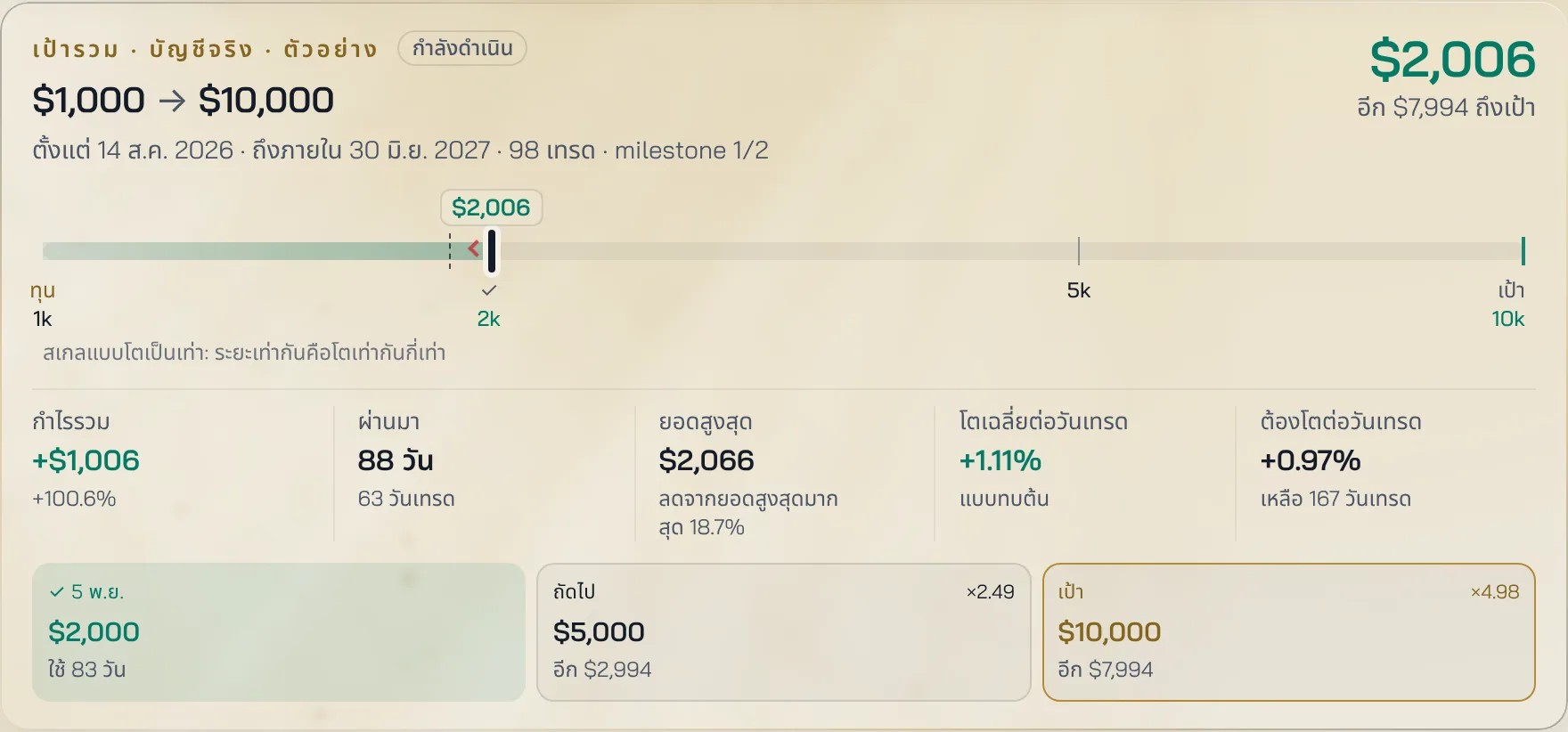
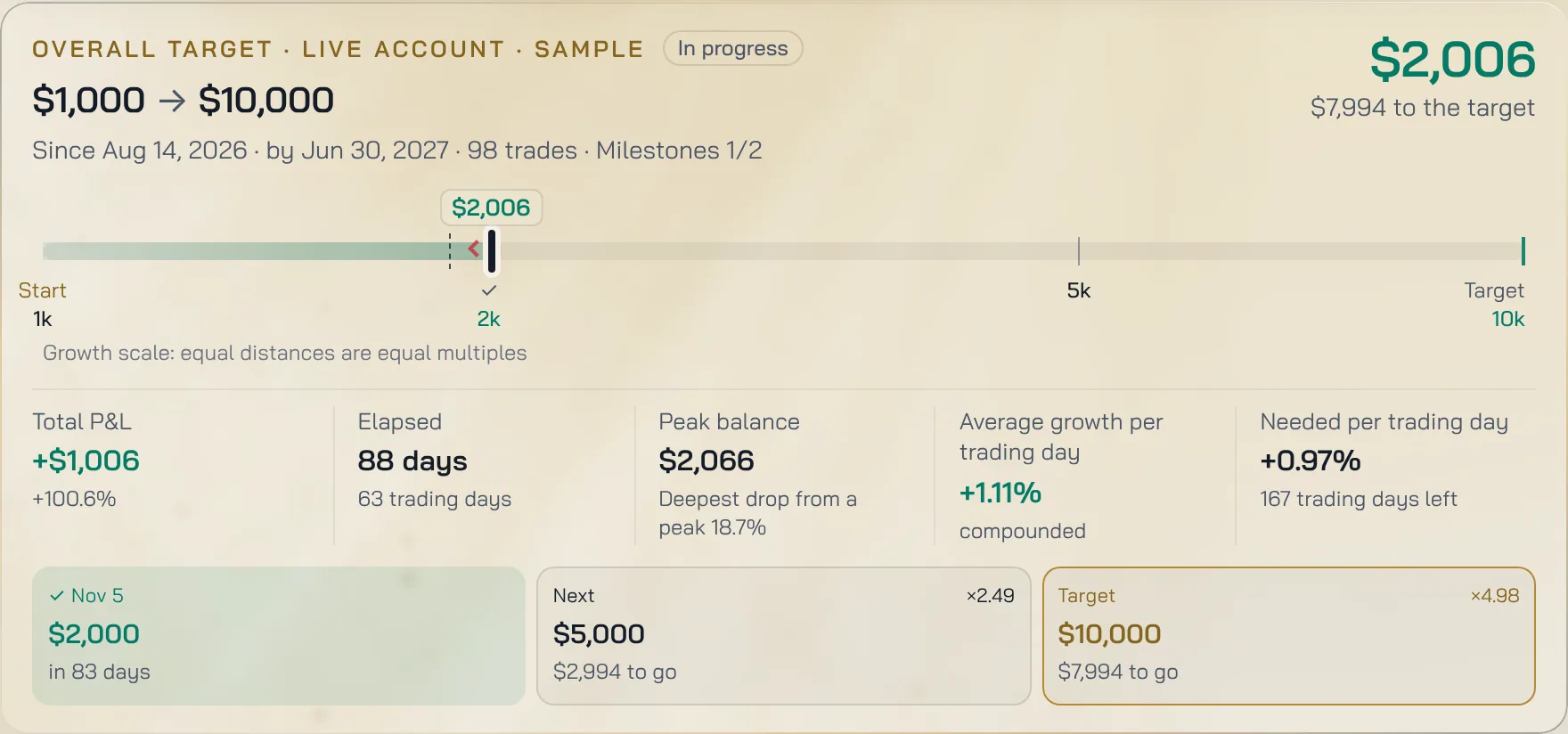
เป้ารวมเป็นบล็อกแรกในตั้งค่าและประวัติ มีสวิตช์ของตัวเอง: จากทุนตั้งต้นไปถึงยอดที่อยากได้ ไม่ผูกกับวัน สัปดาห์ หรือเดือน กรอกทุนตั้งต้น ยอดเป้าหมาย (มากกว่าทุน) เริ่มนับวันที่ และอยากถึงภายใน ถ้าต้องการ เป้ารวมตั้งแยกตามบัญชีที่เลือกอยู่ (ทุกบัญชีหรือทีละบัญชี) และนับทุกเทรดตั้งแต่วันที่เริ่มนับ การ์ดเป้ารวมอยู่บนสุดของหน้าเป้าหมายและในส่วนเป้าหมายของหน้าภาพรวม ถ้าเปิดเป้ารวมอย่างเดียว หน้าภาพรวมจะแสดงการ์ดนี้การ์ดเดียวThe overall target is the first block under Set up and history, with its own switch: from a starting capital to the balance you want, not tied to a day, week or month. Enter the Starting capital, the Target balance (above it), Counting from and, if you like, Reach it by. It is set for the account chosen above (all accounts or one) and counts every trade from the start date. Its card sits at the top of the Goals page and in the Goals part of the Dashboard; with only the overall target on, the Dashboard shows that card alone.
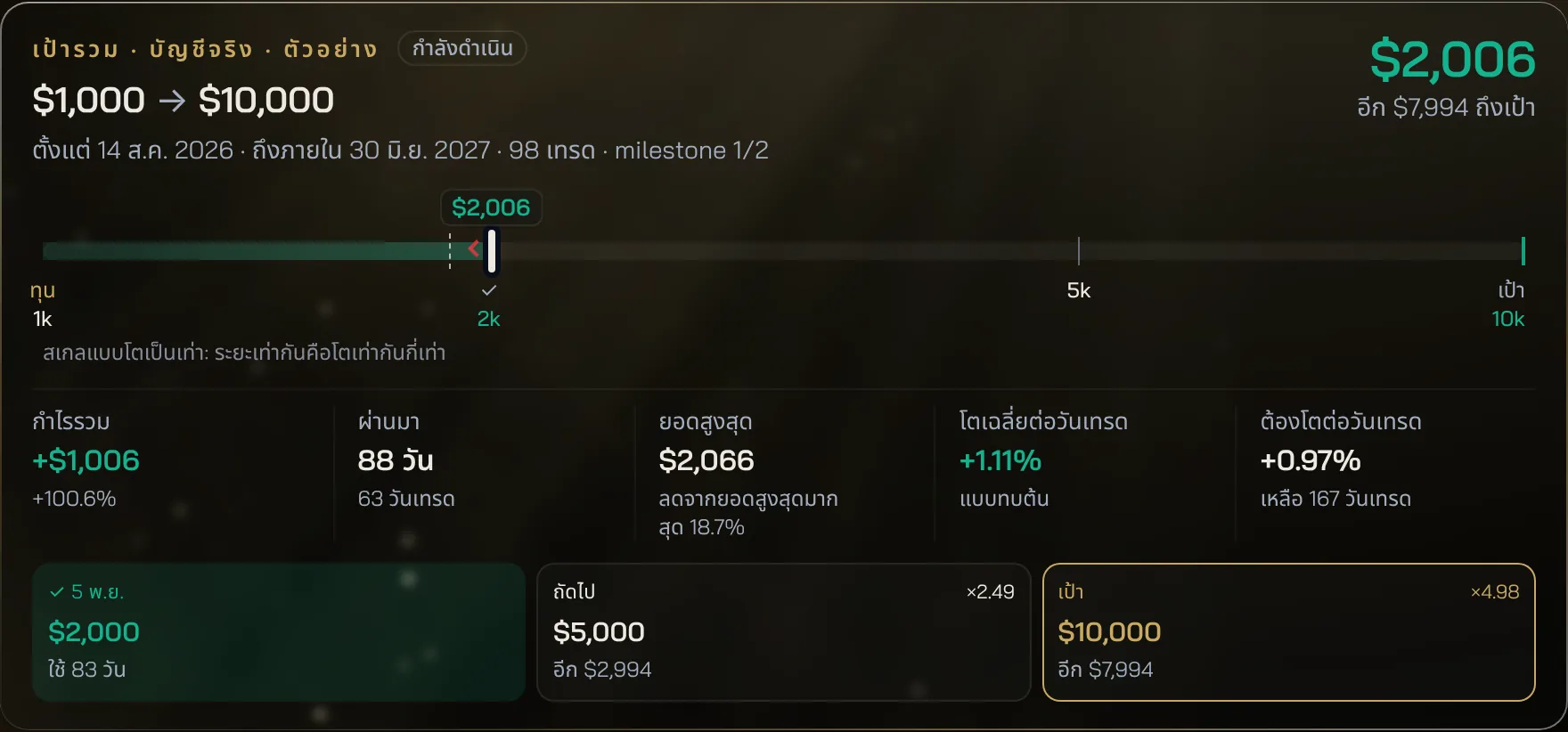
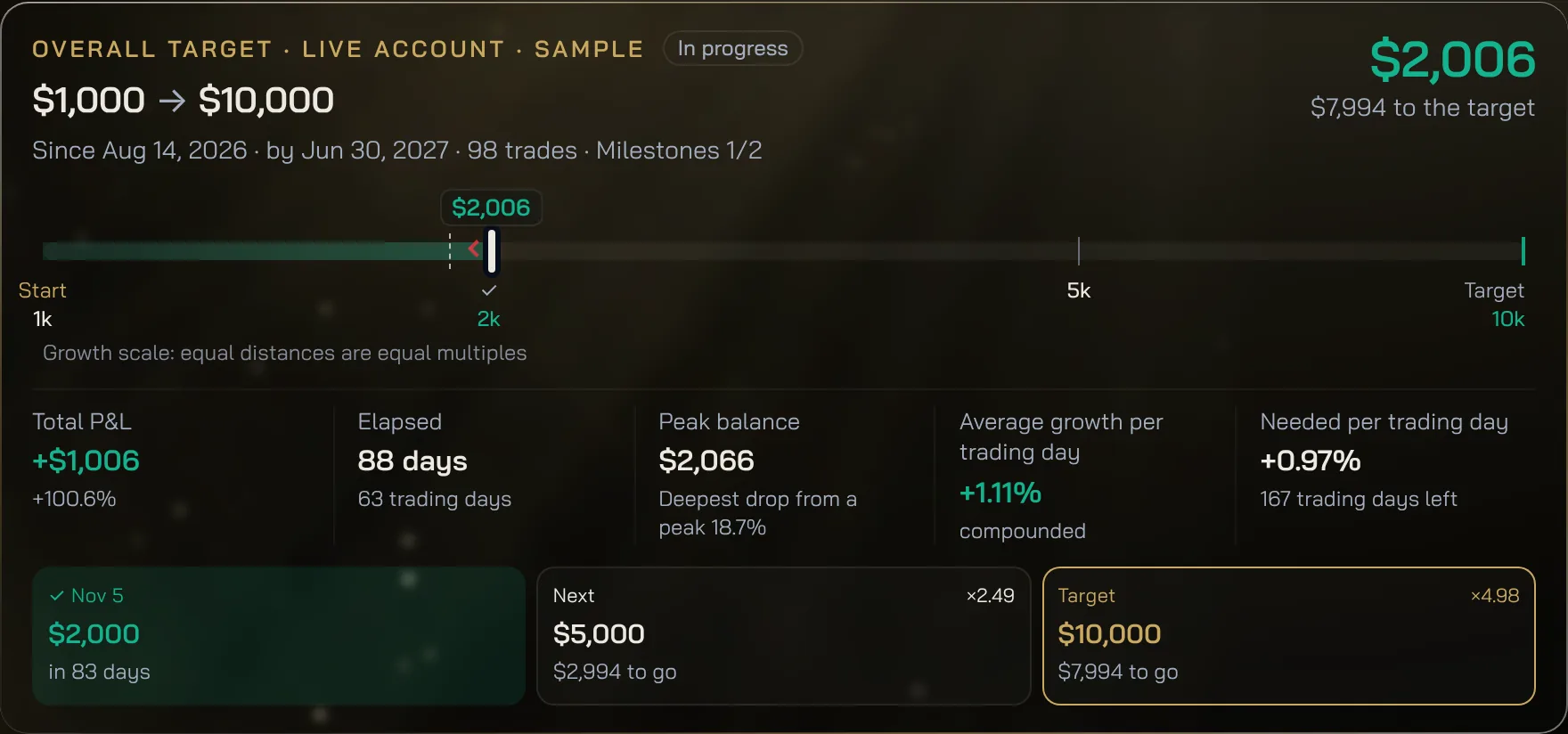
- Milestone ระหว่างทาง (ไม่บังคับ): กดเพิ่มเอง หรือใส่ให้อัตโนมัติ (ระบบเสนอเป็นขั้น 1-2-5 เช่น 500, 1,000, 2,000, 5,000) ได้สูงสุด 8 อัน แต่ละอันต้องอยู่ระหว่างทุนกับเป้า ไม่ใส่ = ติดตามแค่เป้าสุดท้าย ถ้าใส่ ระบบจะจดวันที่ยอดถึงแต่ละ milestone ครั้งแรก และใช้เวลากี่วัน วันที่ยอดถึง milestone หรือถึงเป้า หน้าภาพรวมจะแจ้งให้รู้Milestones on the way (optional): Add your own or press Suggest some (steps of 1-2-5, such as 500, 1,000, 2,000, 5,000); up to 8, each between the capital and the target. Without them only the final target is followed; with them, the day the balance first reaches each one, and how long it took, are kept. The Dashboard tells you on the day a milestone or the target is reached.
- หัวการ์ด: เป้ารวม · บัญชี พร้อมป้ายสถานะ (กำลังดำเนิน, ถึงเป้า, ต่ำกว่าทุน, ทุนหมดแล้ว หรือเคยถึงเป้าแล้ว) เส้นทางทุน → เป้า วันที่เริ่ม จำนวนเทรด และ milestone ที่ถึงแล้ว ด้านขวาคือยอดตอนนี้ ใต้ยอดบอกอีกเท่าไรถึงเป้า เกินเป้าเท่าไร หรือต่ำกว่าทุนกี่ %The card’s head: Overall target · account with its status (In progress, Reached, Below the start, The capital is gone, or Reached once), the path capital → target, the start date, the number of trades and the milestones reached; on the right, the balance now, with what is left to the target, how far above it you are, or how far below the start.
- แถบ: สเกลแบบโตเป็นเท่า ระยะเท่ากันคือโตเท่ากันกี่เท่า มีขีด milestone (เป็นสีเขียวเมื่อถึงแล้ว) และขีดจุดที่ควรถึงตามแผนถ้าตั้งวันที่อยากถึงไว้ หลังเทรดใหม่ แถบจะขยับให้เห็นเหมือนรางของเป้าตามช่วงเวลา: ช่วงที่ยอดขยับเป็นสีเขียวหรือแดง มีลูกศรบอกทิศ (เครื่องที่ตั้งลดการเคลื่อนไหวเห็นลูกศรนิ่ง)The bar: a growth scale, where equal distances are equal multiples. Milestone ticks turn green once reached, and with Reach it by set, a tick shows where the plan expects you. After a new trade the bar moves the way the period tracks do: the stretch the balance moved shows green or red, with an arrow for the direction (a still arrow when the device asks for reduced motion).
- ตัวเลข: กำไรรวม, ผ่านมา (วันและวันเทรด), ยอดสูงสุดพร้อมการลดจากยอดสูงสุดมากสุด, โตเฉลี่ยต่อวันเทรด (แบบทบต้น) ตามด้วยถึงเป้าโดยใช้เวลา, ต้องโตต่อวันเทรด (ถ้าตั้งวันที่ไว้) หรือถ้าโตเท่านี้ ถึงเป้าในอีก (ประมาณ ไม่ใช่คำทำนาย) ถ้าต่ำกว่าทุน จะบอกว่าต้องได้กี่ % เพื่อกลับมาเท่าทุนThe numbers: Total P&L, Elapsed (days and trading days), Peak balance with the deepest drop from a peak, Average growth per trading day (compounded), then Reached in, Needed per trading day (with a date set) or At this pace, the target in (a rough guide, not a forecast). Below the start, it shows the % needed to get back.
- แถว milestone: ช่องละหนึ่ง milestone ช่องที่ถึงแล้วสีเขียวพร้อมวันที่ถึง (ชี้เมาส์ดูรายละเอียดเต็ม) ช่องถัดไปมีกรอบและแถบบางบอกว่าเดินจาก milestone ก่อนหน้ามาได้แค่ไหน ช่องเป้าสีทอง แต่ละช่องบอกว่าต้องโตอีกกี่เท่า ยอด และอีกเท่าไรหรือใช้กี่วันThe milestone row: a box per milestone. Reached ones are green with the date (point at one for the full detail); the next one is outlined, with a thin bar for how far you have come from the one before; the target is gold. Each shows how many times the balance still has to grow, the amount, and what is left or how many days it took.
ส่วนที่ 9Part 9
Playbook และวินัยPlaybooks and discipline
1PlaybookPlaybooks
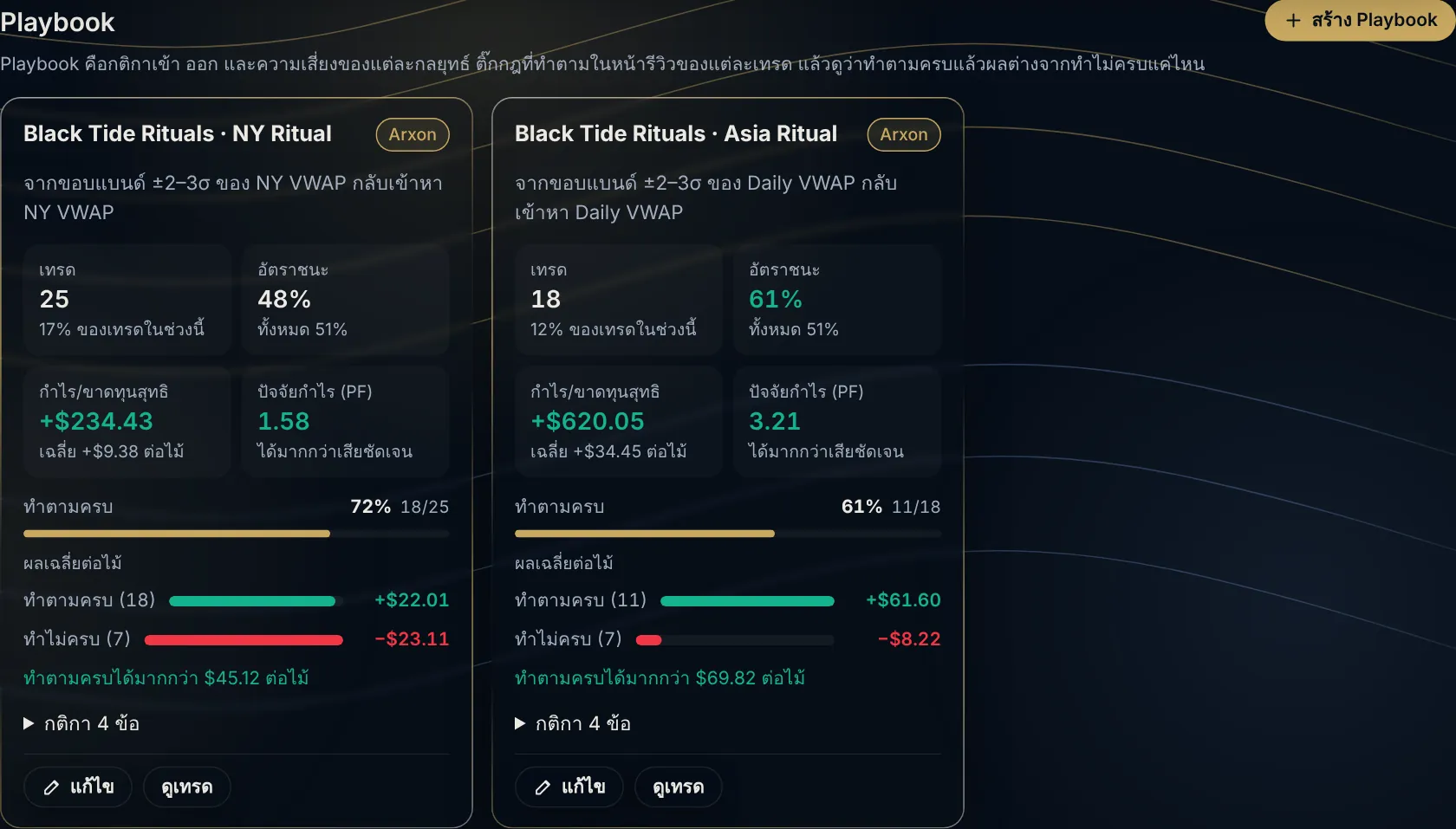
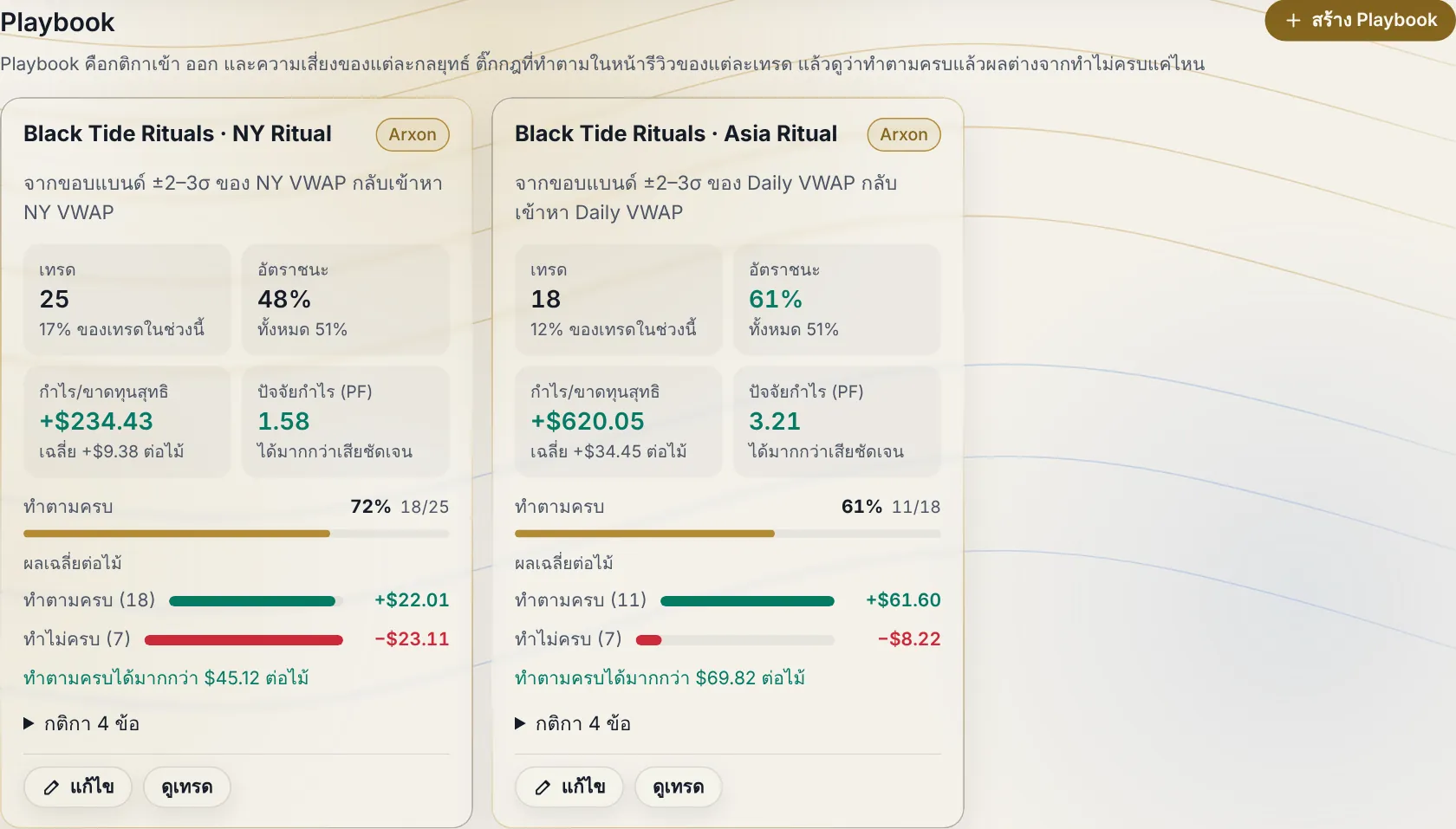
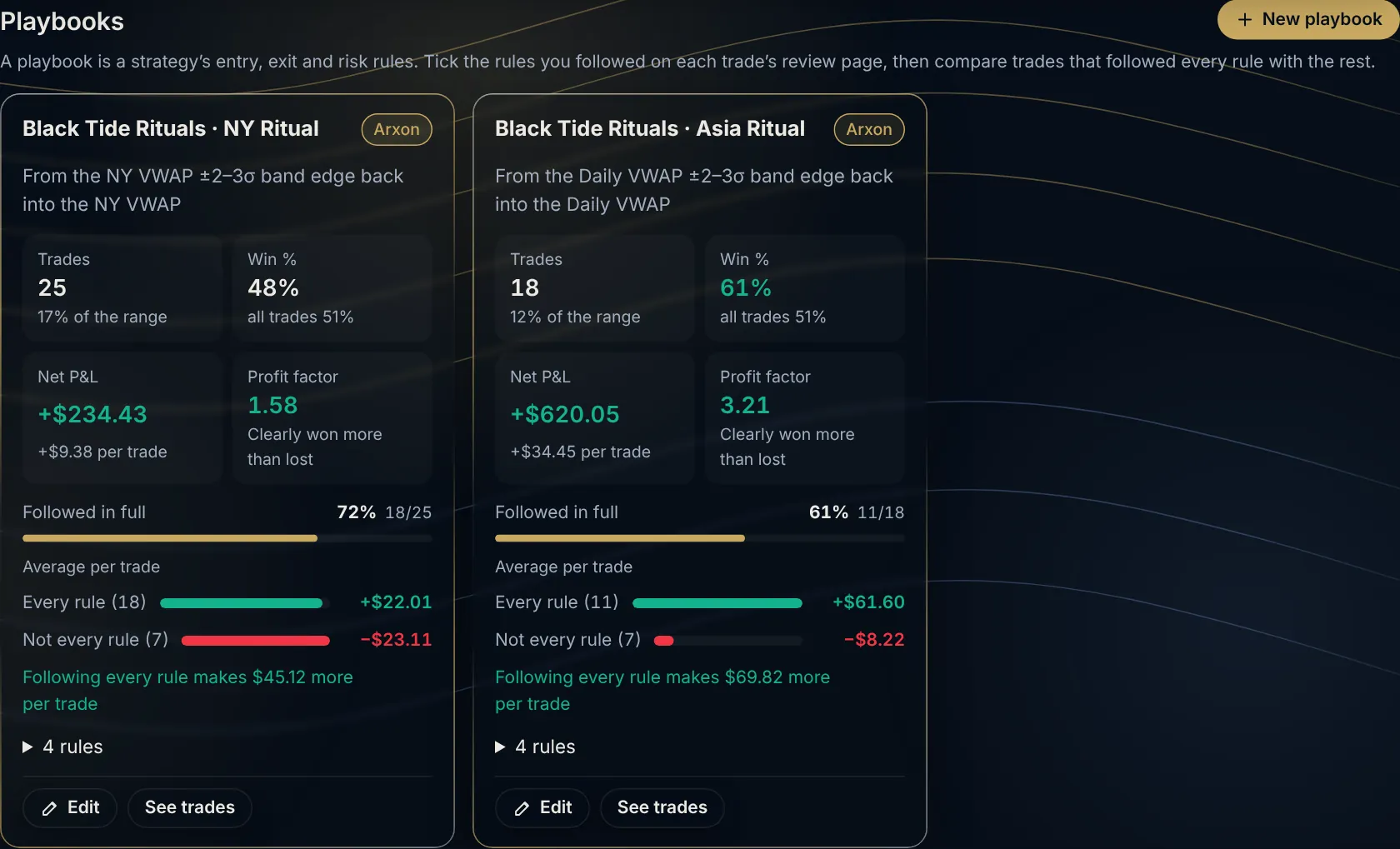
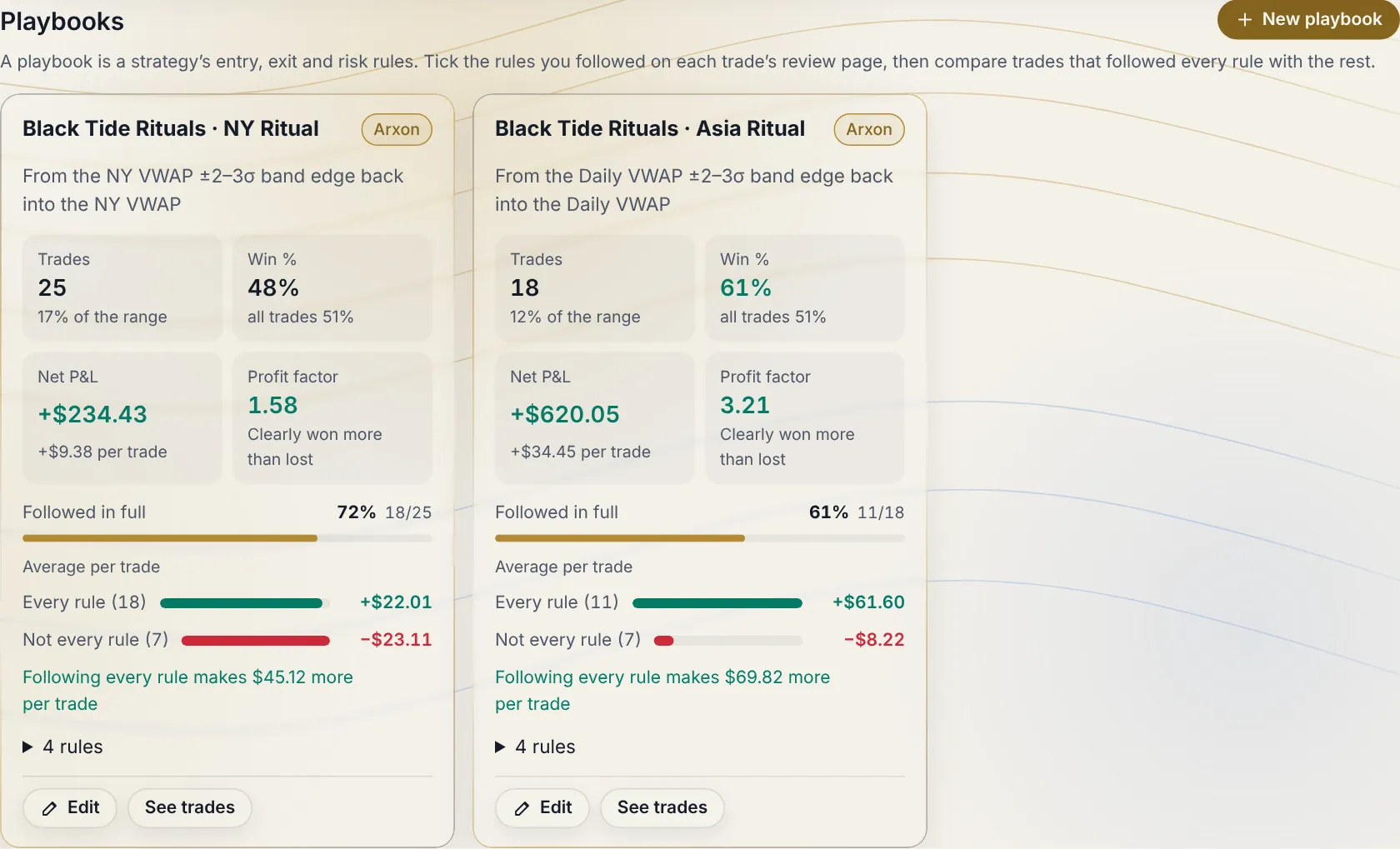
Playbook คือกฎเข้า ออก และความเสี่ยงของกลยุทธ์หนึ่ง ติ๊กกฎที่ทำตามในหน้ารีวิวของแต่ละเทรด แล้ว Journal จะเทียบเทรดที่ทำตามครบทุกข้อกับเทรดที่เหลือ: ผลเฉลี่ยต่อเทรด อัตราชนะ และสัดส่วนในช่วง พร้อมบอกว่าทำตามครบได้มากหรือน้อยกว่าต่อเทรดเท่าไร มี Playbook ตั้งต้นจาก Black Tide Rituals ให้แก้กฎตามที่คุณเทรดจริงA playbook is a strategy’s entry, exit and risk rules. Tick the rules you followed on each trade’s review page and the journal compares trades that followed every rule with the rest: average per trade, win % and share of the range, and how much more or less following every rule makes per trade. Starter playbooks come from Black Tide Rituals; edit the rules to match how you trade them.
2วินัยและกฎประจำวันDiscipline and daily rules
กฎประจำวันมีสองแบบ: ตรวจจากเทรดให้เอง คือ ขาดทุนไม่เกิน X ต่อวัน (สกุลของบัญชี), ไม่เกิน N เทรดต่อวัน, ทุกเทรดมี SL และเขียนแผนหรือสรุปของวัน กับกฎที่ติ๊กเองที่คุณเพิ่ม ปิดกฎที่ไม่ใช้ได้Daily rules come in two kinds: checked from your trades, namely lose no more than X a day (in the account’s currency), no more than N trades a day, an SL on every trade, and write the day’s plan or recap; and rules you tick yourself. Switch off the ones you do not use.
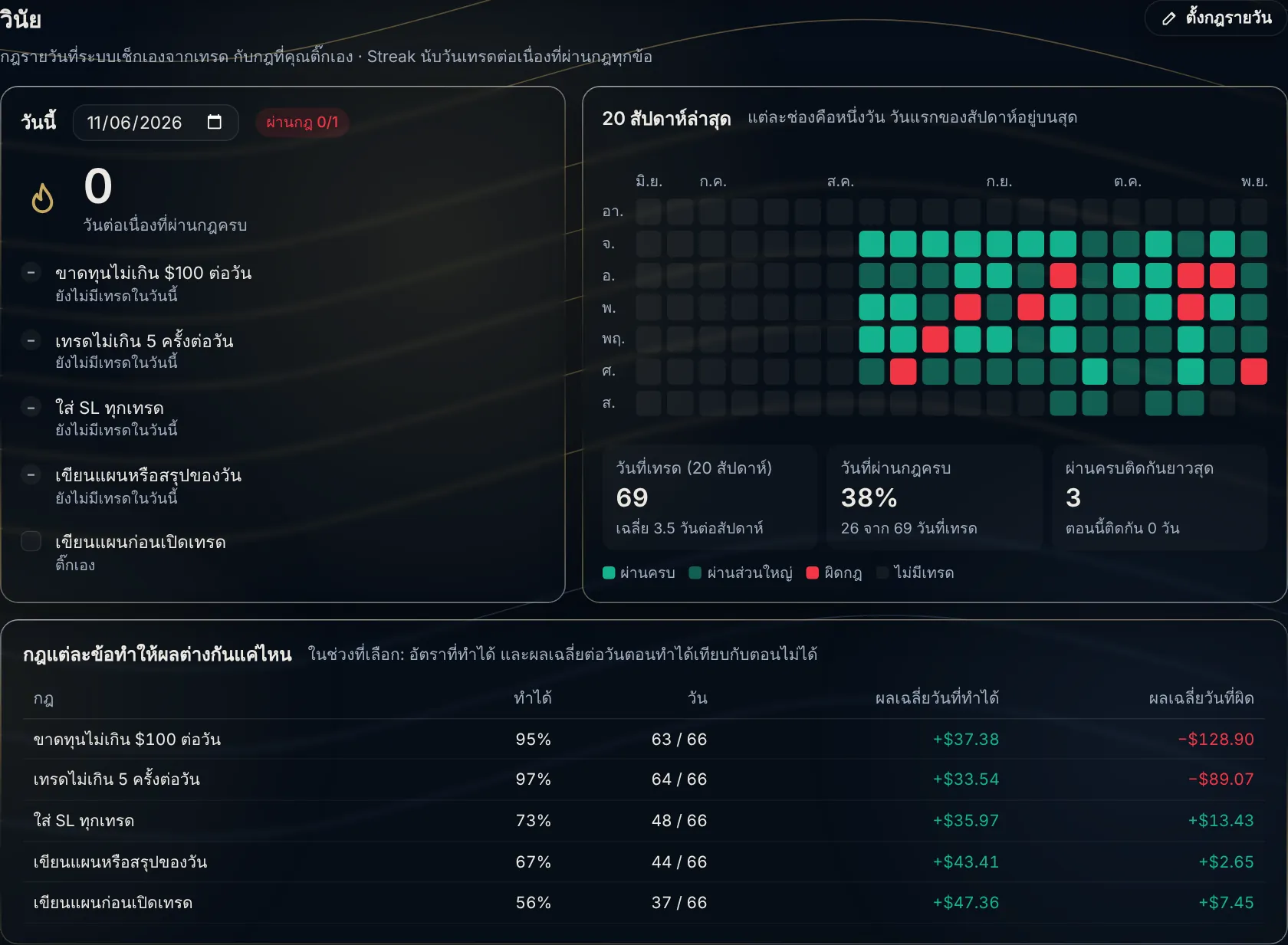
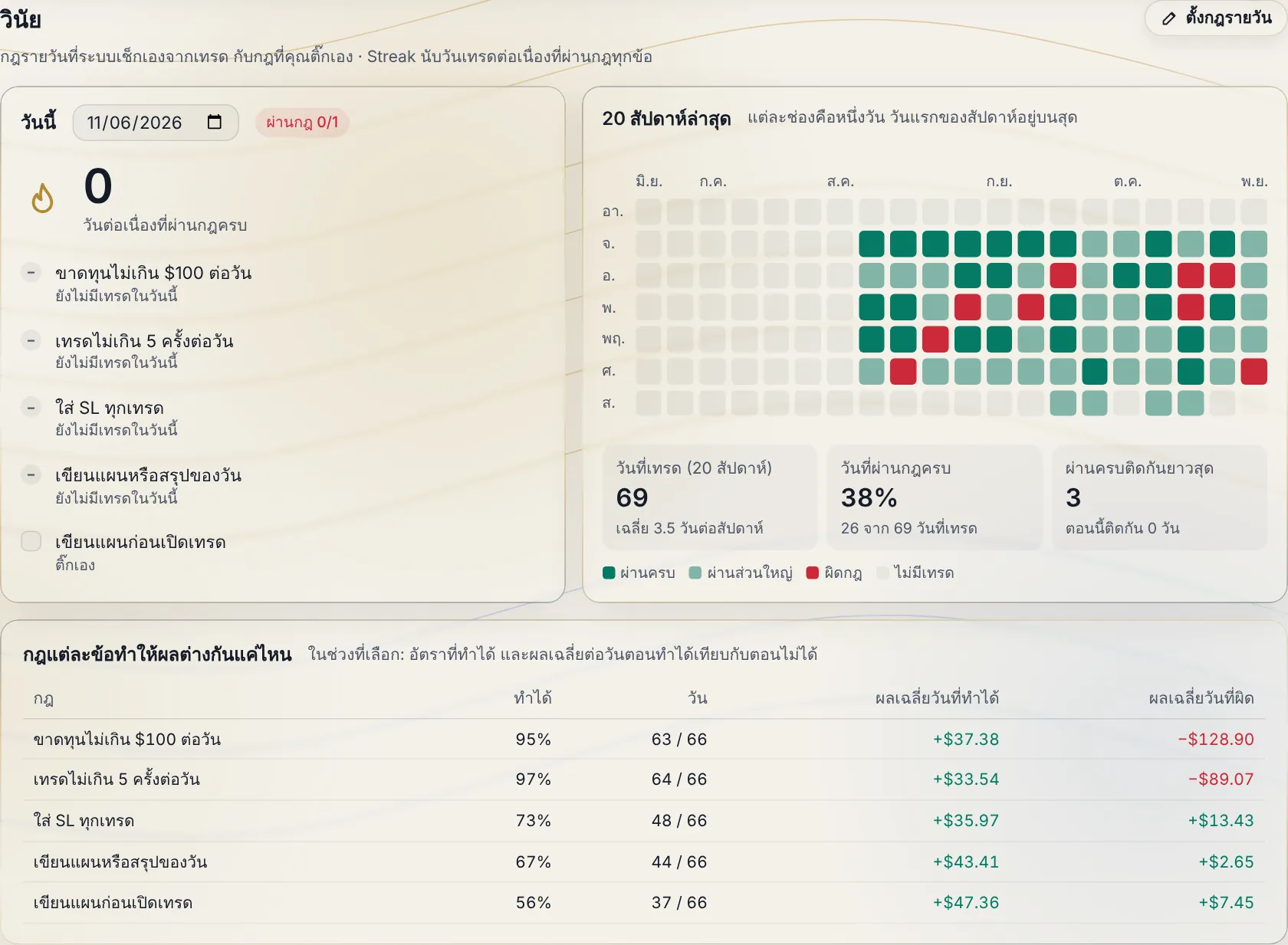
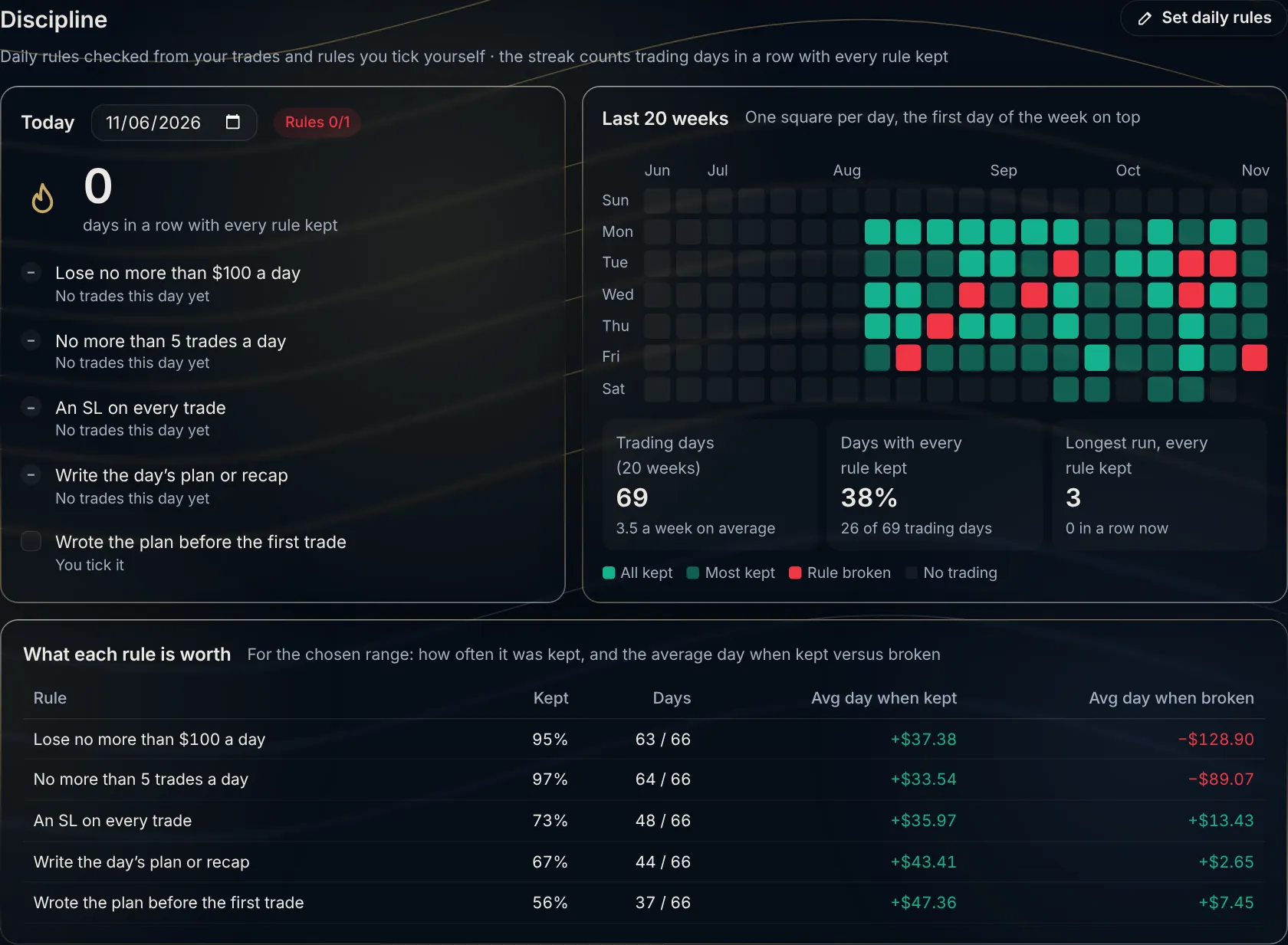
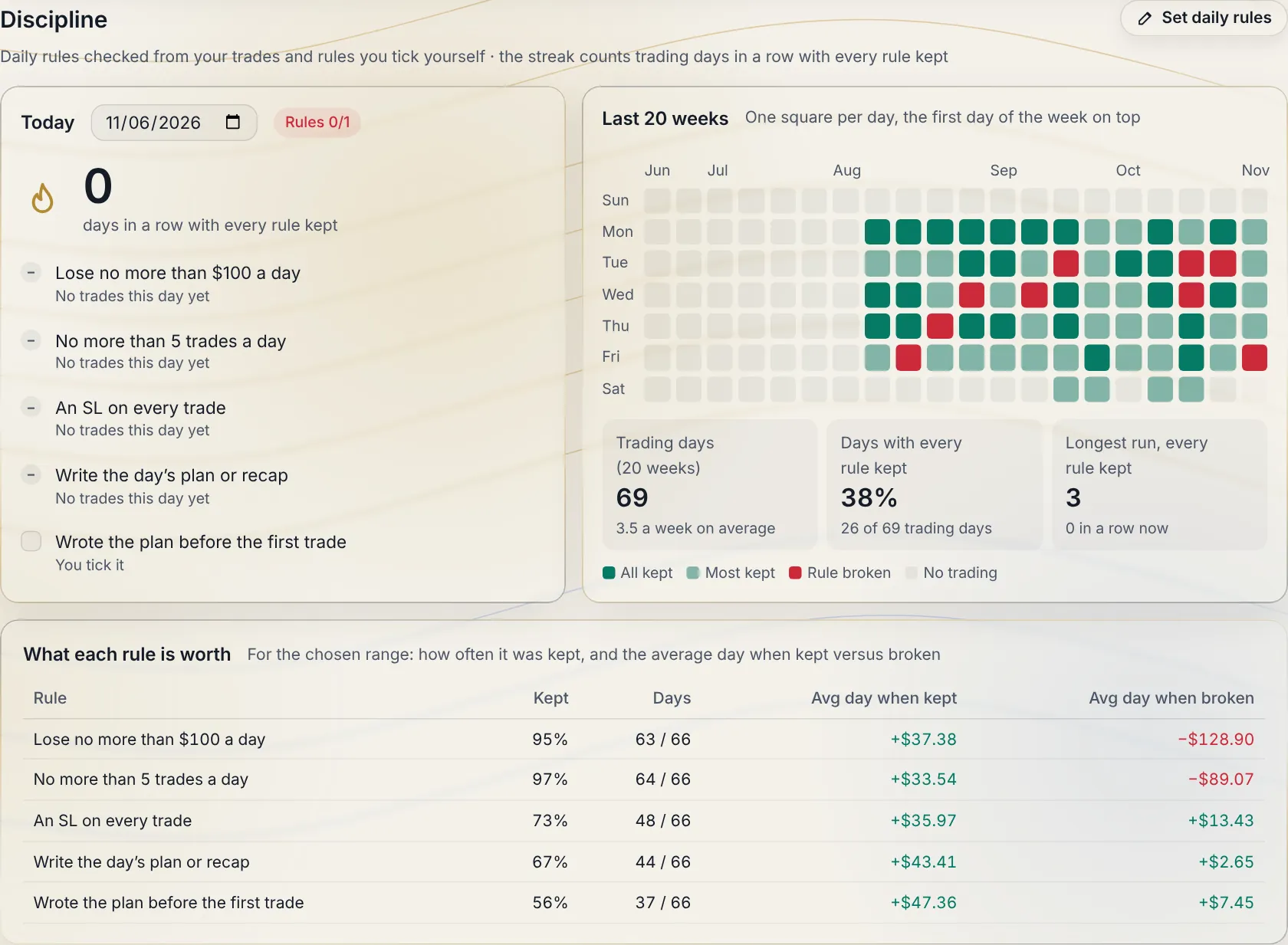
- วันติดกัน: นับวันเทรดติดกันที่ทำตามกฎครบThe streak: trading days in a row with every rule kept
- 20 สัปดาห์ล่าสุด: หนึ่งช่องต่อวัน ครบทุกข้อ, ส่วนใหญ่ (60% ขึ้นไป), ผิดกฎ หรือไม่ได้เทรดLast 20 weeks: one square per day: all kept, most kept (60% or more), a rule broken, or no trading
- กฎแต่ละข้อทำให้ผลต่างกันแค่ไหน: ในช่วงที่เลือก ทำตามบ่อยแค่ไหน และผลเฉลี่ยของวันที่ทำตามเทียบกับวันที่ผิดWhat each rule is worth: for the chosen range, how often it was kept and the average day when kept against broken
ส่วนที่ 10Part 10
Journal ProJournal Pro
1เชื่อม MT5 อัตโนมัติMT5 auto-sync
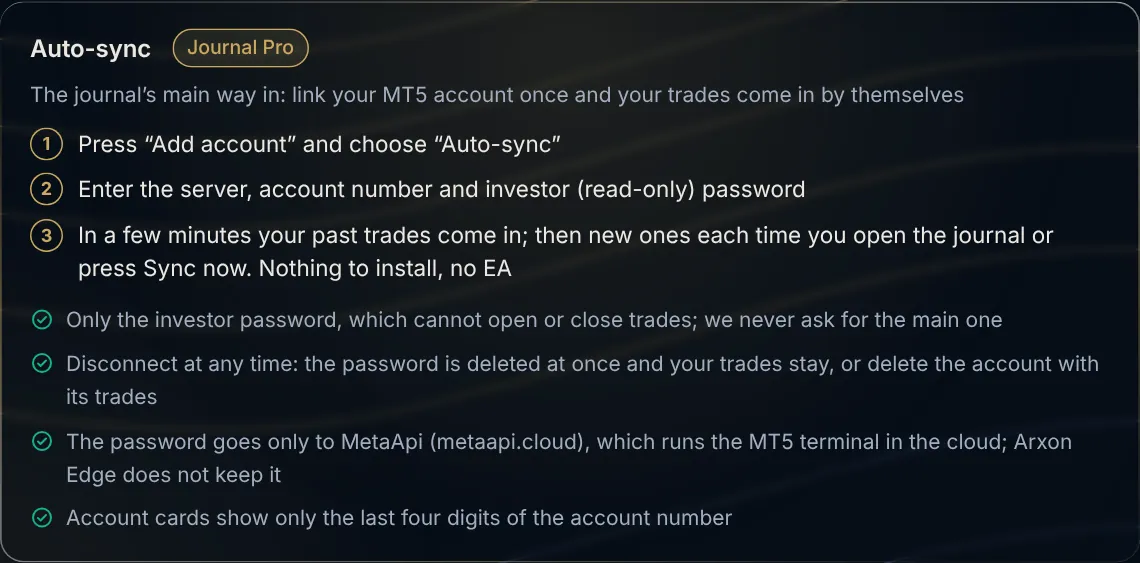
เชื่อมบัญชี MT5 ครั้งเดียว แล้วเทรดเข้ามาเอง ไม่ต้องติดตั้งอะไร ไม่ต้องใช้ EA เลือก เชื่อมอัตโนมัติ ตอนเพิ่มบัญชี ใส่ Server (พิมพ์ชื่อโบรกเกอร์เพื่อค้นหา หรือพิมพ์ชื่อ Server เต็มตามที่ MT5 แสดง) เลขบัญชี และรหัสนักลงทุน ติ๊กยอมรับข้อตกลงการเชื่อมบัญชี แล้วกด เชื่อมต่อ ภายในไม่กี่นาทีเทรดย้อนหลังจะเข้ามา จากนั้นเทรดใหม่จะเข้าทุกครั้งที่เปิด Journal หรือกด ซิงก์ตอนนี้Link an MT5 account once and trades come in by themselves; nothing to install, no EA. Choose Auto-sync when adding an account, enter the server (type your broker to search, or the full server name as MT5 shows it), the account number and the investor password, accept the account-linking terms and press Connect. In a few minutes your past trades come in; then new ones each time you open the journal or press Sync now.


- ใช้รหัสนักลงทุนเท่านั้นThe investor password only
รหัสนักลงทุนอ่านประวัติได้อย่างเดียว เปิดหรือปิดเทรดไม่ได้ อยู่ในอีเมลเปิดบัญชีจากโบรกเกอร์ หรือตั้งใหม่ในหน้าบัญชีของโบรกเกอร์ ถ้าใส่รหัสหลัก (ที่เทรดได้) ระบบจะลบการเชื่อมนั้นทันทีIt can only read history; it cannot open or close trades. It is in your broker’s account-opening email, or can be set in the broker’s account area. If the main (trading) password is entered, the link is deleted at once
- รหัสไปที่ MetaApi เท่านั้นThe password goes only to MetaApi
Arxon Edge ดึงประวัติเทรดและยอดผ่าน MetaApi (metaapi.cloud) ซึ่งรัน MT5 บนคลาวด์ Arxon Edge ไม่เก็บรหัส ข้อมูลใช้เพื่อแสดงและวิเคราะห์ให้คุณเท่านั้น ไม่ขาย ไม่ส่งต่อArxon Edge fetches the trade history and balance through MetaApi (metaapi.cloud), which runs MT5 in the cloud, and does not keep the password. The data is only used to show and analyze your trading for you; never sold or passed on
- ยกเลิกได้ทุกเมื่อDisconnect any time
ยกเลิกการเชื่อมแล้วรหัสถูกลบทันที เลือกได้ว่าจะเก็บเทรดไว้หรือลบบัญชีพร้อมเทรด การ์ดบัญชีแสดงเลขบัญชีแค่ 4 ตัวท้ายDisconnecting deletes the password at once; keep the trades, or delete the account with them. Account cards show only the last four digits
- จำนวนบัญชีที่ซิงก์How many accounts sync
Journal Pro เชื่อมอัตโนมัติได้ตามจำนวนในแพ็กเกจ ต้องการเพิ่มซื้อบัญชีซิงก์เพิ่มได้ในหน้านั้นเลย (คิดตามส่วนในรอบบิล) ถ้าแพ็กเกจไม่มีการเชื่อมอัตโนมัติแล้ว การซิงก์จะหยุดชั่วคราว ไฟล์ Report ยังใช้ได้ทุกแพ็กเกจJournal Pro auto-syncs as many accounts as the plan allows; add more right there (prorated within the period). If your plan no longer has auto-sync, syncing pauses; report files work on every plan
2กราฟราคาและ ReplayPrice charts and replay
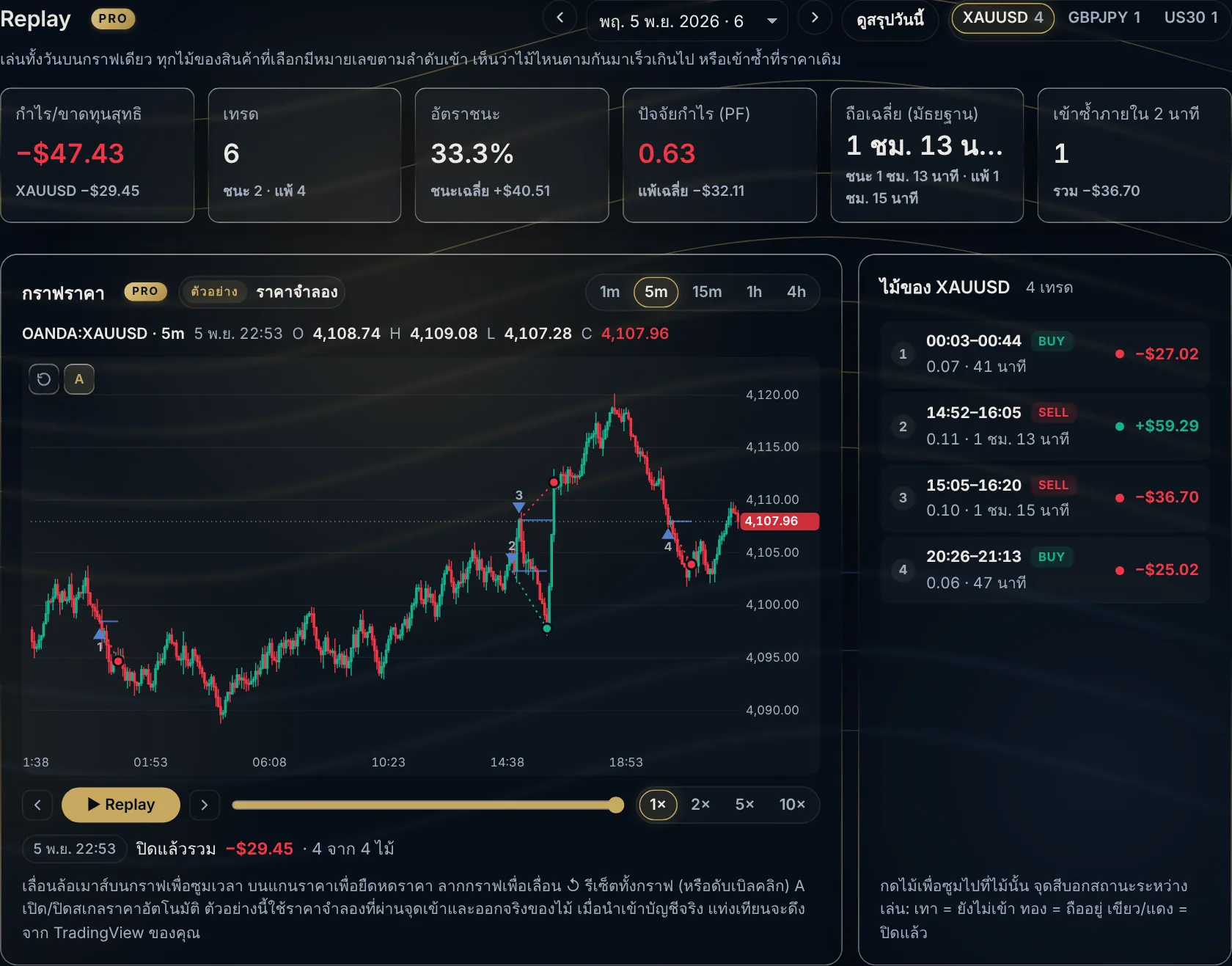
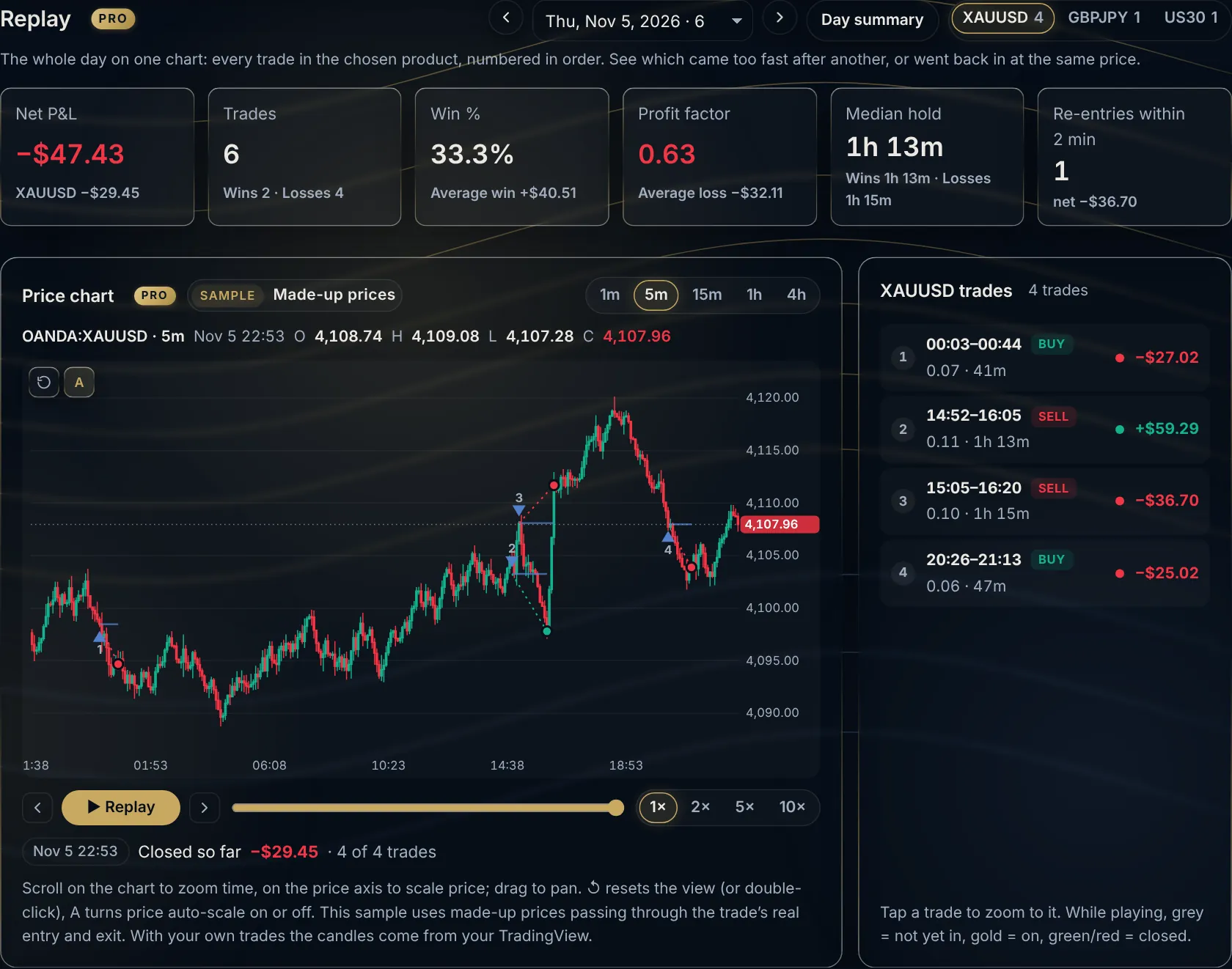
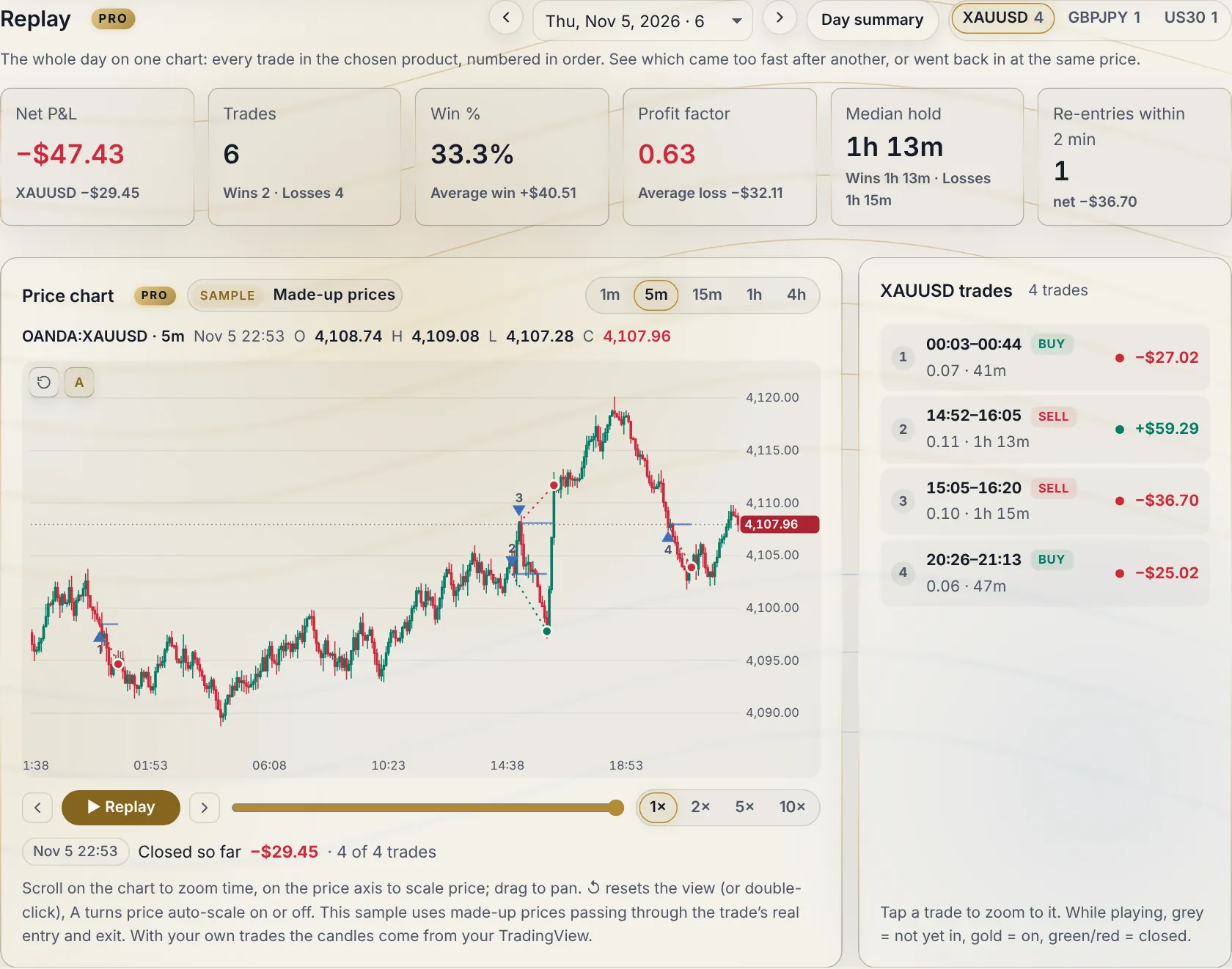
สำหรับบัญชีที่เชื่อมอัตโนมัติ แท่งเทียนมาจากโบรกเกอร์ของบัญชีนั้น (ผ่าน MetaApi) ราคาเดียวกับใน MT5 ของคุณ เส้นน้ำเงินคือจุดเข้า ทองคือจุดออก เส้นประแดง/เขียวคือ SL/TP แถบทองคือช่วงที่ถือ เลื่อนบนกราฟเพื่อซูมเวลา บนแกนราคาเพื่อปรับสเกล ลากเพื่อเลื่อน ↺ รีเซ็ตมุมมองFor an auto-synced account the candles come from that account’s broker (through MetaApi), the same prices as in your MT5. Blue is the entry, gold the exit, dashed red/green SL/TP, the gold band the time held. Scroll on the chart to zoom time, on the price axis to scale price, drag to pan; ↺ resets the view.
Replay เล่นทั้งวันบนกราฟเดียว: ทุกเทรดของสินค้าที่เลือก เรียงเลขตามลำดับ เห็นว่าไม้ไหนเข้าเร็วเกินไปหลังไม้ก่อน หรือกลับเข้าที่ราคาเดิม ระหว่างเล่น เทาคือยังไม่เข้า ทองคือกำลังถือ เขียว/แดงคือปิดแล้ว แตะเทรดในรายการเพื่อซูมไปที่ไม้นั้นReplay plays the whole day on one chart: every trade in the chosen product, numbered in order, so you see which came too fast after another or went back in at the same price. While playing, gray is not yet in, gold is on, green/red is closed; tap a trade in the list to zoom to it.
ส่วนที่ 11Part 11
บัญชีและตั้งค่าAccounts and settings
1บัญชีAccounts
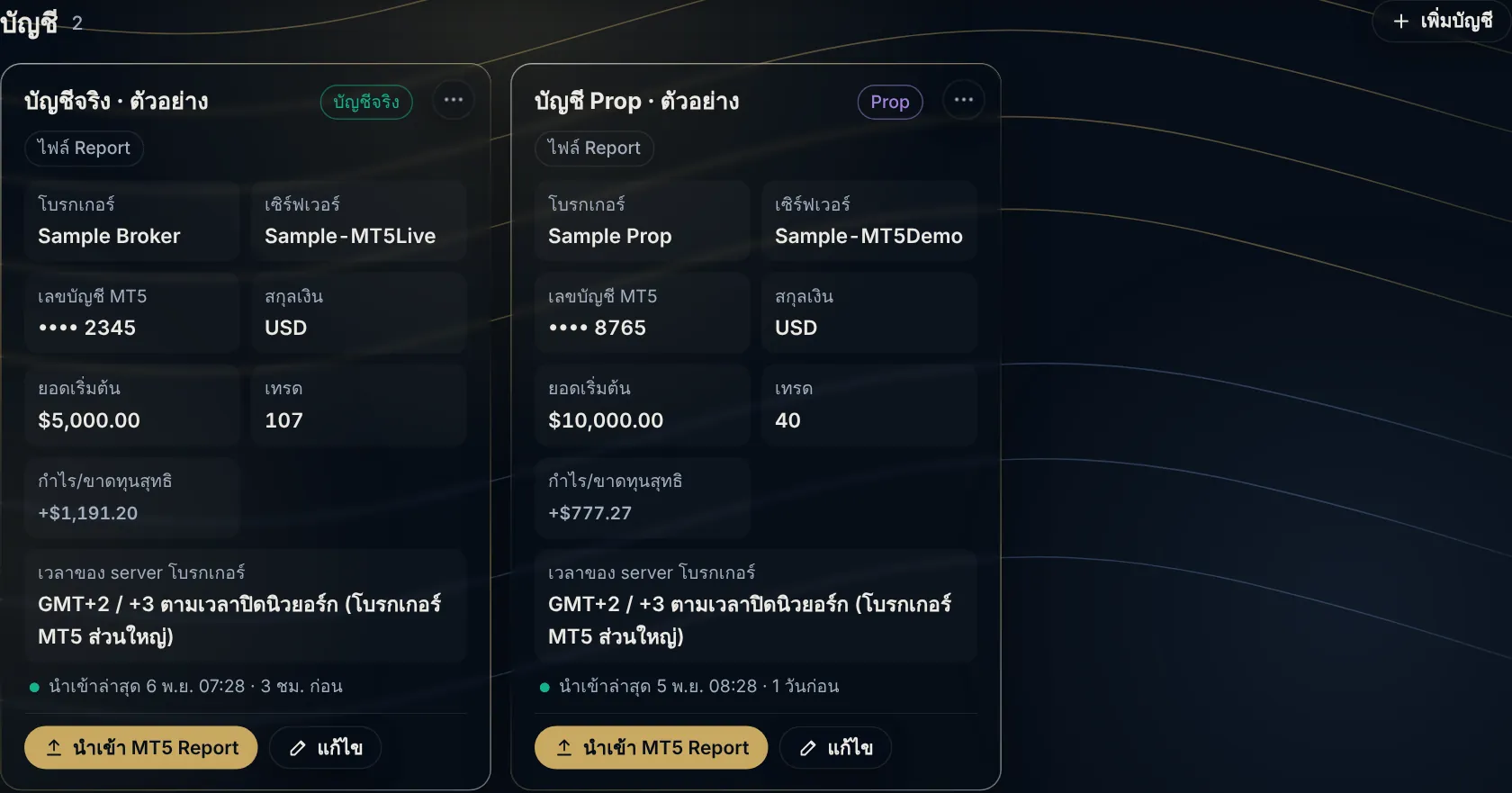
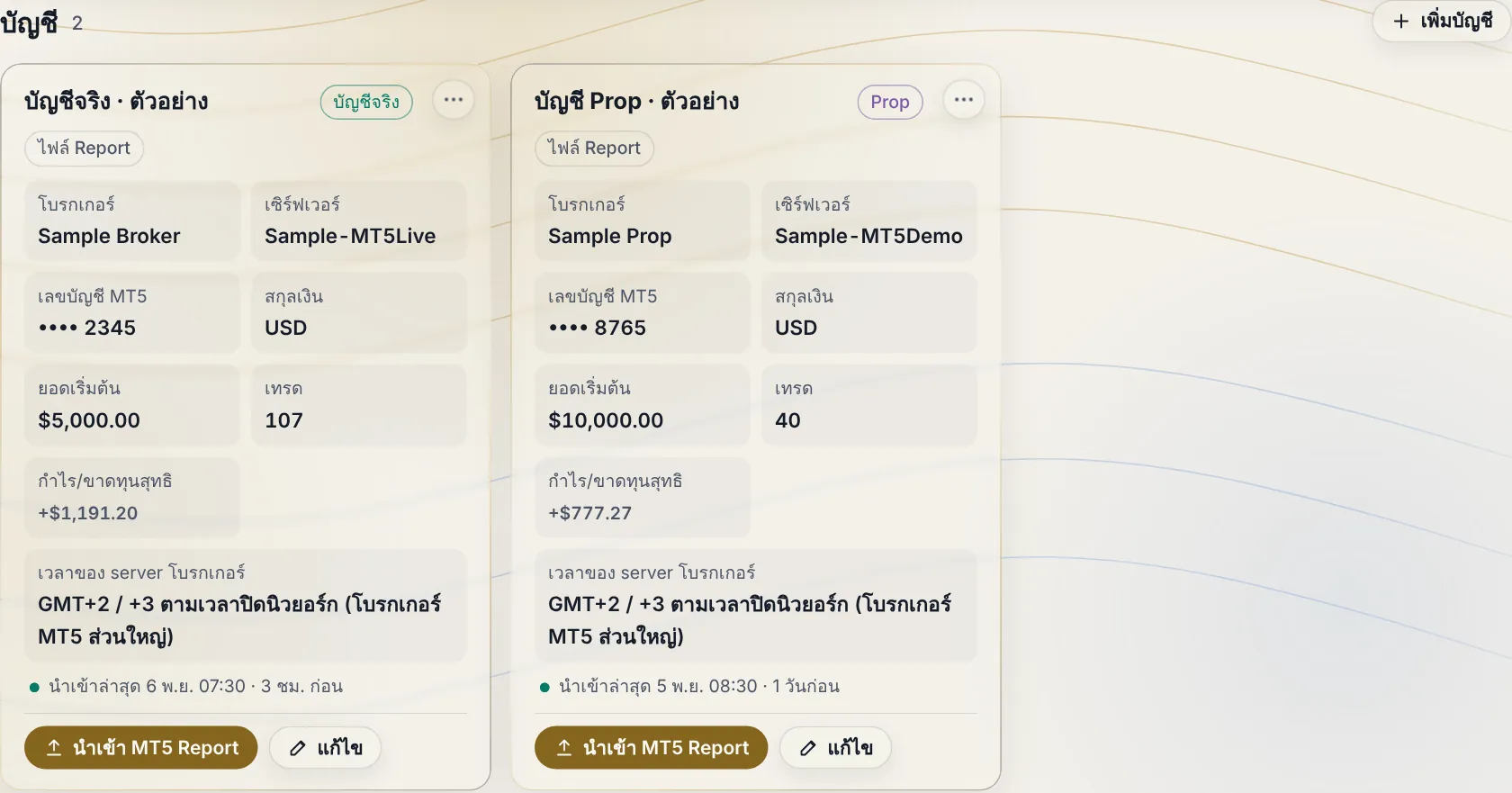
แต่ละบัญชีมีชื่อ โบรกเกอร์ Server เลขบัญชี สกุลเงิน ประเภท (บัญชีจริง บัญชีทดลอง Prop) ยอดเริ่มต้น (ใช้คิด % และ drawdown เป็น %) และเวลา server ของโบรกเกอร์ กด แก้ไข เพื่อเปลี่ยนEach account has a name, broker, server, MT5 login, currency, type (live, demo, prop), a starting balance (what % results and drawdown % are measured against) and the broker server clock. Press Edit to change them.
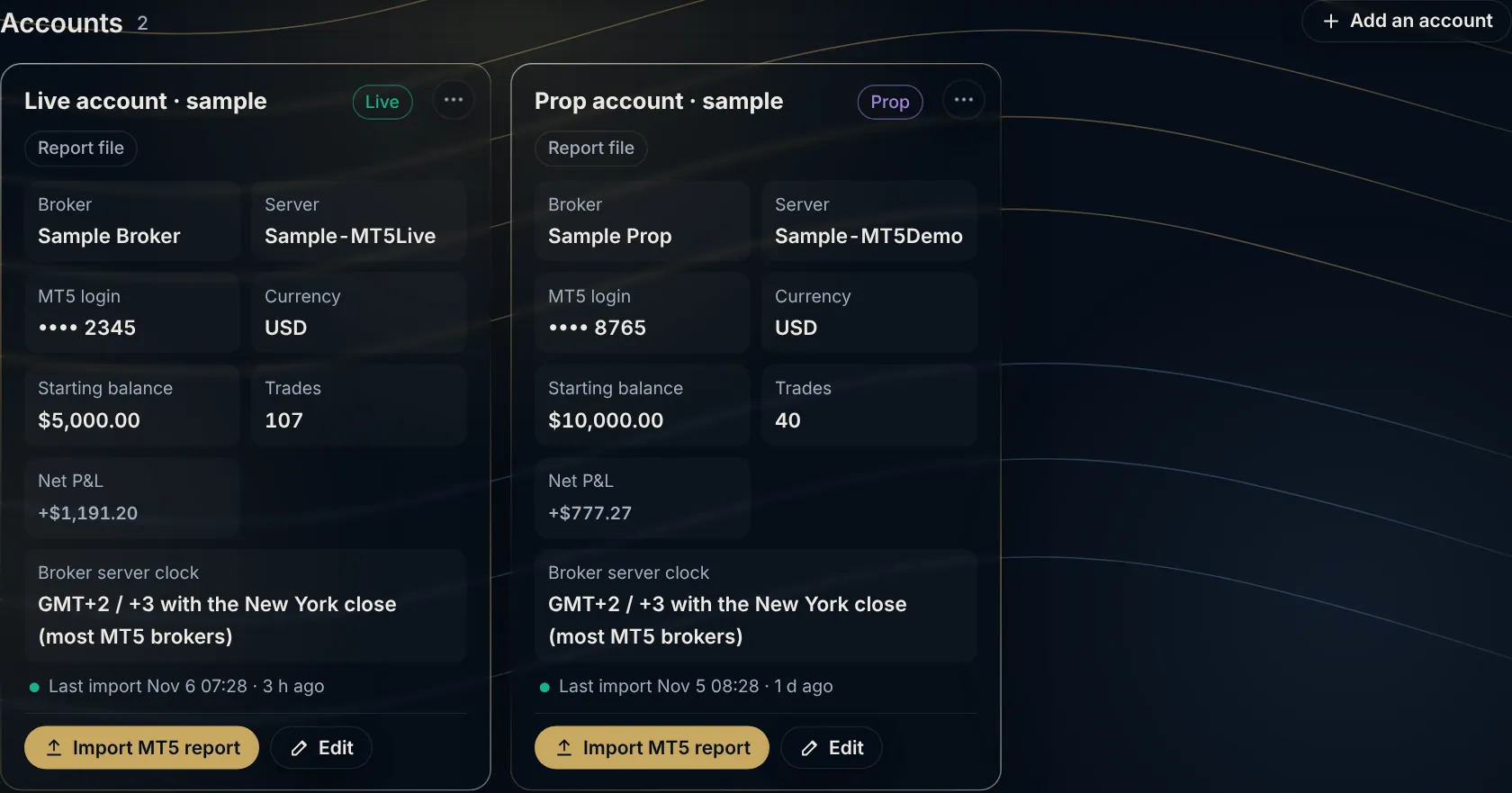
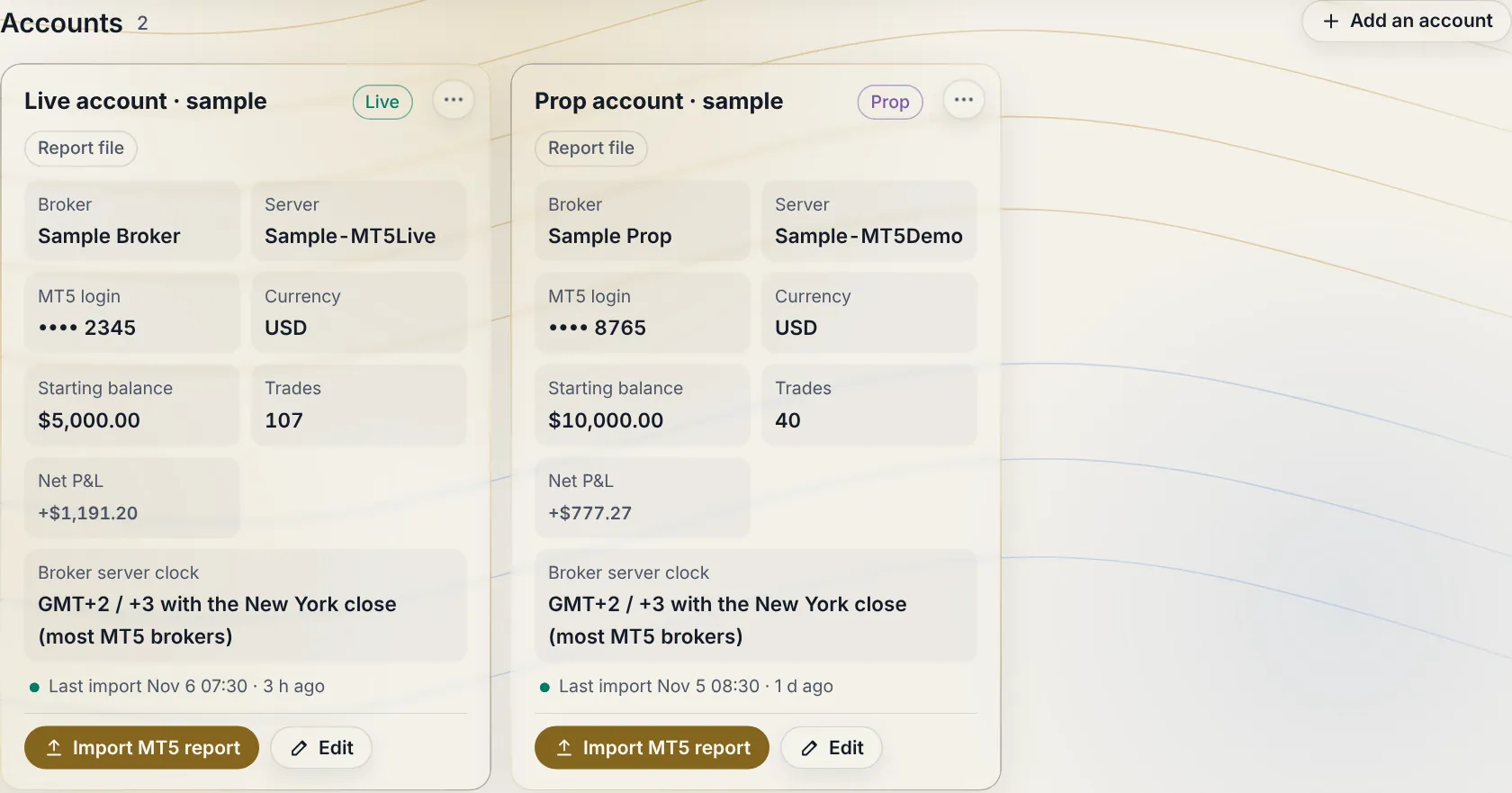
- เก็บบัญชี: ไม่นับใน "ทุกบัญชี" แต่เทรดยังอยู่ เลือกดูเดี่ยว ๆ ได้ และเอากลับมาได้เหมือนเดิมArchive: left out of “All accounts”; its trades stay, it can be viewed on its own, and unarchived as it was
- ล้างเทรดของบัญชีนี้: ลบเทรดแต่เก็บบัญชีไว้Clear this account’s trades: removes the trades, keeps the account
- ลบบัญชี: ลบบัญชีพร้อมเทรดทั้งหมด ต้องกดยืนยันซ้ำDelete account: deletes it with all its trades; press again to confirm
2ตั้งค่าSettings
ค่าในหน้าตั้งค่าบันทึกไปกับ Journal และตามไปทุกเครื่องSettings are saved with your journal and follow you to any device.
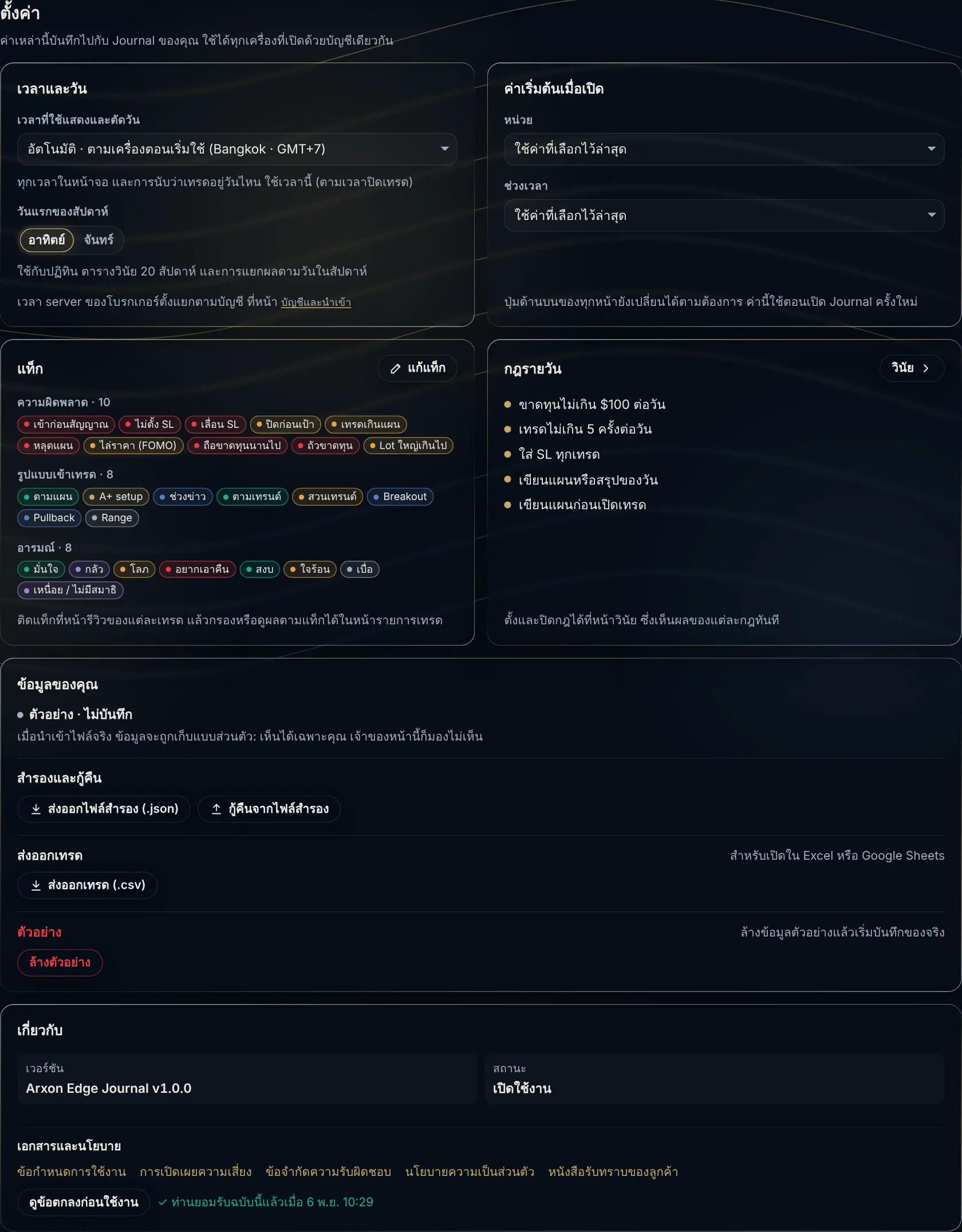
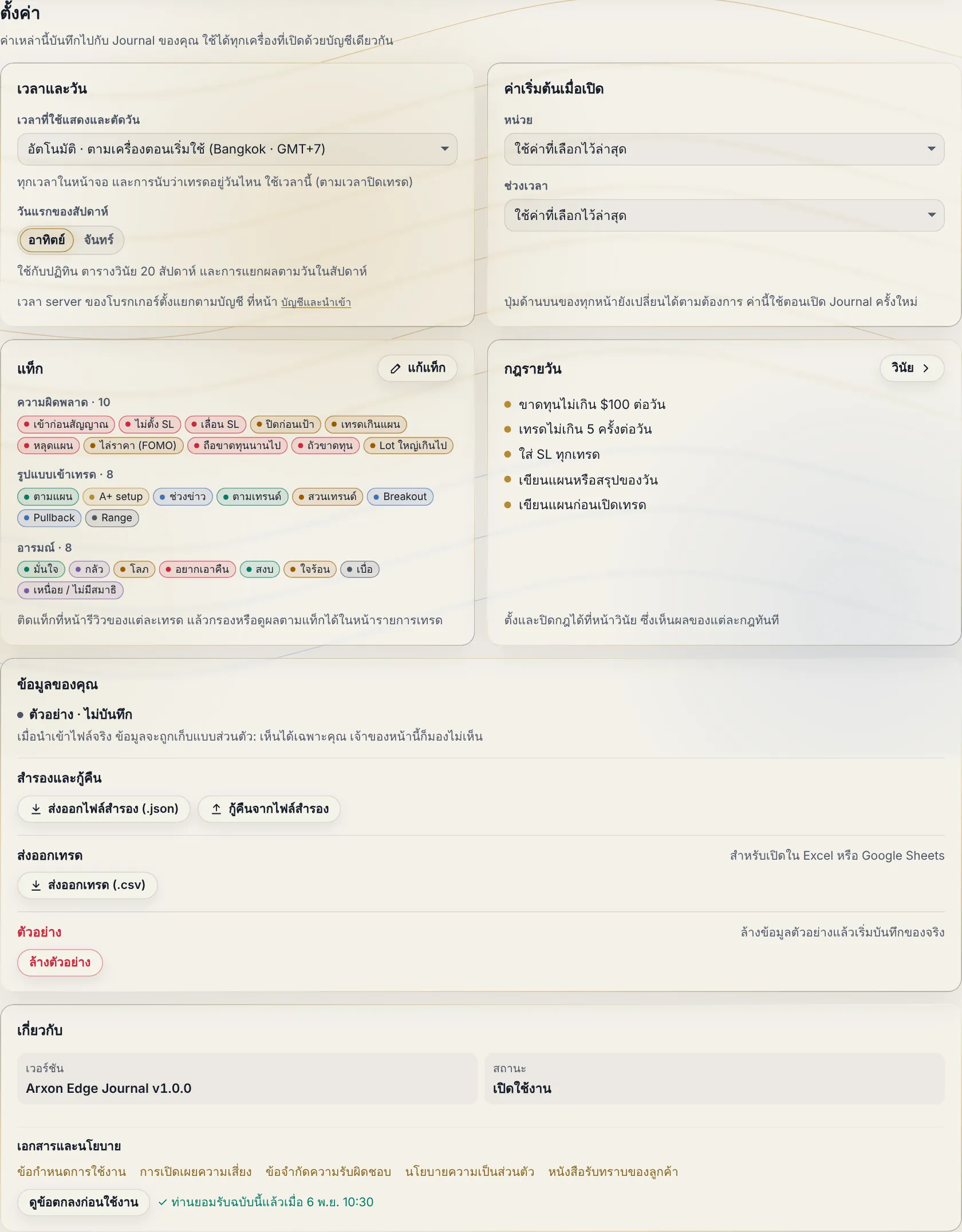
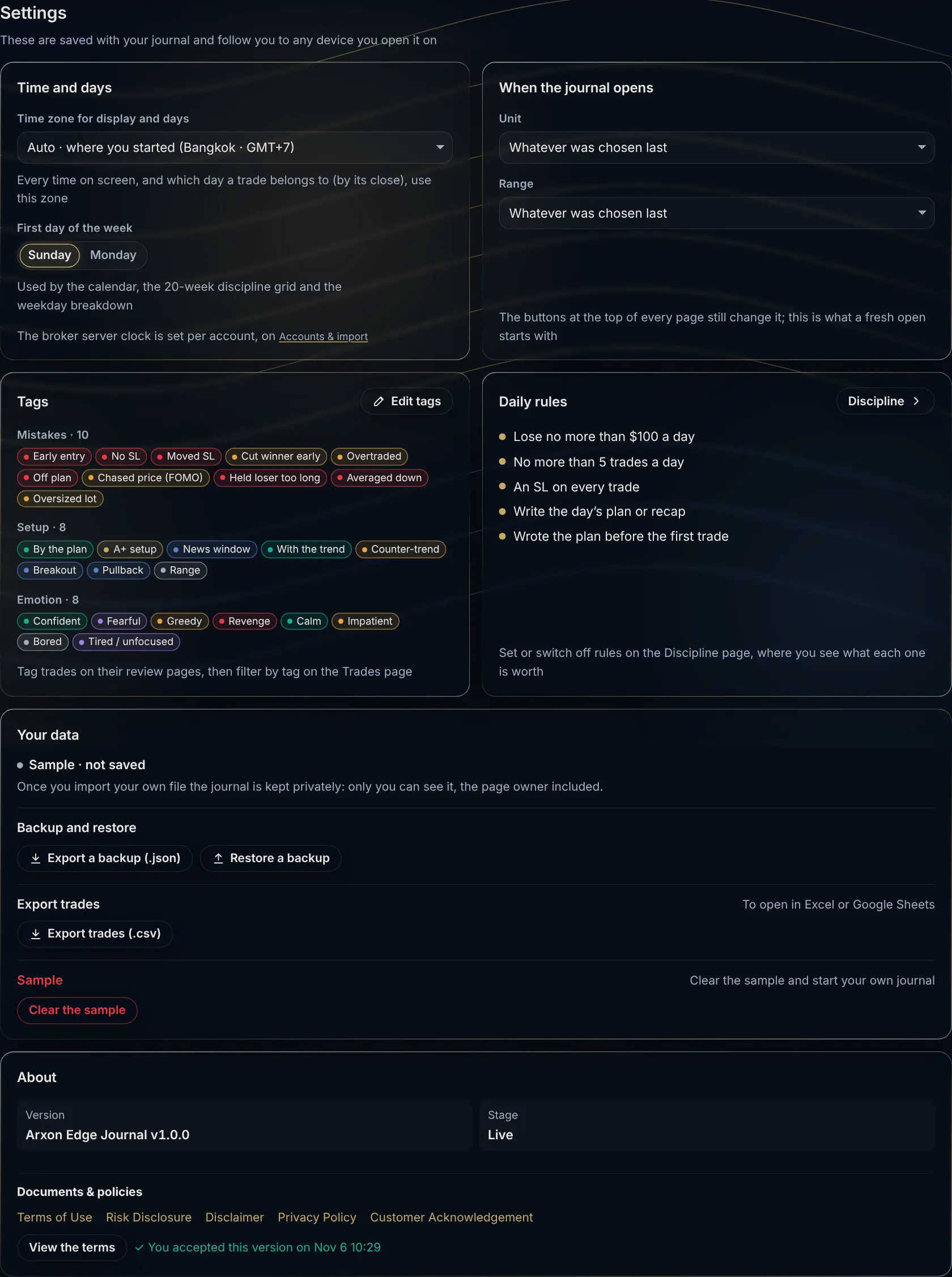
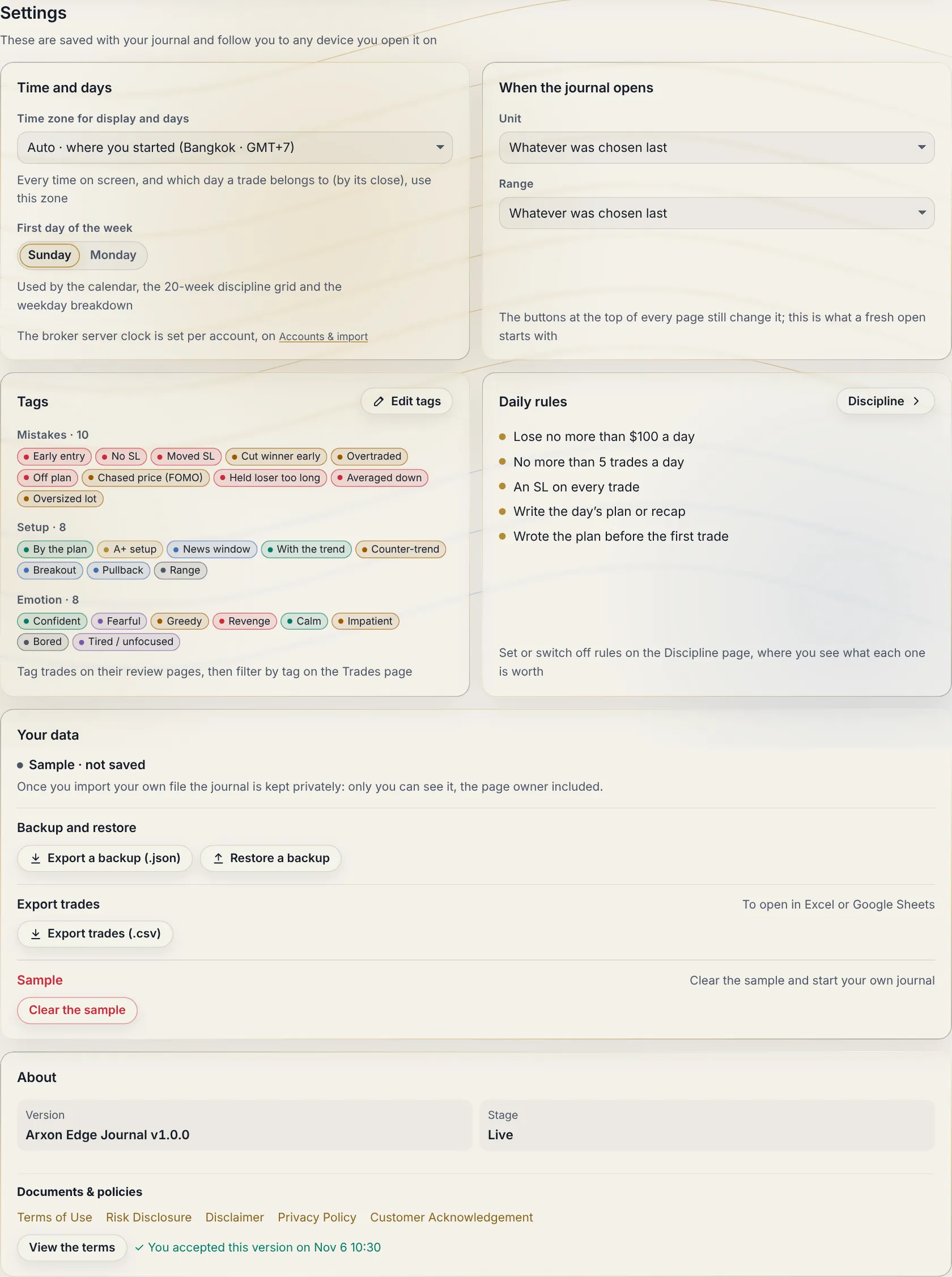
- เวลาที่ใช้แสดงและตัดวัน: ทุกเวลาบนหน้าจอ และเทรดเป็นของวันไหน (นับตามเวลาปิด) ใช้โซนนี้Time zone for display and days: every time on screen, and which day a trade belongs to (by its close), use this zone
- วันแรกของสัปดาห์: จันทร์หรืออาทิตย์ ใช้กับปฏิทิน ตาราง 20 สัปดาห์ และผลตามวันFirst day of the week: Monday or Sunday, for the calendar, the 20-week grid and the weekday breakdown
- ตอนเปิด Journal: หน่วยและช่วงเวลาเริ่มต้นWhen the journal opens: the starting unit and range
- แท็ก: ชื่อและสีของแท็กแต่ละกลุ่มTags: names and colors in each group
- ข้อมูลของคุณ: ส่งออกไฟล์สำรอง (.json), ส่งออกเทรด (.csv) เพื่อเปิดใน Excel หรือ Google Sheets, กู้คืนจากไฟล์สำรอง (แทนที่ทั้งหมด ไม่ได้รวมกับของเดิม) และลบข้อมูลทั้งหมด (ลบถาวร กู้คืนได้จากไฟล์สำรองเท่านั้น)Your data: export a backup (.json), export trades (.csv) for Excel or Google Sheets, restore a backup (it replaces everything, it does not merge), and delete all your data (for good; only a backup file brings it back)
ส่วนที่ 12Part 12
แพ็กเกจและความเป็นส่วนตัวPlans and privacy
| แพ็กเกจPlan | บัญชีเทรดTrading accounts | ประวัติที่แสดงHistory shown | เพิ่มเติมAlso | ได้มาจากComes with |
|---|---|---|---|---|
| ฟรีFree | 11 | 3 เดือนล่าสุด (เทรดเก่ากว่านั้นยังเก็บไว้ครบ)The last 3 months (older trades are kept) | ทุกหน้าในคู่มือนี้ ยกเว้น ProEvery page in this manual except Pro | บัญชี Arxon EdgeAn Arxon Edge account |
| PlusPlus | 55 | ทั้งหมดAll of it | –– | Arxon Edge Premium หรือการสนับสนุน The TideArxon Edge Premium, or The Tide support |
| ProPro | 1010 | ทั้งหมดAll of it | เชื่อม MT5 อัตโนมัติ กราฟราคา และ ReplayMT5 auto-sync, price charts and replay | สมัคร Journal Pro หรือการสนับสนุน The RitualA Journal Pro subscription, or The Ritual support |
ถ้าบัญชีเกินจำนวนในแพ็กเกจ จะเพิ่มบัญชีใหม่ไม่ได้ เก็บบัญชีที่ไม่ใช้เข้าคลังเพื่อเพิ่มบัญชีใหม่ได้ ปุ่มอัปเกรดเป็น Proในแอปพาไปหน้าชำระเงิน Journal Pro บนเว็บหลัก ราคาและรายละเอียดล่าสุดดูที่หน้า Arxon Edge Journal บนเว็บOver the plan’s account count you cannot add another; archive one you no longer use to add a new one. Upgrade to Pro in the app opens the website’s Journal Pro checkout page. Current prices and details are on the Arxon Edge Journal page of the website.
1ข้อมูลของคุณเก็บที่ไหนWhere your data is kept
- Journal เก็บไว้ในบัญชีของคุณ อ่านและเขียนได้เฉพาะเจ้าของบัญชีที่ล็อกอินอยู่The journal is kept in your account; only you, signed in, can read or write it
- ไฟล์ Report ถูกอ่านในเบราว์เซอร์ของคุณ ตัวไฟล์ไม่ได้ถูกส่งไปที่ไหนA report file is read in your browser; the file itself is sent nowhere
- ประวัติเทรดและยอดเงินเป็นข้อมูลส่วนบุคคล ดูนโยบายความเป็นส่วนตัวของ Arxon EdgeTrade history and balances are personal data; see the Arxon Edge privacy policy
- ตัวเลขทั้งหมดคำนวณจากไฟล์ที่นำเข้าหรือข้อมูลที่กรอก ให้ยึด statement ของโบรกเกอร์เป็นหลัก Journal เป็นเครื่องมือบันทึกและทบทวน ไม่ใช่คำแนะนำการลงทุนหรือสัญญาณซื้อขายEvery number is worked out from the files you import or what you type; your broker’s statement governs. The journal records and reviews your trading; it is not investment advice or a buy/sell signal
ส่วนที่ 13Part 13
คำถามที่พบบ่อยFAQ
- เทรดบนมือถือ นำเข้าได้ไหมI trade on my phone. Can I import?
แอป MT5 บนมือถือส่งออกได้แค่ PDF ซึ่งยังนำเข้าไม่ได้ ใช้ MT5 บนคอมพิวเตอร์ส่งออก HTML หรือใช้การเชื่อมอัตโนมัติของ Journal Pro ที่ดึงเทรดได้แม้เทรดผ่านมือถือThe MT5 phone app only makes a PDF, which cannot be imported yet. Export HTML from MT5 on a computer, or use Journal Pro auto-sync, which brings trades in even if you trade on your phone
- วันหรือเซสชันของเทรดเพี้ยนDays or sessions look off
ตรวจ เวลา server ของโบรกเกอร์ ในหน้าแก้ไขบัญชี (เทียบเวลาใน Market Watch กับเวลาจริง) และ เวลาที่ใช้แสดงและตัดวัน ในหน้าตั้งค่าCheck the broker server clock on the account (compare Market Watch with the real time) and the time zone for display and days in Settings
- ไม่มีค่า RThere is no R
R ต้องมี SL ใส่ SL ที่ตั้งใจไว้ในหน้ารีวิวของเทรดนั้น SL ที่ถูกเลื่อนไปจุดคุ้มทุนหรือกำไรไม่นับเป็นความเสี่ยงR needs a stop. Enter the stop you meant on the trade’s review page; a stop moved to break-even or into profit does not count as the risk
- % ไม่ขึ้นThe % figures are missing
ตั้งยอดเริ่มต้นของบัญชีในหน้าบัญชีและนำเข้าSet the account’s starting balance on Accounts & import
- นำเข้าไฟล์ซ้ำ จะซ้ำไหมWill re-importing duplicate trades?
ไม่ เทรดที่มีอยู่แล้วจะถูกอัปเดต โน้ต แท็ก และการติ๊กยังอยู่No. Existing trades are updated; notes, tags and ticks stay
- ยอดรวมไม่ตรงกับรายงานThe total differs from the report
มักเป็นค่าธรรมเนียมในตาราง Deals ที่ตาราง Positions ไม่มี หรือดีลนอกช่วงที่ส่งออก หน้าตรวจจะบอกส่วนต่างก่อนนำเข้าUsually fees in the Deals table the Positions table does not carry, or deals outside the exported period; the check shows the difference before you import
- แพ็กเกจหมดแล้ว ข้อมูลหายไหมDoes my data go when a plan ends?
ไม่หาย แพ็กเกจฟรีแสดง 3 เดือนล่าสุด ข้อมูลที่เก่ากว่ายังเก็บไว้ครบNo. The free plan shows the last 3 months; older trades are kept